
DSC PGP9986 Water Tile: Testing
Related Products

Related Categories
Description
In this video,Dylan from Alarm Grid will show you how to properly test the DSC PGP9986 Water Tile. After watching this video, you will be able to test the Water Tile for both adequate signal strength and functionality for both flood and freeze activation. This video shows you how to test the sensor with the Qolsys IQ Panel 4 step by step so you can protect your home from water damage. Watch to learn about proper testing.
00:00 - Intro
00:26 - Programming Overview
04:11 - PowerG Signal Test
06:10 - Flood Functional Test
06:57 - Freeze Functional Test
08:00 - Outro
🚨 Get Monitored! http://alrm.gd/get-monitored
🔔 Subscribe to Alarm Grid: https://www.youtube.com/c/AlarmGrid?sub_confirmation=1
▶ DSC PGP9986 Water Tile: https://www.youtube.com/watch?v=eMrWitxyA0w&list=PL5jRrn_Y1aOUQ80zkl8LiXdFFpXP5umyD
📖 Related FAQ: https://www.alarmgrid.com/faq/how-do-i-test-the-pgp9986-water-tile
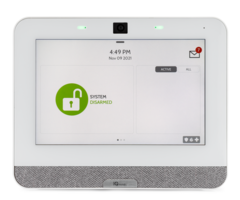
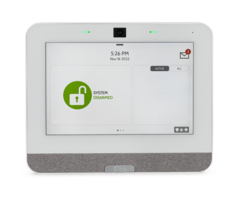
In this video, Dylan from Alarm Grid explains how to test the DSC PGP9986, both functionally and using the Qolsys IQ Panel 4's PowerG test. He begins by showing how to check the panel version and explaining the various ways the sensor can be programmed into the panel. For full functionality with the IQ4 the panel should be on version 4.6.1 or higher. You’ll then learn how to verify adequate signal between the Water Tile and the panel, perform a functional flood test, and a functional freeze test.
Wireless sensors require both signal and functional tests to ensure they perform their two critical jobs. The first job is detection: the sensor must identify the condition it's protecting against, such as the presence of water or too low ambient temperatures, in this case 41°F (5°C) or below. The second job is transmission: it must successfully relay an alarm detection to the alarm panel. A failure in either detection or transmission could spell disaster.
The testing process shown in this video applies to all IQ4 panels, including the IQ4 Hub. The IQ4 NS works the same way, but it requires the IQ Installer App to run tests unless you’ve paired a separate touchscreen keypad with the system. By the end of the video, you’ll know how to perform both a signal test and a functional test. Alarm Grid recommends performing monthly tests to keep your system operating at its best.
For more details, check out our written FAQ linked above, which provides screenshots and step-by-step text instructions.
Transcript
Hey, DIYers. Dylan here with Alarm Grid. Today we're going to review how to test the PGP 9986 water tile. So in a previous video, we showed how to install and program this. So today we're going to use that programmed sensor, test it with the water, test it with the freeze, and see how the panel reacts to both, and then how to clear the alarm.
All right. So we have our IQ4 panel. And then we have our PGP 9986 water in freeze tile, which is called water tile, but it can do freeze as well. So first thing that you'll want to check before you program this is that you are on the correct firmware.
So to do that, we're going to go into advanced settings. Enter the installer code, press about option, and then software, scroll down. I'm sorry it's actually right there. So software version, you have to be on 4.6.1 or higher. If you are on a lesser firmware version, this will still learn in, but it doesn't learn in the freeze option. It will only learn in the water option. So 4.6.1 or higher.
OK, so we have that confirmed. So now we're going to program the sensor. Devices, security sensors. And then before I press auto learn, so there are multiple ways where you can get this programmed. All right, so let me just undo this real quick.
OK. So first is when you have the sensor and you're installing the batteries, you want both of the positive sides to be up. So I'm just going to put one in there for now. I'm going to activate auto learn sensor. I'm putting in the second battery. And then this should pick up with the panel. There we go OK. So I'm going to press Cancel on that.
You can also learn it in through the tamper button, which is this black switch right here. So I'm going to press that and release. OK. And then finally, let me just close the sensor here. It might pick up the tamper again. So just give it a second. Yep. All right. Cancel, or you can press the learn button in the middle of the device.
So for this, you do have to apply some pressure towards this. And if it's pressed properly, you're going to hear a little beep come out of this. And then what we're going to do is we're going to hold this down for about 3 seconds. We'll get a yellow LED. Once that shows up, we release, and then the panel will pick up the sensor. So squeeze, yellow, let go. And there we go.
All right. So we have the sensor learned in. And then you see the external tamper. That's if we had the probe, but the probe is not available at the time of-- the probe is not available at the time that we're shooting this. So for now, we're just going to skip that. And you can disable or enable the LED on here in the buzzer as well. We're just going to leave those enabled. Add New.
Sensor added successfully.
OK. Sensor is added successfully. And as you see, it pulls in both the water and the freeze automatically. So as long as you're on that correct firmware version, those are both pull in and just back out of here. All right. So we have our sensor programmed to the panel. We're going to test the sensor in a moment, so we can make sure that it's going to trigger our alarm.
But before we do that, we can do a quick testing through the power G signal. So we'll go to the top bar here. Go to Settings, Advanced Settings.
Installer code.
Installer code. Ours is still 1111. System tests and power G test. So we see them showing here already. It is showing strong, but I just want to verify. So I'm going to do run for water. And that's going to run the freeze as well since it's the same sensor.
All right. And both are still showing strong. That's good. And then if we wanted more information about the sensor, you can press the More option. That's just going to show us the temperature of the sensor right now, signal strength, battery voltage, battery level, and a bunch of information here. You can do test LED and test buzzer on the sensor.
So if we do test LED. It's going to show that. So the LED is working. That's going to last about 2 minutes, so it's not really much you can do. You just have to let it go through. And then if we want to do test buzzer.
[BEEP]
Perfect and same thing. there's not really a way to stop this. So just letting it go through its length is all you can do. But at least it's showing that the LED and the buzzer are working. Our signal strength is good. So we know that the sensor is communicating properly. So now we'll move on to actually testing this.
[BEEP]
OK. So we have a plate of water here. And when we are testing this, there are two probes right here. That's going to be the sensor probes. And then almost instantly once this touches the water, it's going to trigger the alarm.
[BEEP]
OK. So we have the alarm here. We have the activation. We have the buzzer. We have the LEDs. And then when you take that out of the water, almost instantly the on board buzzer and LEDs turn off. We'll just dry that off here. And then you'll still have to actually disarm the panel. So I'm going to enter in 1234.
System is now disarmed.
OK. And I'm going to go ahead and put this in our freezer here. And then it will trigger the alarm as well.
Water freeze alarm.
OK. So we have the alarm triggered here. So that did take a little while because we just placed this in a normal refrigerator freezer. But once the-- that was my Alarm.com app going off. Once the temperature reaches 41 degrees Fahrenheit, it does trigger. So let's go ahead and disarm.
System is now disarmed.
OK, perfect. All right. So we tested for water, and we tested for freeze. Both came through. And then that's going to continue to show there until the freezer sensor is no longer at 41 degrees. So you'll just have to warm it up and get that off the 41 degrees there. And now clear. OK. So that is us testing the PGP 9986 water tile.
So we saw that once we put it on water almost immediately, it triggered. When we put it in our freezer here, it did take a little bit longer because we're not using a commercial freezer. It's just a simple refrigerator freezer. So it did take a little bit longer for this to get down to the trigger temperature of 41 degrees Fahrenheit, but we saw for both how it triggers the alarm and then how we clear it.
If you did like the video, please like the video. Subscribe to our YouTube channel and hit the bell icon to be notified about any future videos we release. For any questions for us, our phone number is 888-818-7728. We have an email address, which is support@alarmgrid.com. And then if you go to our website www.alarmgrid.com. We have a live chat option on there as well. So feel free to use any of those to contact us. Again, my name is Dylan from Alarm Grid, and thank you for watching.
- Uploaded