
How Do I Change the Date/Time Format On a 2GIG GC Touch?
To change the date and time format on the 2GIG GC Touch, disarm the panel, tap Settings (gear icon), and enter the Installer Code (1561 by default) or Master Code (1111 by default). Navigate to Equipment Management and select Date & Time to adjust the time and date display format.
The 2GIG GC Touch security panel (available in AT&T LTE and Verizon LTE versions) receives its current time automatically through its cellular or Wi-Fi connection, so you cannot manually set the clock. However, you can customize how the date and time appear on the home screen by choosing your preferred format.
The Date & Time settings screen offers two configuration options. The Time Format setting lets you choose between a 12-hour clock (AM/PM) or a 24-hour military time display. The Date Format setting provides options for either DD/MM/YYYY or MM/DD/YYYY display style.
Steps to Change the Date and Time Format On a 2GIG GC Touch
- Disarm the system. The panel restricts access to Settings when armed in either Away or Stay mode. Ensure the system displays "Disarmed" status before continuing.
-
Tap the Settings icon. The gear icon appears in the top-right corner of the home screen. This opens the Settings menu.
Below, the Settings gear icon is shown in the top-right corner of the home screen: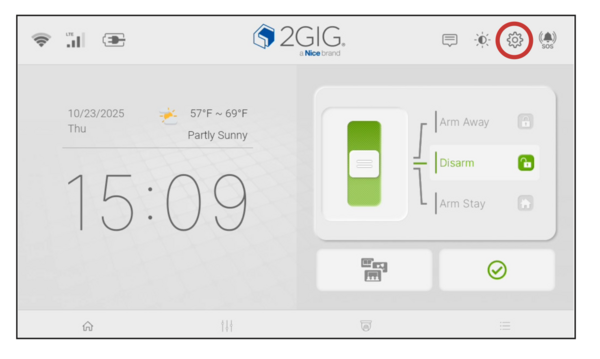
- Enter a valid code. Enter the Installer Code (default is 1561) or the Master Code (default is 1111) to gain access to Settings. The menu options displayed differ depending on which code you enter. Master Code shows user-focused settings while Installer Code provides access to technical configuration options. Both codes provide access to Equipment Management, where Date and Time settings are located.
-
Tap Equipment Management. The Equipment Management submenu contains system configuration tools.
Below you can see the Master Settings menu with Equipment Management highlighted: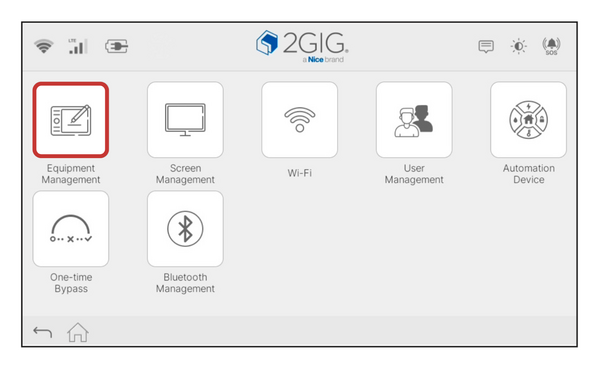
-
Tap Date & Time. The Date & Time icon shows a calendar with a clock. Tapping this icon will open the Date & Time settings screen.
Equipment Management submenu showing Date & Time option outlined: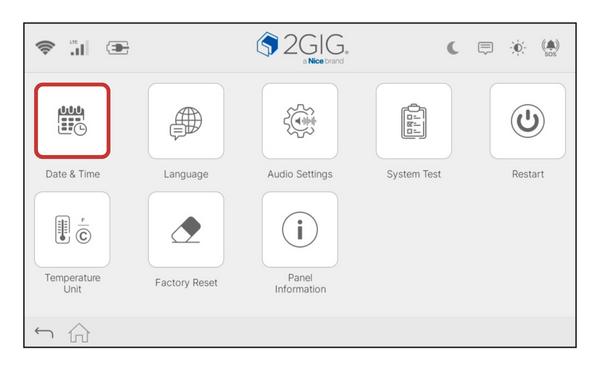
-
Select your preferred formats. Tap the radio button next to your desired Time Format (12 HR or 24 HR) and Date Format (DD/MM/YYYY or MM/DD/YYYY). Changes are saved automatically as you make selections.
Below you can see the Date & Time settings screen with both time and date format options: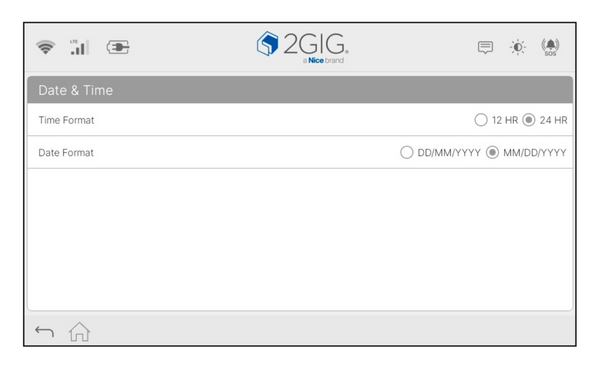
- Tap the Home icon. Press the home icon at the bottom-left in the bottom navigation bar to return to the Home Screen. Your new format preferences will display immediately.
The panel synchronizes its time through your network connection, ensuring accuracy without manual adjustments. This makes the 2GIG GC Touch ideal for professional monitoring services that require precise event timestamps.
Changing the date and time format on the 2GIG GC Touch helps personalize your security system display. The process takes less than a minute and requires only the Installer or Master Code. For help with display settings or other configurations on your GC Touch panel, contact the Alarm Grid support team. We're here Monday - Friday from 9:00 AM - 8:00 PM Eastern Time. Email us at support@alarmgrid.com.
Did you find this answer useful?
We offer alarm monitoring as low as $10 / month
Click Here to Learn MoreRelated Products


Related Categories
- Answered