
How Do I Delete a Door/Window Sensor from My 2GIG GC Touch?
To delete a door or window sensor, or any other sensor on the 2GIG GC Touch, open the Settings menu and enter the Installer Code, which is 1561 by default. Go to Sensor Settings, select the zone where the sensor is programmed, then tap Reset to permanently remove the device from the system.
Understanding Sensor Deletion
The 2GIG GC Touch security system (available in AT&T LTE and Verizon LTE versions) supports up to 128 wireless zones for sensors, keyfobs, and wireless keypads. When you remove a door or window contact from your home, replace a faulty sensor, or simply want to free up a zone for a different device, you can delete the sensor from the panel's programming. The deletion process clears all zone configuration data including the sensor's TXID, device type, loop number, and zone name. Once deleted, the zone becomes available for programming a new device. This action requires Installer-level access since it affects the core configuration of your alarm system.
Steps to Delete a Sensor
-
Disarm the system. The 2GIG GC Touch restricts access to Settings when armed. Make sure the panel shows Disarmed status before proceeding.
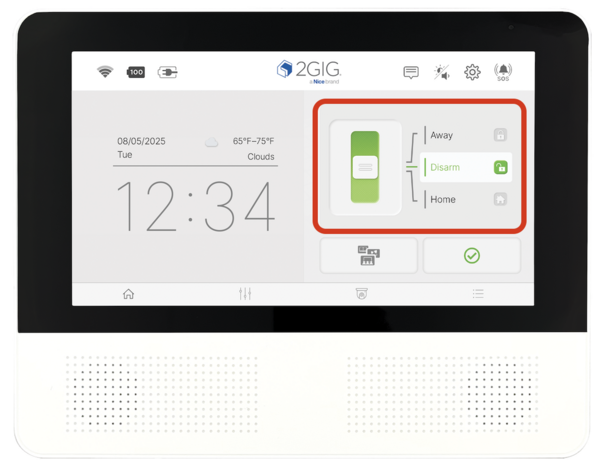
-
Tap the Settings gear icon. The gear icon is located in the top-right corner of the home screen. A keypad will appear prompting you to enter your code.
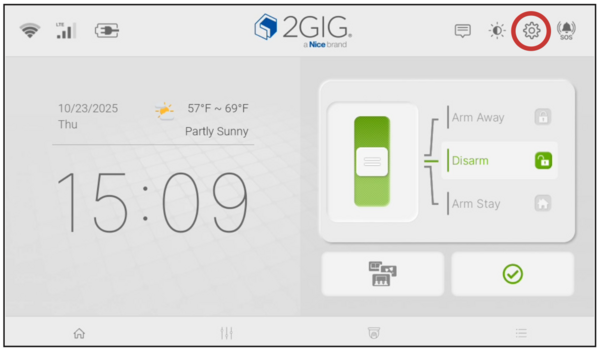
- Enter the Installer Code. Enter the current Installer Code (default is 1561). Sensor Settings is only accessible with Installer-level permissions. The Installer Settings menu will appear with multiple options.
-
Tap Sensor Settings. This option displays all 128 zones and allows you to add, edit, or delete devices. The screen shows enrolled sensors on the left panel.
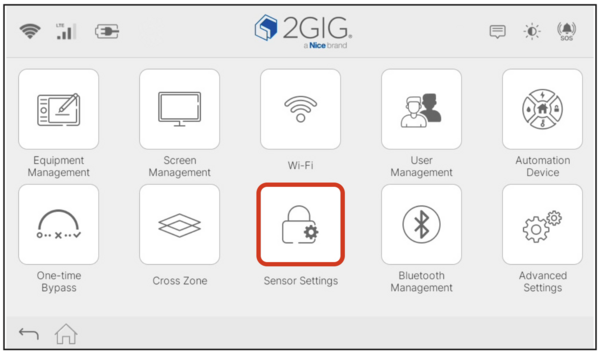
-
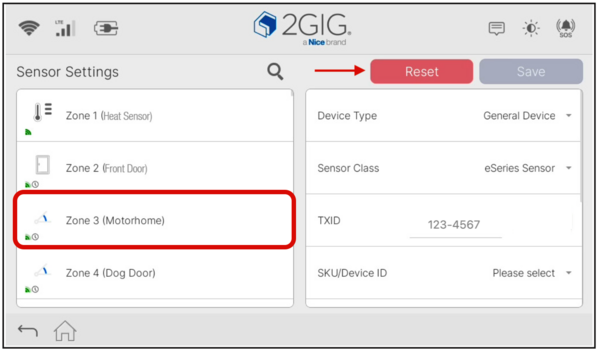
Select the zone to delete. Scroll through the zone list on the left side or use the Search function to find your sensor by name. Tap the zone to display its configuration on the right panel. The right panel shows device details including Device Type, Sensor Class, TXID, and zone programming.

-
Tap the Reset button. The red Reset button appears at the top of the right panel when a sensor is selected. Tapping Reset removes the device from the zone and clears all associated programming. The zone will now show as (Empty) and become available for a new device.

Deleting sensors from the 2GIG GC Touch keeps your security system organized and frees zones for new devices. The process requires the Installer Code (1561 by default) and takes just a few taps to complete. For help with sensor management on your GC Touch panel, contact the Alarm Grid support team at support@alarmgrid.com. We're here Monday - Friday from 9:00 AM - 8:00 PM Eastern Time.
Did you find this answer useful?
We offer alarm monitoring as low as $10 / month
Click Here to Learn MoreRelated Products


Related Categories
- Answered