
How Do I Enter Walk Test on a 2GIG GC Touch Alarm Panel?
To enter Walk Test on the 2GIG GC Touch, make sure your security system is disarmed, then tap Settings. Enter your Installer Code (1561 by default) or Master Code (1111 by default). Navigate to Equipment Management, then System Test, and finally tap Walk Test to verify your sensor ranges.
Understanding Walk Test
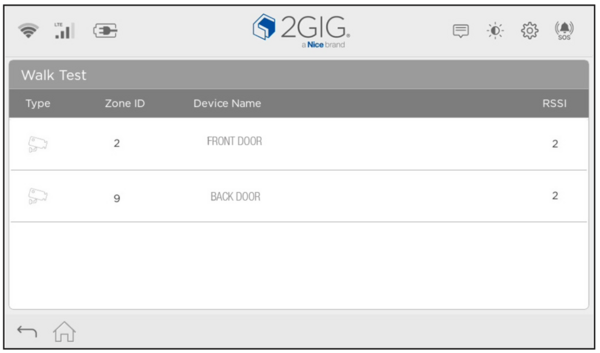
Walk Test is a diagnostic feature on the 2GIG GC Touch (available in AT&T LTE and Verizon LTE versions) that allows you to verify sensor signal strength throughout your home. After sensors have been programmed into the panel, this test confirms each device can effectively communicate with the security system. When you trigger each sensor during the test, the panel displays the device name, zone ID, and RSSI (Received Signal Strength Indicator) value.
Steps to Perform a Walk Test
- Disarm the system. The Settings menu is only accessible when the panel is in a disarmed state. If you try to access Settings while armed, you will see a message stating the operation is not allowed.
-
Tap the Settings icon. Look for the gear icon in the top-right corner of the home screen. This opens the code entry prompt.
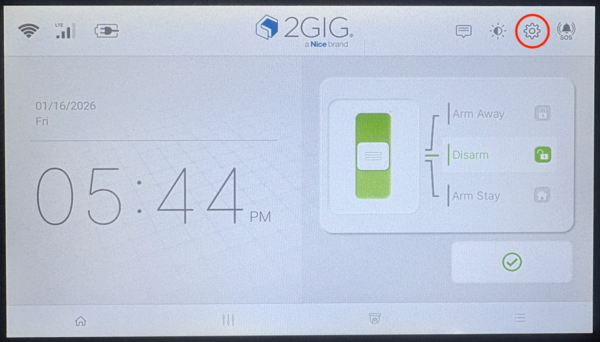
- Enter your code. Use either the Installer Code (1561 by default) or Master Code (1111 by default), then tap Enter (↵). The Installer Code provides access to all settings including advanced programming options.
-
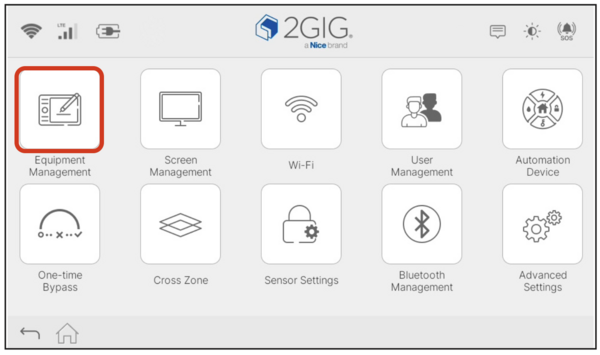
Tap Equipment Management. After entering your code, you will see the Settings menu. Equipment Management contains system configuration options including System Test.
-
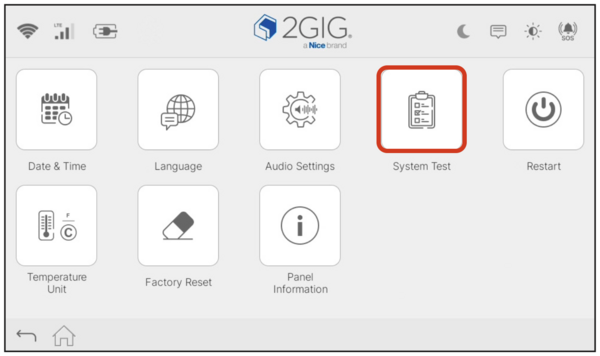
Tap System Test. Within Equipment Management, you will find several options including Date & Time, Language, Audio Settings, and System Test. Select System Test to access the testing features.
-
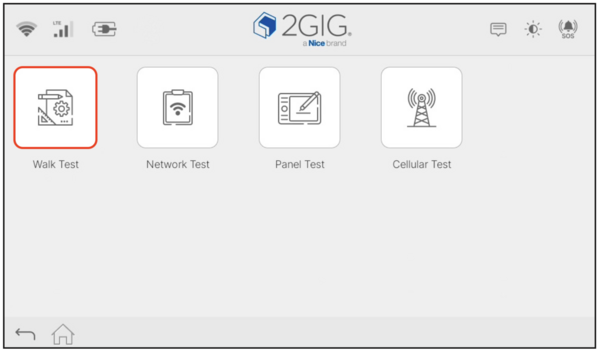
Tap Walk Test. The System Test screen displays four test options: Walk Test, Network Test, Panel Test, and Cellular Test. Select Walk Test to begin sensor testing.
- Test each wireless sensor. Once Walk Test mode is active, physically trigger each sensor in your home automation and security setup. Open and close doors and windows with contact sensors, walk past motion detectors, and activate any other sensors. If you have specialized sensors like glass break detectors or flood and temperature sensors, refer to each sensor's installation manual for instructions on how to properly test.
-
Review the results. When the panel receives a signal from a triggered wireless sensor, it displays the sensor type, zone ID, device name, and RSSI value. RSSI indicates the signal strength between the sensor and the panel. The RSSI scale ranges from 1 to 5, with 5 representing the strongest signal. An RSSI of 2 is considered the minimum acceptable level, while a value of 3 or higher is preferred. A Walk Test Timeout message appears after five minutes of inactivity while on this screen.
Walk Test on the 2GIG GC Touch helps ensure all sensors communicate reliably with your security system. Testing sensor placement after installation or repositioning confirms proper coverage throughout your home. For help with Walk Test or other diagnostic features on your GC Touch panel, contact the Alarm Grid support team at support@alarmgrid.com, Monday - Friday from 9:00 AM - 8:00 PM Eastern Time.
Did you find this answer useful?
We offer alarm monitoring as low as $10 / month
Click Here to Learn MoreRelated Products


Related Videos

- Answered