
How Do I Integrate an IQ Pro Panel with Control 4?
To integrate the IQ Pro with Control4, access panel programming via the IQ Installer App. Tap Configuration > Installation > Devices > WIFI > 3rd Party > Control4. Enable Control4, which will require you to enable 6-digit codes. Toggle on 6-digit codes and confirm. The panel will reboot.
Control4 is an automation package that uses software drivers to allow a single point of control for a diverse set of automation-capable devices. In addition to the IQ Pro, Control4 can be used to control lights, audio/video devices, thermostats, motorized blinds, appliances, and more. When it comes to automation, Control4 has much broader compatibility than the IQ panel itself, but it is also a more complex system to configure, often requiring the help of an integration specialist.
Requirements
- The panel must be on the latest firmware version.
- You must be able to connect with the panel using the IQ Installer App. This requires that you know the current panel Installer Code. If you are connecting to the panel for the first time, you will be required to change the Installer Code immediately upon connecting.
- When enabling Control4 integration, you must also enable six-digit user codes for the panel.
- The Control4 system and the panel must be on the same network.
- For the most reliable connection, it is recommended to use SDDP (Simple Device Discovery Protocol) or a static IP (on the panel) for Control4 integration. SDDP is a protocol developed by Control4 to make adding devices easier.
Enabling Control4 Integration For the IQ Pro
-
Access panel programming. Using the IQ Installer App, available as a free download from the Apple App Store and the Google Play Store, connect to the IQ Pro panel.
- Open the IQ Installer App and press "Start" to begin.
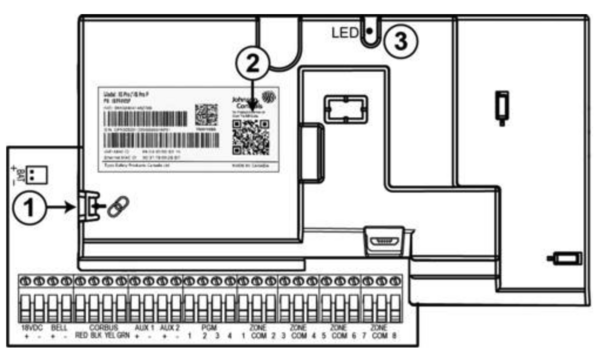
- Tap "Scan QR Code". Position your phone or tablet camera to scan the QR Code inside the panel's enclosure.
- Tap "Continue".
- Press and hold the pairing tab on the left side of the PCB cover for a couple of seconds until the green LED begins to flash red. Release the tab.
- When the flashing red LED begins to flash blue, tap "Next" within the app.
- Enter the panel's Installer Code to connect. The default Installer Code is 1111.
- If this is your first time connecting to the panel through the IQ Installer App, you will be prompted to change the Installer Code. Be sure you change the code to something you can remember. If you forget the code, you won't be able to reconnect using the IQ Installer App unless your alarm dealer changes the Installer Code for you using Alarm.com. If your IQ Pro is not monitored, you might be unable to reconnect without the Installer Code.
-
Enable Control4 integration.
- From the IQ Installer App, go to Configuration.
- Select Installation.
- Tap Devices.
- Select WIFI.
- Tap 3rd Party.
- Select Control4.
- Toggle Control4 to enable it.
- When prompted, enable 6-digit user codes and confirm.
- Allow the panel to reboot.
-
Verify network settings.
- Ensure the IQ Pro panel is connected to the same network as the Control4 controller.
- Confirm the panel has a valid IP address.
- Configure a static IP address on the panel for more reliable integration.
-
Add the panel in Control4.
- Open Control4 Composer (typically Composer Pro).
- Add the appropriate IQ driver to the project. The driver is the same for every IQ panel.
- Use SDDP for automatic discovery, or manually enter the panel's IP address.
- Follow the prompts within Composer to complete the driver setup.
-
Test integration.
- Verify that the Control4 system can arm and disarm the IQ Pro.
- Confirm that zone status updates properly within Control4.
- Test any automation rules or scenes that involve the security system.
| Callout | Description |
|---|---|
| 1 | Pairing tab. Press for 1 to 2 seconds when prompted on the IQ Installer App. |
| 2 | Scan QR code as indicated. |
| 3 | Green LED. When the pairing tab is pressed, the LED flashes red, then flashes blue. |
Did you find this answer useful?
We offer alarm monitoring as low as $10 / month
Click Here to Learn MoreRelated Products

- Answered
- Answered By
- Julia Ross