
How Do I Power Down or Shut Off My 2GIG GC Touch Panel?
To power down the 2GIG GC Touch, remove the rear access cover from the front panel to access the internal power button. Press and hold the power button for 2 seconds to display the shutdown menu, then select Shutdown. For an immediate forced shutdown, hold the button for 5 seconds instead.
The 2GIG GC Touch (available in AT&T LTE and Verizon LTE versions) provides controlled shutdown options through the internal power button. Unlike many security system panels that require disconnecting power cables, the GC Touch offers a proper shutdown process that protects system data and ensures clean restart.
Accessing the Power Button
The power button is located inside the panel behind the rear access cover. This cover sits on the front panel assembly and can be removed using a Phillips screwdriver. The power button, reset button, and recovery button are grouped together on the inside left of the internal compartment when you face the rear of the panel.
Standard Shutdown Process
Follow these steps to properly shut down the 2GIG GC Touch:
- Put your system on test. If your system is monitored by a central station, be sure to put the system on test before moving to Step 2. Removing the rear cover will cause a tamper, so be prepared to silence it. If you are monitored, this tamper will send a signal to the monitoring station and a notification to any Alarm.com users with notifications enabled.
- Disarm the system. Ensure the panel shows Disarmed status before beginning the shutdown process. If the system is armed when you remove the rear cover, the tamper will cause an alarm to occur when the rear cover is opened.
-
Remove the rear access cover. First, remove the panel from the rear housing by removing the two securing screws from the bottom edge of the panel. Once the screws are loosened, pull the bottom of the panel forward, then press the panel down from the top edge to disengage the top tabs. Now the main panel is separated from the rear housing. Lay the panel on a flat, non-abrasive surface to prevent scratching the touchscreen surface. Remove the securing screw and pull the rear panel cover free. This will reveal the internal buttons and connectors.
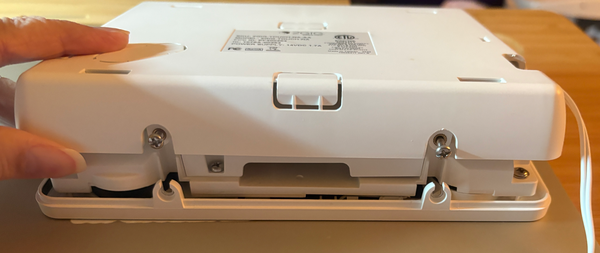
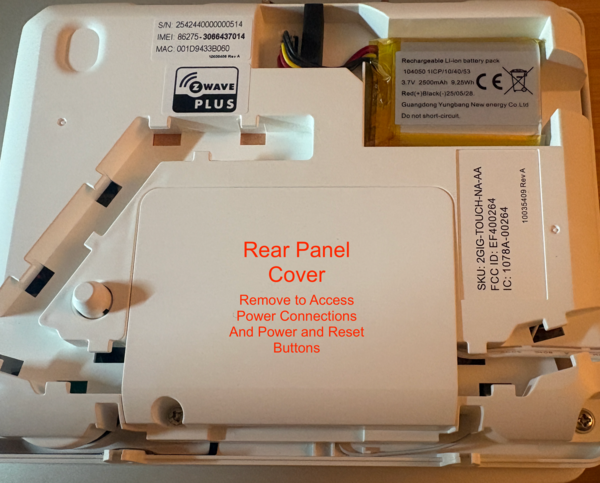
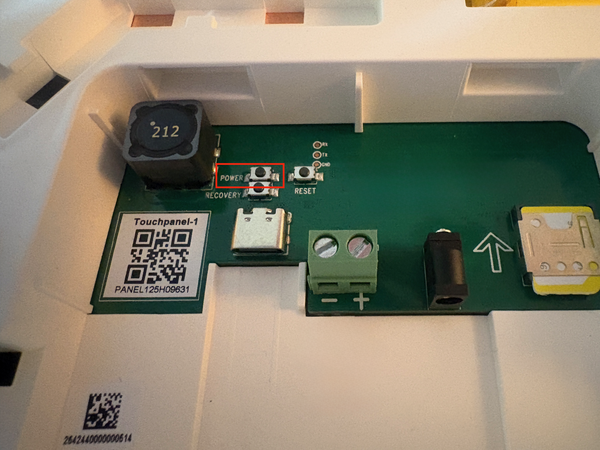
- Press and hold the power button for 2 seconds. The power button is the top left button in the group of three on the left side. Holding for 2 seconds displays a menu on the touchscreen with shutdown and restart options.
-
Select Shutdown from the menu. Tap Power Off on the touchscreen to begin the power-down sequence. The panel saves current settings and arming state before turning off completely.


Force Shutdown Option
If the touchscreen becomes unresponsive and you cannot access the shutdown menu, press and hold the power button for 5 seconds to force an immediate shutdown. This bypasses the menu entirely and powers off the panel directly. Use this method only when the standard shutdown process is not available, as it does not allow the system to save state properly.
Using the Reset Button
The reset button next to the power button provides a quick panel reset function. Press the reset button once to restart the panel without going through the shutdown menu. This is useful when the system needs a quick reboot but does not require a full power-down cycle.
What Happens After Shutdown
After a complete shutdown, the panel retains its programming, user codes, and sensor configurations in non-volatile memory. When power is restored, the system returns to the same arming and bypass state it was in before shutdown. The panel remembers its last arming state for at least 14 days after a full power loss.
To power the panel back on after shutdown, either reconnect AC power (the panel starts automatically) or press and hold the power button for 2 seconds. After startup, the panel ignores sensor signals for at least 60 seconds while the wireless radio stabilizes.
Properly shutting down the 2GIG GC Touch protects system data and ensures reliable operation when power is restored. The shutdown process takes only a few seconds and the panel retains all programming during the power-off period. For help with power management or other settings on your GC Touch panel, contact the Alarm Grid support team. We're here Monday - Friday from 9:00 AM - 8:00 PM Eastern Time. Email us at support@alarmgrid.com.
Did you find this answer useful?
We offer alarm monitoring as low as $10 / month
Click Here to Learn MoreRelated Products


Related Categories
- Home Security Systems
- Home Security Systems
- Business Security Systems
- Business Security Systems
- Apartment Security Systems
- DIY Wireless Security Systems
- Touchscreen Alarm Panels
- Wireless Touchscreen Alarm Panels
- Touchscreen Alarm Panels
- Answered