
How Do I Power On the 2GIG GC Touch Panel for the First Time?
The 2GIG GC Touch powers on automatically when power is applied using the included DC adapter. Connect the barrel connector to the panel's power jack, or connect wires to the power terminals and plug the adapter into a wall outlet. The panel powers on and boots up within about 30 seconds.
Understanding the Power System
The 2GIG GC Touch (available in AT&T LTE and Verizon LTE versions) uses an AC to DC adapter for primary power and an internal lithium polymer battery for backup. The included power adapter accepts 100 to 240VAC at 50/60Hz and outputs 14VDC to power the panel. This universal AC input range allows the adapter to work throughout North America without requiring any additional adapters. The internal 2500mAh rechargeable battery (3.7V) provides backup power during electrical outages and charges automatically whenever primary power is available.
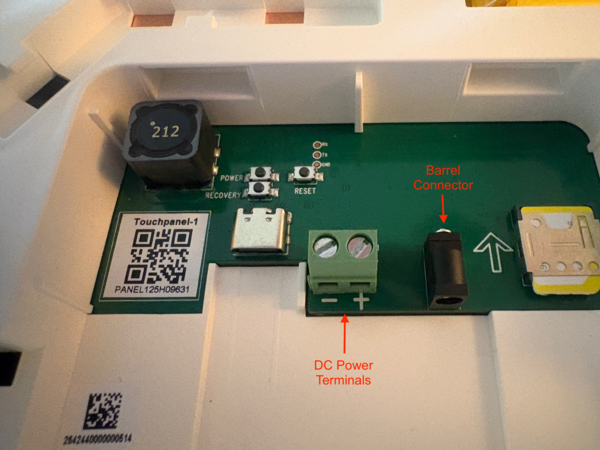
The GC Touch can use the same power cable as the 2GIG Edge. The 2GIG GG-EDGCBL is 9.8' (3m) in length and has spade lugs at one end, for connecting to the panel's DC power adapter, and a barrel connector at the other end, for connecting to the panel. If you require a longer wire run for power, you can use a custom wire length. This will connect to the Positive (+) and Negative (-) terminals on the back of the panel, next to the barrel connector.
Steps to Power On the Panel
- Unpack the panel and adapter. Remove all packaging materials and protective films from the 7-inch touchscreen before power up. Locate the power adapter in the panel packaging. The panel does not come with any power wiring. If you choose to use the 2GIG GG-EDGCBL, it needs to be purchased separately.
-
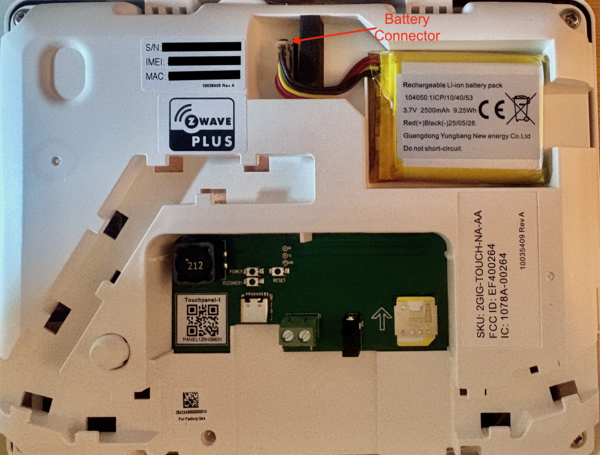
Verify the battery connection. Remove the two bottom fixing screws and separate the front cover from the back plate. Check that the battery connector in the upper right corner seats fully in its white socket. The connector features a foolproof design that prevents incorrect insertion.
-
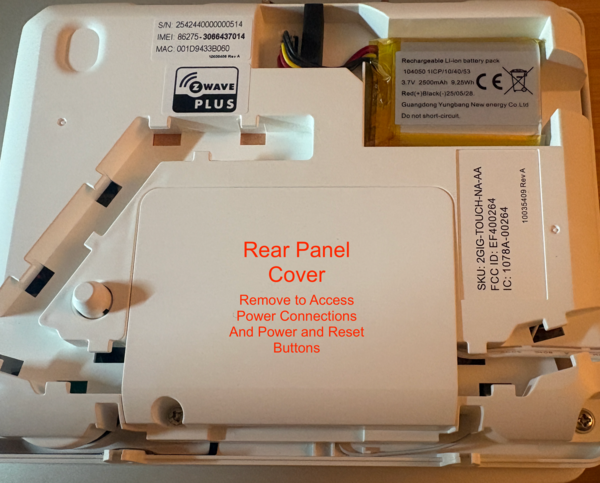
Remove the rear cover. In addition to the mounting plate, there is a rear panel cover that protects the panel's power input, USB-C port, power, and reset switches. You'll need a Phillips screwdriver to remove the screw holding it on.
-
Connect the power adapter. You have two (2) options for connecting power. If the required power wire length is 9.8' (3m) or less, you can use the 2GIG Edge power cable. If your wire run must be longer than that, you'll need to use a custom cut length of wire. We recommend at least 20/2 AWG which you should be able to find at your local hardware or home improvement store. If using the 2GIG Edge pre-made cable, insert the DC barrel plug into the DC jack on the rear of the panel. Push the connector straight in until minimal exposed metal remains visible, indicating full insertion.
-
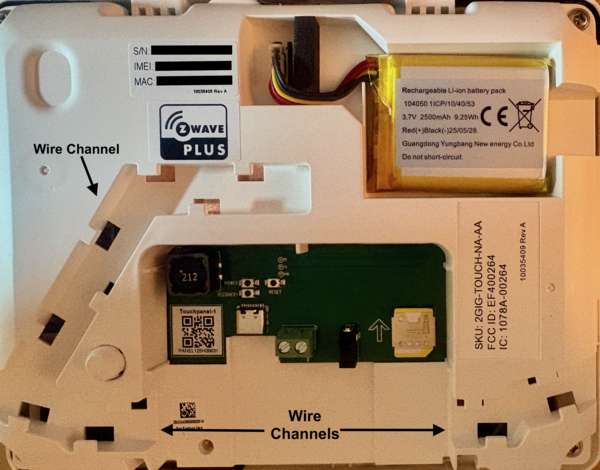
Route the power cable. Thread the power cable through the wire channels on the rear of the panel to prevent pinching when the panel is wall mounted. Each of the wire channels line up with one of the plastic knockouts on the left, right, and center of the back plate. Determine where the power outlet for the panel is in relation to the mounting spot and route the wire accordingly. If you decide to fish your wire through the wall, for a neater install where the power wire is hidden, then you'll use the center wire channel and knockout on the mounting plate.
- Plug the adapter into a wall outlet. Connect the DC power adapter to a continuously powered outlet that is not controlled by a wall switch. Switched outlets create the risk of accidental power interruption during normal security system operation.
- Wait for the boot sequence to complete. The panel powers on automatically the moment power reaches the system. The LED at the top right of the panel illuminates solid blue during initialization, then the touchscreen displays the 2GIG logo while loading the operating system. The home screen appears within about 30 seconds showing the date, time, and arming status controls.
LED Indicators During Startup
The LED at the top center of the front face provides visual confirmation of system status during the boot process. A solid blue LED indicates standby mode while the panel initializes. After startup completes, the LED behavior changes based on system state. A solid red LED indicates the system is armed, while a solid white LED signals system faults or that the system is not ready to arm. A green checkmark on the home screen confirms all sensors report properly and the system is ready for monitoring service activation.
Using the Internal Power Button
While the panel powers on automatically with AC power, the internal Power button provides controlled shutdown and restart functions. Access the button by removing the panel from the mounting plate then unscrewing the rear panel access cover. Once you expose the Power button, press and hold it for 2 seconds to display the shutdown menu on the touchscreen. Select Shutdown or Restart from the menu options. Press and hold the Power button for 5 seconds to force an immediate shutdown without the menu, useful only when the touchscreen becomes unresponsive.
Troubleshooting Startup Issues
If the panel fails to power on, verify the wall outlet is working by testing with another device. Check the DC barrel connector insertion depth, as partial insertion may create intermittent contact. Panels stored without AC power for extended periods require several minutes of battery charging before startup becomes possible. Connect power and wait 10 to 15 minutes to allow the battery to reach minimum charge levels, then press the internal Power button for 2 seconds to initiate the boot sequence. If the panel must be stored without power, it is recommended to unplug the battery to slow battery discharge.
The 2GIG GC Touch delivers reliable automatic startup with dependable dual power architecture. Proper AC power connection ensures consistent performance from initial power on through daily operation. For help connecting power or configuring your GC Touch panel after startup, contact the Alarm Grid support team. We're here Monday - Friday from 9:00 AM to 8:00 PM. The easiest way to reach us is via support@alarmgrid.com.
Did you find this answer useful?
We offer alarm monitoring as low as $10 / month
Click Here to Learn MoreRelated Products


- Answered