
How Do I Use the Clean Screen Feature on the 2GIG GC Touch?
To use Clean Screen on the 2GIG GC Touch, access Screen Management from the Settings menu and tap Clean Screen. This disables the touchscreen for 30 seconds while a countdown displays, allowing you to safely wipe away fingerprints and smudges without accidentally triggering panel functions.
The 2GIG GC Touch (available in AT&T LTE and Verizon LTE versions) feature a 7-inch full-color touchscreen that benefits from regular cleaning. The Clean Screen feature provides a safe window to wipe the display without worrying about accidentally arming or disarming your security system.
Activating Clean Screen Mode
Follow these steps to enable Clean Screen:
- Disarm the system. Settings access requires the panel to be in a disarmed state.
-
Tap the Settings icon (⚙) in the top-right corner. A code entry screen will appear.
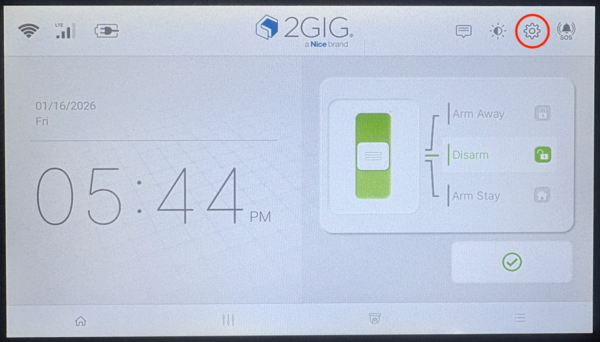
- Enter the Master Code (1111 by default) and press Enter (↵). The Master User Settings menu will open.
-
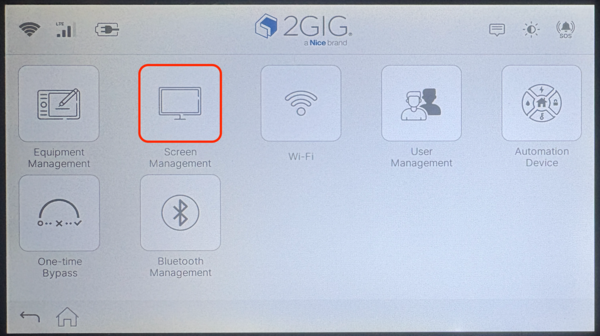
Tap Screen Management. Display settings options will appear including Brightness, Night Mode, Screen Saver, and Clean Screen.
-
Tap Clean Screen. A 30-second countdown timer begins immediately.
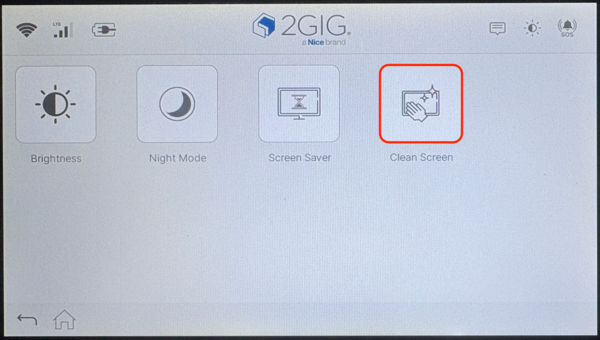
- Wipe the screen with a soft, lint-free cloth. All touch input is disabled during this period, so you can clean without triggering any functions.
- Wait for the countdown to end. Touch input automatically resumes after 30 seconds, and the panel returns to the Settings menu.
Cleaning Tips
Use a microfiber cloth or similar soft material to clean the GC Touch screen. Avoid using harsh chemicals, abrasive materials, or excessive moisture that could damage the touchscreen. For stubborn smudges, slightly dampen the cloth with water or a screen-safe cleaning solution. Regular cleaning keeps your home automation panel looking professional and ensures accurate touch response.
The Clean Screen feature can be accessed using the Master Code, so any authorized user can safely clean the panel. Your monitoring service stays active during cleaning, continuing to protect your home. While the system is temporarily disarmed, any life safety devices remain active and will still trigger an alarm and report to the monitoring station, if enabled.
Clean Screen on the 2GIG GC Touch makes maintenance simple and safe. The 30-second window provides ample time to remove fingerprints and smudges without accidentally triggering alarms or changing settings. For help with Clean Screen or other display features on your GC Touch panel, contact the Alarm Grid support team. We're here Monday - Friday from 9:00 AM - 8:00 PM Eastern Time. You can reach us by email at support@alarmgrid.com
Did you find this answer useful?
We offer alarm monitoring as low as $10 / month
Click Here to Learn MoreRelated Products


Related Videos

- Answered