
How Do I Add a Duress Code to the 2GIG GC Touch Panel?
To set up a Duress code on the 2GIG GC Touch, enter Settings using the Installer or Master Code (1561 or 1111 respectively, by default). Go to User Management and tap the Special Users tab. Tap the edit icon for Duress to assign a unique PIN code that sends a silent duress alarm when used.
The 2GIG GC Touch is a modern security and automation panel with a 7" full color touchscreen, a simple and intuitive interface that includes light and dark theme options, and streamlined programming for fast setup. It supports up to 128 wireless zones and 64 users, works with 2GIG 345 MHz sensors including encrypted eSeries devices and new 345s sensors, and offers built in two way voice for central station communication.
For smart home control, it includes an integrated Z-Wave 800 series gateway for lights, locks, thermostats, and more, plus Alarm.com Scenes and live video support for compatible cameras and doorbells. The panel connects using dual path communication with 2.4 GHz WIFI and AT&T LTE or Verizon LTE cellular communication. It includes Bluetooth for convenient disarming, and can receive firmware updates over the air or by USB, making it a flexible all in one platform for security, video, and automation.
A Duress code is a special PIN that disarms your security system while simultaneously sending a silent alarm signal to the central monitoring station. This feature provides crucial protection in emergency situations where someone forces a user to disarm the system. There is no visible or audible indication when the system is disarmed using the Duress Code. It is important to remember that a Duress code is only effective when full central station monitoring is in use.
Follow these steps to set up a Duress code on the 2GIG GC Touch:
- Disarm the system. The panel restricts access to the Settings menu when armed in either Away or Stay mode. Ensure the system shows Disarmed status before proceeding.
-
Enter Settings. Tap the gear icon in the top-right corner of the Home screen. This opens the Settings menu.
GC Touch shown disarmed with Settings icon outlined: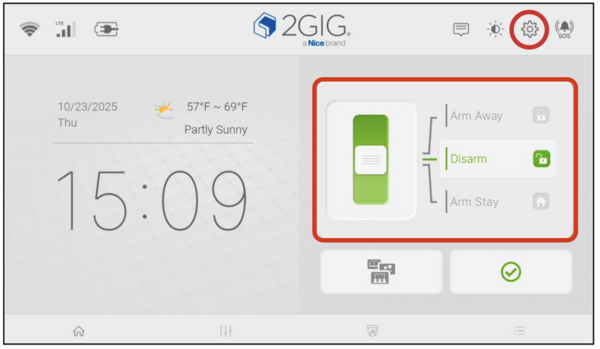
-
Enter the Installer or Master Code. When prompted, enter the Installer or Master Code (1561 or 1111 respectively, by default). When the Master Code is used, tapping User Management takes you directly to Standard Users. When the Installer Code is used, tap User Management > Manage Users.
Installer Code Settings Screen: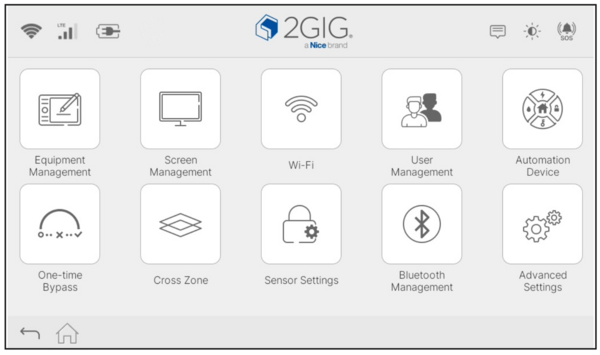
Master Code Settings Screen: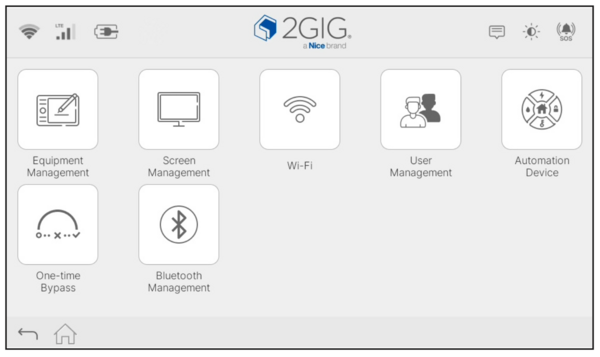
-
Select the Special Users tab. The screen displays two tabs: Standard Users and Special Users. Tap the Special Users tab to view Duress code options. The panel supports one Duress entry that can be configured with a unique PIN. Just be sure to remember the PIN and never use it unless you're in an emergency situation where police assistance is needed
GC Touch Standard Users: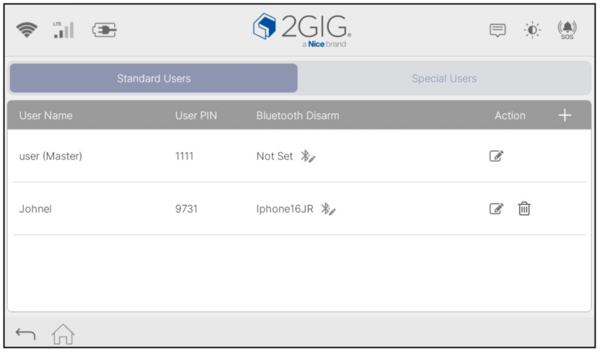
GC Touch Special Users: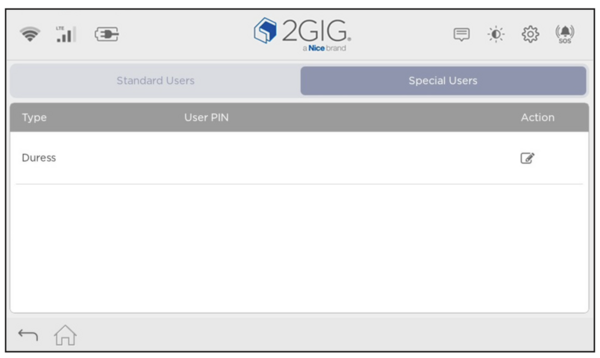
- Edit the Duress entry. Tap the pencil (edit) icon next to the default Duress entry. By default, a Duress Code of 2580 is enabled in the system. A popup appears with User PIN and Confirm User PIN fields.
- Enter the code. Enter a unique PIN that differs from all other user codes on the system. Confirm the PIN and tap Submit to save.
Understanding Duress Codes:
When the Duress code is used at any keypad in the system, it disarms the panel normally but also sends a silent panic signal to the monitoring station. The monitoring station then follows the designated response protocol, which typically involves dispatching emergency services while avoiding any callback that might alert an intruder.
The Duress Code on the 2GIG GC Touch provides peace of mind for emergency situations. Active monitoring service is required for the silent alarm to reach a central station and be reported to emergency responders. For help with Duress codes or security settings on your GC Touch panel, contact the Alarm Grid support team. Our support hours are 9:00 AM to 8:00 PM Eastern Time, Monday - Friday. You can reach us at support@alarmgrid.com or by calling 888-818-7728. You can also visit our website to chat with a live support agent.
Did you find this answer useful?
We offer alarm monitoring as low as $10 / month
Click Here to Learn MoreRelated Products


Related Videos

- Answered
- Answered By
- Julia Ross