
How Do I Add a Key fob to the IQ Panel 5 Security System?
To add a key fob to the IQ Panel 5, swipe down and touch Settings, then Advanced Settings, and enter your Installer Code. Touch Installation, then Devices, and then Security Sensors. Choose Auto Learn Sensor, press a button on the key fob to enroll it, set the type to Key fob, then save it.
About Adding a Key fob
The IQ Panel 5 (available in AT&T LTE and Verizon LTE) supports wireless key fobs that let you arm and disarm the system, and trigger a panic, from your pocket or keychain. A key fob enrolls the same way as any other wireless sensor, using the panel's Auto Learn feature. Once it is added, it becomes a fast, no-code way to control your security system at the door.
When you add the key fob, you assign it a Sensor Group that sets what its panic button does, such as Mobile Intrusion for a police panic or a Fixed or Mobile Auxiliary group for an auxiliary panic. The arm and disarm buttons follow the panel's own key fob settings. Pick the group that matches how you plan to carry and use the fob, and you can always change it later by editing the key fob.
Before You Begin
Adding a key fob is done in Advanced Settings, which uses the Installer Code (1111 by default) or Dealer Code (2222 by default). Have your key fob in hand with a working battery, since you enroll it by pressing one of its buttons when the panel is ready to learn it. It helps to decide in advance how you will use the fob, so you can pick the right Sensor Group during setup.
Add the Key fob
-
Swipe down and touch Settings. Swipe down from the top of the screen to open the Settings Tray, then touch SETTINGS.
 Swipe down from the top of the screen to open the Settings Tray.
 Touch Settings in the Settings Tray.
-
Touch Advanced Settings and enter your Installer Code. Touch ADVANCED SETTINGS, then enter your Installer Code (1111 by default). The Dealer Code (2222) works here too. The panel advances automatically after a valid code.
 Touch Advanced Settings.
 Enter your Installer Code (1111 by default).
-
Open Security Sensors. Touch INSTALLATION, then DEVICES, then SECURITY SENSORS to reach the sensor options.
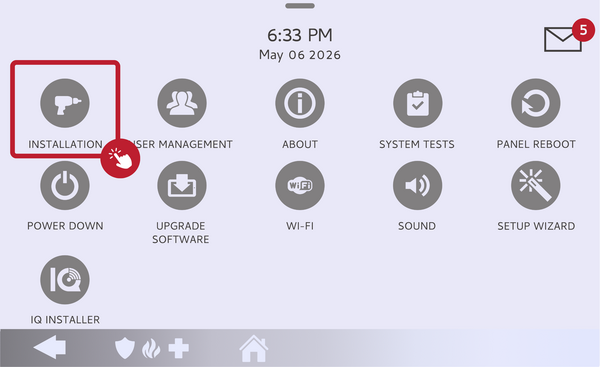
Touch Installation, then Devices, then Security Sensors. -
Choose Auto Learn Sensor and press a key fob button. Touch AUTO LEARN SENSOR so the panel waits for a signal. Press and hold a button on the key fob, such as the Away or Lock button, until its LED flashes and the panel registers the device ID. Touch OK on the confirmation popup.
Choose Auto Learn Sensor, then press a key fob button. -
Set the type and group. Set the Sensor Type to KEYFOB, then choose the matching Sensor Group for how you will use the fob, such as Mobile Intrusion. Adjust any other fields as needed.
Set the Sensor Type to Key fob and pick a Sensor Group. -
Tap Add New to save. Give the key fob a clear name, such as "John Key fob," then tap ADD NEW to save it to the system. The key fob is active right away and can arm and disarm the system.
Name the key fob and tap Add New.
Tips
If the panel does not detect the key fob during Auto Learn, confirm the battery is fresh and hold the button a moment longer, or use Add Sensor to enter the fob's DL code by hand from the sticker on the device. When choosing a Sensor Group, remember it only sets what the panic button does; the arm and disarm buttons follow the panel's key fob settings, which also control whether a key fob can disarm the system. Give each key fob its own name so you can tell who used it in your history.
Adding a key fob to the IQ Panel 5 gives you quick, keychain control of your system. For help pairing a key fob or choosing the right one for your IQ Panel 5, contact the Alarm Grid support team. We are here Monday through Friday from 9:00 AM to 8:00 PM Eastern Time. Email us at support@alarmgrid.com, call us at 888-818-7728, or visit our website and chat with a live support agent.
Did you find this answer useful?
We offer alarm monitoring as low as $10 / month
Click Here to Learn MoreRelated Products


- Answered