
How Do I Add a User Code to the 2GIG GC Touch System?
To add a user code to the 2GIG GC Touch, make sure the panel is disarmed, then tap Settings (gear icon) and enter the Master Code (1111 by default). Tap User Management, then tap the Add button (+) to create a new user with a unique name and a 4-digit or 6-digit PIN code for arming/disarming.
The 2GIG GC Touch (available in AT&T LTE and Verizon LTE versions) supports multiple user codes for family members, employees, or anyone else who requires access to the security system. The panel allows each user to receive a unique PIN code with a customizable name that appears in the panel's event log for easy activity tracking. User codes can arm and disarm the system, and each user can optionally pair a smartphone for automatic Bluetooth disarming.
Adding a User Code
Follow these steps to add a user code to the 2GIG GC Touch:
- Disarm the system. The panel restricts access to the Settings menu when armed in either Away or Stay mode. If you attempt to access Settings while armed, the screen displays a message stating "The operation is not allowed while the system is armed."
-
Enter Settings. Once the system is disarmed, tap the gear icon (⚙) in the top-right corner of the home screen. Once a valid code is entered the Settings menu opens, where you can access user management options.
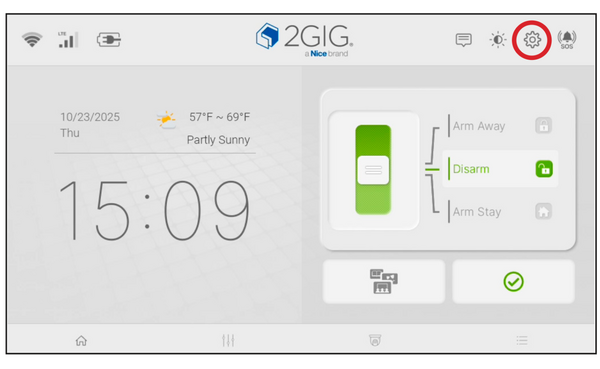
- Enter the Master Code. When prompted, enter the Master Code (1111 by default) then tap Enter (↵). This brings you to the Master Settings Menu.
-
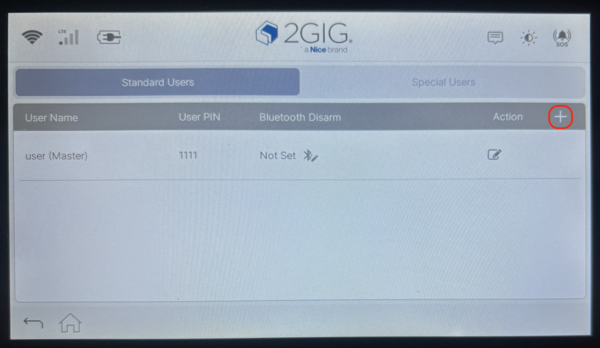
Open User Management. Tap User Management from the Settings menu. This displays the Standard Users screen where non-duress users are listed.
NOTE: If you enter Settings using the Master Code tapping User Management takes you directly into User Management. If you enter using the Installer Code (1561 by default) tapping User Management takes you to a screen where you choose either Manage Users or PIN Code Length. Choosing PIN Code Length allows you to toggle between 4-digit users and 6-digit users. -
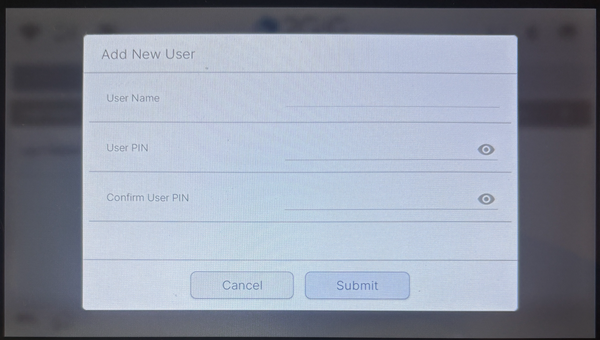
Add the new user. Tap the Add button (+) in the upper right corner of the Standard Users screen. A window opens for entering the new user details.
-
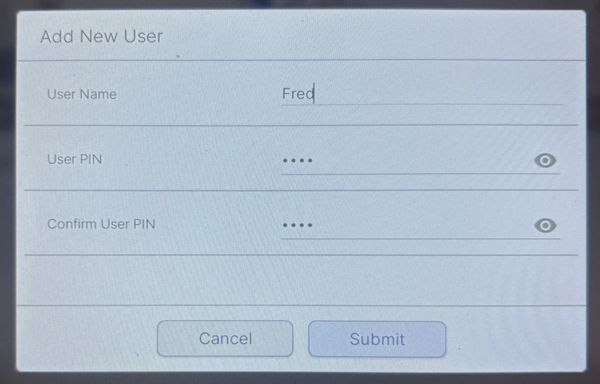
Enter the user name. Type a name for the new user using up to 18 characters. This name appears in the event log whenever this user arms or disarms the system.
-
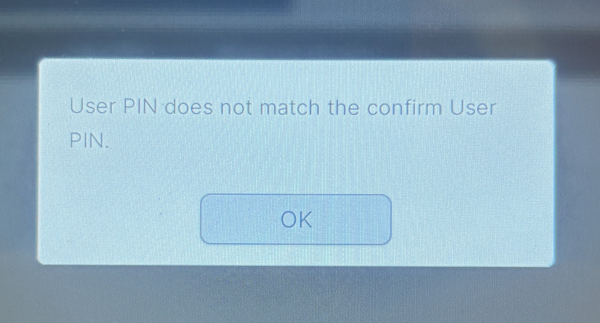
Enter the user PIN. Type a unique 4-digit or 6-digit PIN code depending on your system settings. Confirm the PIN in the second field. If the PIN matches an existing code, an error message prompts you to enter a different one. If the Confirm User PIN doesn't match the User PIN, you'll see an error message. Return and correct the error. When you're finished, tap Submit to complete the user addition process.
Understanding the Standard Users List
The new user appears in the Standard Users list immediately after saving. Standard Users are listed in the order they were created from oldest to newest. The first user in the list is designated as the Master User, and their PIN code functions as the Master Code for accessing system settings.
Each user entry displays four columns of information. The User Name column shows the name assigned to the user. This is what will show in the Event History when this users arms or disarms the system. The User PIN column shows the assigned code. The Bluetooth Disarm column shows the paired device name or "Not Set" if no device is paired. The Action column contains edit and delete icons. Tap the Edit icon next to any user to modify their name or PIN. To edit or add Bluetooth functionality tap the edit (pencil) icon for the user in the Bluetooth Disarm column. Doing so puts the panel into Bluetooth pairing mode. Tap the Trashcan icon to delete a user from the system.
Best Practices for Multiple Users
For households with multiple users, assign each person their own unique code rather than sharing. This allows you to track exactly who armed or disarmed the system by checking the event history. The monitoring service also receives the user name with each signal for accurate record keeping.
The PIN Code Length setting determines whether user codes are 4 digits or 6 digits. If changed from 4 to 6 digits, existing codes have "00" added at the end automatically. If changed from 6 to 4 digits, existing codes are shortened to the first 4 digits.
Adding user codes to the 2GIG GC Touch allows household members to arm and disarm the system with full activity tracking. Each code appears by name in the event log and in signals sent to the monitoring station. For help with user management on your GC Touch panel, contact the Alarm Grid support team. We're here Monday - Friday from 9:00 AM - 8:00 PM Eastern Time. Email us at support@alarmgrid.com.
Did you find this answer useful?
We offer alarm monitoring as low as $10 / month
Click Here to Learn MoreRelated Products


Related Videos

- Answered