
How Do I Adjust Screen Brightness on the IQ Panel 5?
To adjust the screen brightness on the IQ Panel 5, swipe down from the top of the screen and drag the brightness slider in the Settings Tray. For more control, open Settings, then Display, where you set a Brightness Level and turn Adaptive Brightness on or off. No code is needed either way.
Two Ways to Adjust Brightness
The IQ Panel 5 (available in AT&T LTE and Verizon LTE) gives you a quick brightness slider in the Settings Tray for fast changes, and a fuller set of controls under Settings, then Display. The Settings Tray slider is best for a quick nudge brighter or dimmer, while the Display page adds a precise Brightness Level and an Adaptive Brightness option. Neither method requires a code, so anyone in the household can adjust the display.
Adaptive Brightness lets the panel raise and lower the backlight automatically based on the light in the room, which keeps the screen readable during the day and softer at night. The Display page also includes a Night Light option for a dim glow when the panel is idle. Comfortable brightness makes day-to-day arming, disarming, and home automation control easier to see on your security system.
Quickly Adjust Brightness from the Settings Tray
-
Swipe down from the top of the screen. The Settings Tray opens, showing the brightness slider along with the volume slider and other quick controls.
 Swipe down from the top of the screen to open the Settings Tray.
-
Drag the brightness slider. Slide the brightness control left to dim the screen or right to brighten it. The display responds immediately as you drag, so you can set it by eye. This adjustment needs no code.
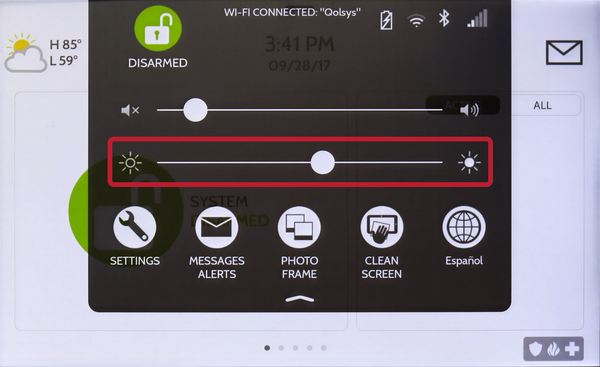 Drag the brightness slider left to dim or right to brighten.
Set Brightness and Adaptive Brightness Under Display
-
Swipe down from the top of the screen and touch Settings. The Settings Tray opens; touch SETTINGS to open the main Settings page.
 Touch Settings in the Settings Tray.
-
Touch Display. On the Settings page, touch DISPLAY. This page holds the Brightness Level, Adaptive Brightness, Night Light, and font size options.
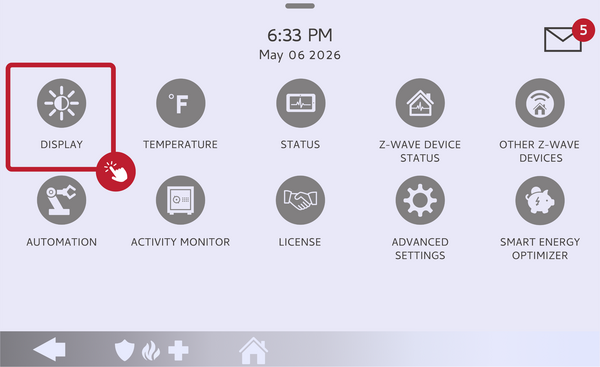 Touch Display on the Settings page.
-
Touch Brightness Level and set it. Touch the Brightness Level row to open the slider popup. Drag the slider to your preferred percentage, then touch Close. The display updates as you drag, so you can set it by eye.
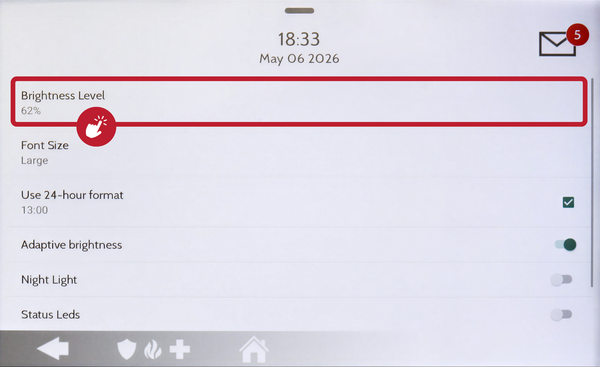 Touch the Brightness Level row to open the slider.
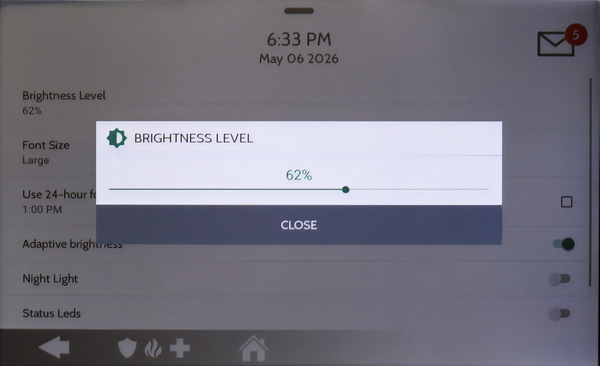 Drag to your preferred percentage, then touch Close.
-
Turn on Adaptive Brightness (optional). To let the panel manage brightness for you, toggle Adaptive Brightness on. The screen then raises and lowers the backlight automatically based on the room's light. Leave it off if you prefer the fixed level you set above.
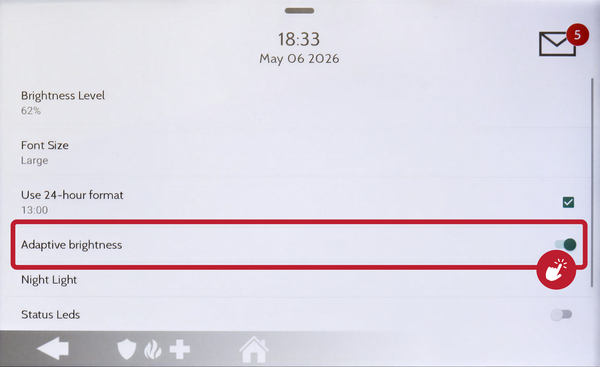 Toggle Adaptive Brightness on to let the panel adjust automatically.
Tips
If the screen looks too bright at night, turning on Adaptive Brightness usually solves it without any further adjustment. If you prefer a fixed level, leave Adaptive Brightness off and set the Brightness Level by hand. The quick Settings Tray slider is the fastest option when you just need a temporary change.
Adjusting the screen brightness on the IQ Panel 5 keeps the display comfortable to read in any lighting. For help with brightness or other display settings on your IQ Panel 5, contact the Alarm Grid support team. We are here Monday through Friday from 9:00 AM to 8:00 PM Eastern Time. Email us at support@alarmgrid.com, call us at 888-818-7728, or visit our website and chat with a live support agent.
Did you find this answer useful?
We offer alarm monitoring as low as $10 / month
Click Here to Learn MoreRelated Products


Related Categories
- Answered