
How Do I Adjust the Volume on the 2GIG GC Touch Panel?
To adjust the volume on the 2GIG GC Touch, be sure the panel is disarmed then tap Settings. Enter the Master or Installer Code (1111 or 1561 respectively, by default), then tap Equipment Management and select Audio Settings to control any of the seven volume categories for sounds and alerts.
The 2GIG GC Touch panel (available in AT&T LTE and a Verizon LTE versions) features a built-in speaker for voice, and a built-in piezo buzzer for beeps and other alarm sounds. The panel provides seven separate volume categories for customizing audio feedback. This allows you to set your preferences for chimes, voice prompts, and system alerts.
Follow these steps to adjust the volume on the 2GIG GC Touch:
- Disarm the system. The panel restricts access to the Settings menu when armed in either Away or Stay mode. Ensure the system shows Disarmed status before proceeding.
-
Enter Settings. Tap the gear icon in the top-right corner of the Home screen. This opens the Settings menu.
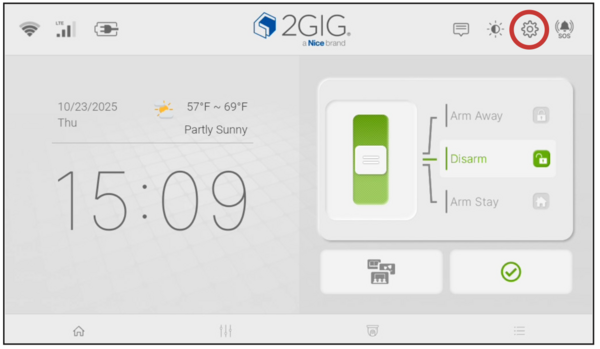
- Enter an access code. When prompted, use the Master Code (1111 by default) or the Installer Code (1561 by default). Both codes provide access to Audio Settings.
-
Open Equipment Management. Tap Equipment Management from the Settings menu. This submenu contains system configuration options including Date and Time, Language, System Test, and Audio Settings.
The Settings menu when accessed using the Master Code: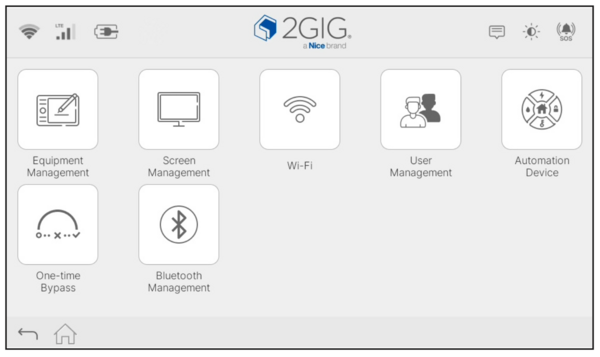
-
Select Audio Settings. Tap Audio Settings to view all volume categories. The screen displays seven sound types, each with Off, Low, and High options.
Equipment Management Menu when accessed with the Master Code: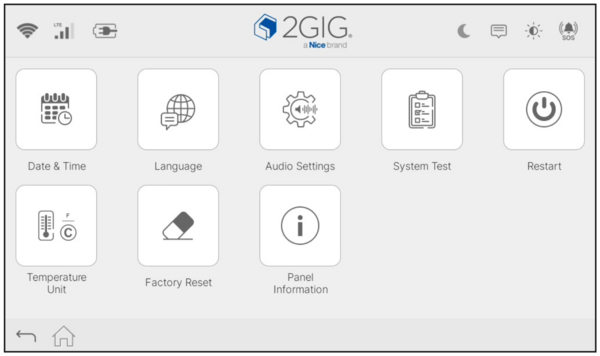
-
Adjust each category. Tap the radio button next to your preferred setting for each sound type. Changes are saved and applied automatically.
Audio Settings: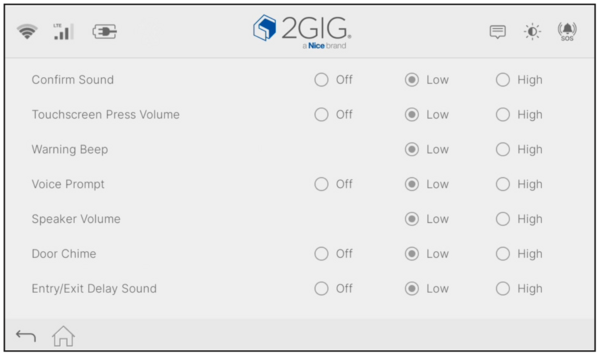
Audio Categories Explained:
- Confirm Sound: This option controls the volume of the confirmation beep provided when the panel successfully reports any signal to the monitoring station.
- Touchscreen Press Volume: This option sets the feedback sound when tapping the display.
- Warning Beep: This option controls the volume of the sound produced (a two-tone alert every 30 seconds) when trouble conditions are detected.
- Voice Prompt: This controls the volume for spoken announcements, including for arming and mode changes.
- Speaker Volume: This adjusts the speaker volume for two-way voice communication with the monitoring station.
- Door Chime: Sets the volume of the "ding-dong" sound when chime-enabled sensors trigger.
- Entry/Exit Delay Sound: This setting controls the volume of entry and exit delay beeps.
Adjusting the volume on the 2GIG GC Touch allows you to customize alerts for your household needs. For safety, the Warning Beep and Speaker Volume cannot be completely muted. It is also impossible to control the volume for burglary, fire, and other alarm sounds. For help with audio settings or other configurations on your GC Touch panel, contact the Alarm Grid support team. We're here Monday - Friday from 9:00 AM - 8:00 PM Eastern Time. Email us at support@alarmgrid.com.
Did you find this answer useful?
We offer alarm monitoring as low as $10 / month
Click Here to Learn MoreRelated Products


- Answered
- Answered By
- Julia Ross