
How Do I Change the Date and Time on the IQ Panel 5?
To set the date and time on the IQ Panel 5, connect the panel to a cellular or WIFI network, and it syncs the clock automatically through Alarm.com. There is no manual date entry on the panel. To adjust how the time displays, open Settings, then Display, and choose the 12 or 24 hour format.
How the IQ Panel 5 Keeps Time
The IQ Panel 5 (available in AT&T LTE and Verizon LTE) pulls its date and time from the network automatically. As soon as the panel has an active cellular or WIFI connection, it syncs the clock through Alarm.com, so there is no screen for typing in the date or time by hand. The panel also updates itself for daylight saving time on its own, which keeps the display accurate year round without any input from you.
Because the time is tied to your monitoring account, the correct clock depends on the time zone set for that account. This is why keeping the panel connected matters: a panel that loses its connection can drift or show a stale time until it reconnects and re-syncs. Reliable connectivity keeps your security system logging events with accurate timestamps.
Change the Time Format (12 or 24 Hour)
While you cannot type in the time, you can choose how it displays on screen.
-
Swipe down from the top of the screen and touch Settings. The Settings Tray opens; touch SETTINGS to open the main Settings page.
 Swipe down from the top of the screen to open the Settings Tray.
 Touch Settings in the Settings Tray.
-
Touch Display. On the Settings page, touch DISPLAY. This page controls brightness, font size, and the clock format, among other display options.
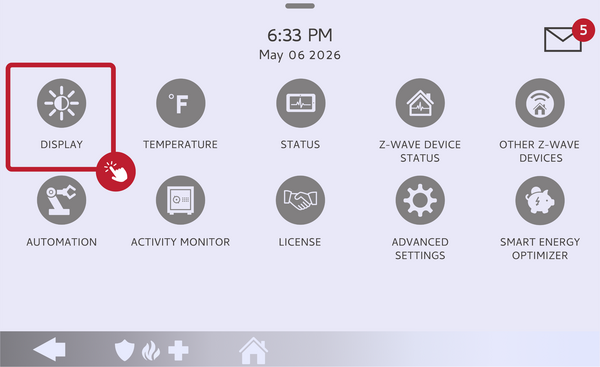 Touch Display on the Settings page.
-
Set the time format with Use 24-hour format. Check the Use 24-hour format box for 24-hour time, or leave it unchecked for standard 12-hour time with AM and PM. The change applies immediately, and the clock on the home screen updates to match.
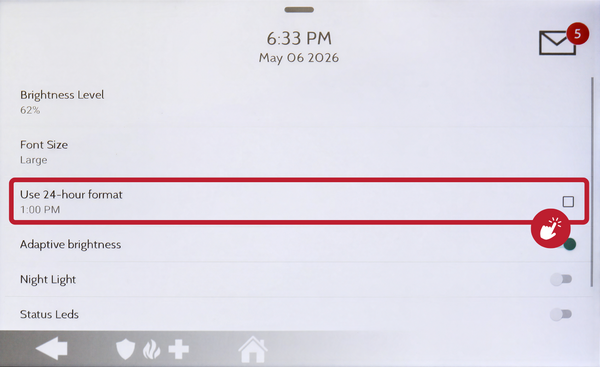 Check Use 24-hour format, or leave it unchecked for 12-hour time.
If the Time Is Wrong
If the panel shows the wrong time, the cause is almost always the time zone on your monitoring account rather than the panel itself. Contact your monitoring provider or Alarm Grid and ask them to confirm the time zone set for your Alarm.com account. Once the time zone is corrected, reboot the panel so it reconnects and pulls the updated time. A reboot is also the quickest fix if the panel has been offline and the clock has drifted, since it forces a fresh sync as soon as the panel comes back online.
The IQ Panel 5 handles the date and time for you as long as it stays connected, so there is nothing to set by hand. For help with the date and time or other panel settings on your IQ Panel 5, contact the Alarm Grid support team. We are here Monday through Friday from 9:00 AM to 8:00 PM Eastern Time. Email us at support@alarmgrid.com, call us at 888-818-7728, or visit our website and chat with a live support agent.
Did you find this answer useful?
We offer alarm monitoring as low as $10 / month
Click Here to Learn MoreRelated Products


Related Categories
- Answered