
How Do I Change the Language on the IQ Panel 5 System?
To change the language on the IQ Panel 5, swipe down from the top of the screen and touch the language button in the Settings Tray to switch between your two languages. To change which languages the toggle uses, open Advanced Settings, enter your Master Code, and select Favorite Languages.
How Language Works on the IQ Panel 5
The IQ Panel 5 (available in AT&T LTE and Verizon LTE) uses a two-language toggle rather than a single language list. The panel keeps two "favorite" languages ready at all times, and a language button in the Settings Tray flips instantly between them. By default these are English and Español, so anyone in the household can switch the display without a code or a trip through the menus.
If you want a language other than the default pair, you change the two favorite languages under Advanced Settings. The panel supports a wide range of options, including Français, Deutsch, Italiano, Nederlands, Português, Polskie, and more. You set a Preferred Language and a Second Preferred Language, and those two become what the quick toggle switches between on your security system.
Quickly Switch Languages from the Settings Tray
-
Swipe down from the top of the screen. The Settings Tray opens, showing quick-access controls along with the language button.
 Swipe down from the top of the screen to open the Settings Tray.
-
Touch the language button. Touch the language button in the Settings Tray, shown with the name of the other available language, such as Español. The display switches immediately, and touching it again switches back. No code is required for this quick toggle.
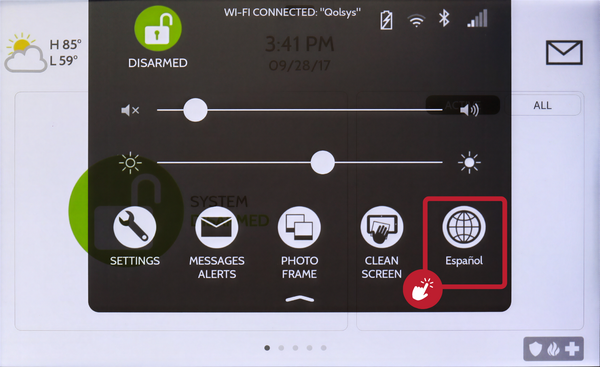 Touch the language button to switch between your two languages.
Change Which Two Languages Are Available
-
Swipe down from the top of the screen and touch Settings. The Settings Tray opens; touch SETTINGS to open the main Settings page.Swipe down from the top of the screen to open the Settings Tray.
 Touch Settings in the Settings Tray.
-
Touch Advanced Settings. On the Settings page, touch ADVANCED SETTINGS. A code entry keypad appears.
 Touch Advanced Settings on the Settings page.
-
Enter the Master Code (1234 by default). Type your Master Code on the keypad. If you have changed the Master Code from the default, enter your custom code instead. The panel advances automatically and opens the menu for your code.
 Enter the Master Code (1234 by default) on the keypad.
-
Open Master Settings and select Favorite Languages. Touch MASTER SETTINGS, then open the Favorite Languages setting. Pick your first language under Preferred Language, then scroll down to Second Preferred Language and pick the second. Those two become the options the Settings Tray language button switches between.
Pick your Preferred Language, then scroll to Second Preferred Language.
Tips
The quick toggle is the easiest option for households that regularly switch between two languages, since it needs no code. Reserve the Favorite Languages setting for the initial setup or when you need a language outside the default English and Español pair. Keeping the display in your preferred language makes day-to-day arming, disarming, and home automation control easier for everyone in the home.
Changing the language on the IQ Panel 5 lets everyone in your household read the display comfortably. For help with the language settings or other panel options on your IQ Panel 5, contact the Alarm Grid support team. We are here Monday through Friday from 9:00 AM to 8:00 PM Eastern Time. Email us at support@alarmgrid.com, call us at 888-818-7728, or visit our website and chat with a live support agent.
Did you find this answer useful?
We offer alarm monitoring as low as $10 / month
Click Here to Learn MoreRelated Products


Related Categories
- Answered