
How Do I Connect the 2GIG GC Touch Panel to WIFI?
To connect the 2GIG GC Touch to WIFI, make sure the panel is disarmed, then tap Settings (⚙) and when prompted enter the Installer Code (1561 by default) or Master Code (1111 by default). Enable WIFI, choose your SSID from the scanned list, and enter the case-sensitive password to connect.
The 2GIG GC Touch features integrated 2.4 GHz WIFI connectivity alongside LTE cellular communication. This forms a dual-path system that maintains continuous contact with the Alarm.com platform. The GC Touch comes with either an AT&T LTE or a Verizon LTE cellular communicator built in.
When dual-path connectivity is enabled and both paths are available, the panel sends each alarm signal using both WIFI and LTE cellular. The signal received by Alarm.com first is processed. The "losing" signal is discarded. In this way, each individual alarm message is delivered via the fastest available path.
Follow these steps to connect the 2GIG GC Touch panel to your wireless network:
- Disarm the system. The panel restricts access to the Settings menu when armed in either Away or Stay mode. If you attempt to access Settings while armed the screen displays a message stating "The operation is not allowed while the system is armed.” Ensure the system shows Disarmed status before proceeding.
-
Enter Settings. Tap the gear icon in the top-right corner. This opens the Settings menu. The gear icon appears on the home screen alongside other system status indicators.
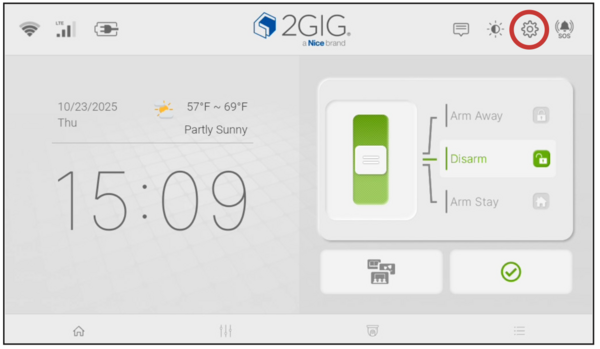
- Enter an access code. When prompted, use the Installer Code (1561 by default) or the Master Code (1111 by default). The Installer Code provides full access to network settings, while the Master Code works with limited menu access.
-
Enable WIFI. The WIFI configuration page opens, displaying a toggle switch at the top. This page shows the current WIFI status and available networks. If the WIFI option is toggled off, tap to toggle it on. Once enabled, the security system begins scanning for nearby wireless networks and displays them in a list.
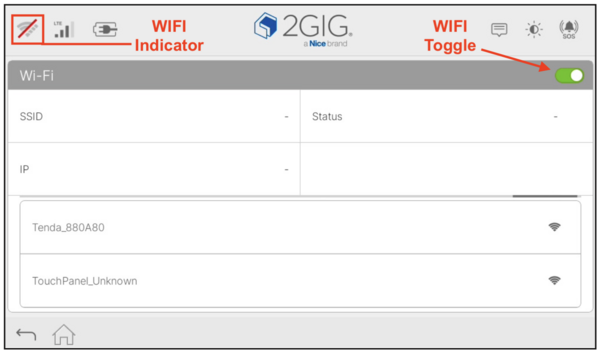
- Select your network. Review the available networks shown with their names and signal strength indicators. Password protected networks show a lock icon. Tap your network name to begin connecting.
- Enter the network password. Use the on-screen keyboard to carefully type the WIFI password. Passwords are case-sensitive, so verify capitalization. The system shows "Connecting" while establishing the link.
-
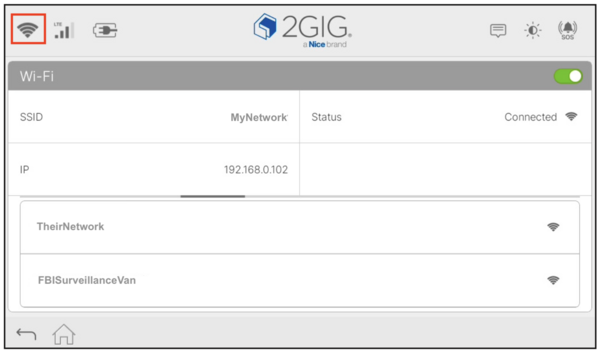
Verify the connection. Upon success, the status changes to "Connected" and displays the SSID and IP address. The WIFI indicator icon in the top-left corner shows signal strength with multiple bars indicating a strong connection.
Alarm.com requires a cellular communication path, WIFI is optional but recommended. WIFI is typically the fastest route, while LTE cellular is the most reliable. When WIFI is available, the system uses it for panel updates and remote commands.
For best performance, place the panel where it has a strong WIFI signal. Aim for three or four bars on the WIFI signal indicator. One or two bars can cause slow responses and intermittent connectivity. If the signal is weak, move the panel closer to the router or add a WIFI range extender to improve coverage.
Did you find this answer useful?
We offer alarm monitoring as low as $10 / month
Click Here to Learn MoreRelated Products


- Answered
- Answered By
- Julia Ross