
How Do I Enable Alarm.com for Apple CarPlay?
To set up the Alarm.com app in CarPlay, with the vehicle in park, log into the Alarm.com app. Pair the iOS device with the compatible vehicle or stereo via Bluetooth or connect with a USB cable. Once connected, launch CarPlay if necessary. From the CarPlay home screen, tap the Alarm.com icon.
Using the Alarm.com app with Apple CarPlay allows you to view system status and control some aspects of your security system while keeping your focus on the road.
What you'll need
- A compatible vehicle or stereo.
- A compatible iOS device such as an iPhone.
- An Alarm.com account and compatible devices.
- The Alarm.com app version 5.10+.
Initial Setup
- Log in to your Alarm.com Customer app on your iOS device.
- Connect the iOS device to your compatible vehicle or stereo. This is usually done via Bluetooth, but may also use a USB cable.
- Once the connection is established, the Alarm.com icon should appear on your car's display.
- Tap the Alarm.com icon on the CarPlay home screen to launch the interface. By default, Home and Away scenes and any compatible garage doors will appear at the top of the list.
Customizing Your CarPlay Display
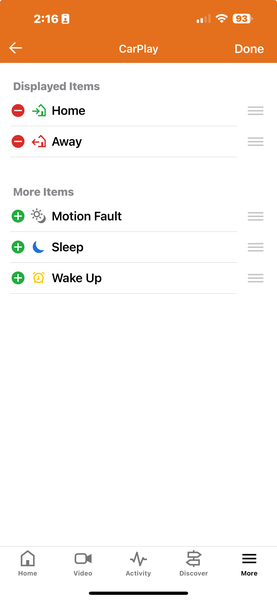
You can choose which scenes and devices you want to have quick access to in your vehicle.
- Open the Alarm.com Customer app on your iPhone.
- Tap the More icon (☰).
- Tap on App Settings.
- Select CarPlay.
- On this screen, you can choose your desired shortcuts. You can add, remove, or reorder the scenes and devices that appear in your car's display.
Additional Information
While the information above covers the setup process, here is some additional information to keep in mind.
- Garage Door Compatibility: Chamberlain does not allow its MyQ devices to be used with Apple CarPlay. They are hidden from the CarPlay interface. This also applies to any scenes that include a MyQ garage door. However, Z-Wave, Genie, and other non-Chamberlain garage controllers are available for use. Chamberlain and LiftMaster MyQ garage doors will remain available through the Alarm.com app directly.
- Notifications: Not all of your Alarm.com notifications will appear in CarPlay. The integration is designed to only show iOS Critical Alerts. For these to work, you must have Critical Alerts enabled within the Alarm.com app.
- Custom Scenes: You can activate any of your custom scenes from the CarPlay interface. However, you must first create and configure these scenes using the Alarm.com webpage or the customer app on your phone or tablet.
Did you find this answer useful?
We offer alarm monitoring as low as $10 / month
Click Here to Learn More- Answered
- Answered By
- Julia Ross