
How Do I Enable Bluetooth Disarming on My 2GIG GC Touch?
To enable Bluetooth Disarming on the 2GIG GC Touch, disarm the panel, tap Settings (⚙), and enter your Master Code (1111 by default). Navigate to User Management, select a user, tap the edit icon next to Bluetooth Disarm, and follow prompts to pair your smartphone for hands-free disarming.
The 2GIG GC Touch (available in AT&T LTE and Verizon LTE versions) includes Bluetooth Disarming that lets you disarm your security system automatically when your paired smartphone comes within range. This feature is particularly convenient when you need to enter the home or business and your hands are full.
Requirements
Before setting up Bluetooth Disarming, ensure the panel is connected to AC power. The Bluetooth disarming feature does not work when the system is running on battery power alone. You will also need your smartphone with Bluetooth enabled and accessible.
Steps to Enable Bluetooth Disarming
- Disarm the system. The panel must be disarmed to access the Settings menu. If armed, slide the mode selector to the middle Disarm position and enter your code, then press Enter (↵).
-
Tap Settings (gear icon). The gear icon is located in the top-right corner of the home screen.
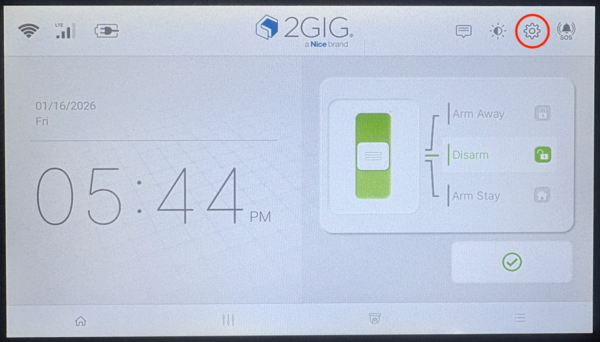
- Enter the Master Code. The default Master Code is 1111. Enter the code and press the Enter key (↵) to access the Master User Settings menu.
-
Tap User Management. The panel displays a list of all standard user accounts configured on the panel. It also shows a separate tab for Special (Duress) Users.
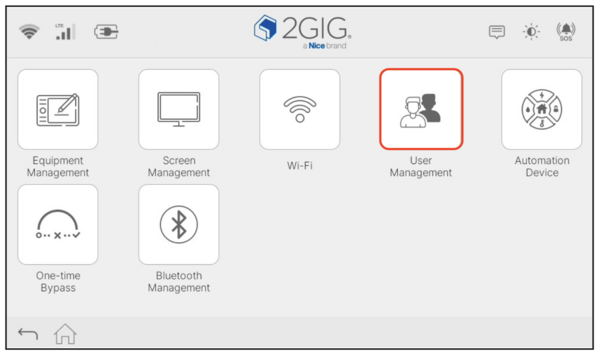
- Select a user account. Tap on the user you want to associate with Bluetooth Disarming. Each paired phone must be linked to a specific user code.
-
Tap the edit icon next to Bluetooth Disarm. You will see "Not Set" if no device is currently paired. Tapping the edit icon opens the Bluetooth pairing window.
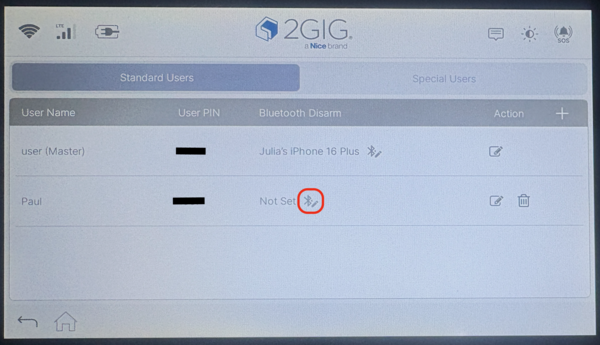
- Pair your smartphone. Go to Bluetooth settings for your phone. From the GC Touch's Bluetooth edit screen you should see your phone's name pop up. Select the radio button next to the phone name on the panel screen, then tap Submit. You'll see a pairing code come up on both the phone and the GC Touch. If the numbers match, tap Pair on the panel and on the phone. The panel will complete pairing and the phone name will show up next to the User Name in the panel's user list.
Managing Paired Devices
You can also manage Bluetooth Disarming through the Bluetooth Management menu. Access Settings with your Master Code and tap Bluetooth Management to view Bluetooth Disarm and Bluetooth Settings options. The Bluetooth Disarm screen lists all paired devices and allows you to remove them by tapping the trash can icon.
In Bluetooth Settings you have the option to enable or disable the Bluetooth feature and to set the Bluetooth Disarm Timeout. The options for Bluetooth Disarm Timeout are 1 min(s), 5 min(s), 10 min(s), and 30 min(s). Once enabled, Bluetooth disarming is only functional when the system is armed in the Away mode.
Configuring Bluetooth Disarm Timeout
The Bluetooth Disarm Timeout setting controls how long the panel waits after arming in Away mode before allowing Bluetooth disarming. This prevents your phone from accidentally disarming the system before you have a chance to leave the premises. You can access this setting by tapping Settings > Enter Master Code or Installer Code (1111 and 1561 respectively, by default) > Bluetooth Management > Bluetooth Settings to adjust the timeout period.
For help with Bluetooth features on your GC Touch panel, contact the Alarm Grid support team at support@alarmgrid.com, Monday - Friday from 9:00 AM - 8:00 PM Eastern Time.
Did you find this answer useful?
We offer alarm monitoring as low as $10 / month
Click Here to Learn MoreRelated Products


Related Categories
- Home Security Systems
- Home Security Systems
- Apartment Security Systems
- DIY Wireless Security Systems
- Touchscreen Alarm Panels
- Touchscreen Alarm Panels
- Small Business Security Systems
- Wireless Touchscreen Alarm Panels
- Answered