
How Do I Enable or Disable Quick Arming on a 2GIG GC Touch?
To enable or disable Quick Arming on the 2GIG GC Touch, make sure the panel is disarmed, then tap Settings and enter the Installer Code (1561 by default). Navigate to Advanced Settings, then tap System Settings and change the Quick Arming dropdown to either Enable or Disable as preferred.
Quick Arming is a convenience feature on the 2GIG GC Touch (available in AT&T LTE and Verizon LTE versions) that determines whether users must enter a PIN code when arming the security system. When Quick Arming is enabled, household members can arm the system simply by sliding the arm toggle to Armed Away or Armed Stay without entering a code. When disabled, the panel requires a valid User PIN before completing the arming process, adding an extra layer of security to prevent unauthorized arming.
This setting is particularly useful for households where convenience is a priority, allowing family members to quickly arm the system when leaving home. However, some users prefer to disable Quick Arming to ensure that only authorized individuals with a valid code can change the system status. The setting applies to both Arm Away and Arm Stay modes and can be changed at any time through the Installer Settings menu.
Steps to Enable or Disable Quick Arming
- Disarm the system. The panel must be in a disarmed state before accessing the Settings menu. If the system is currently armed, slide the toggle to Disarm and enter your PIN to disarm it first.
-
Tap the Settings icon. The gear icon is located in the top-right corner of the home screen. This opens the code entry prompt.
Tap the Settings gear icon in the top-right corner of the home screen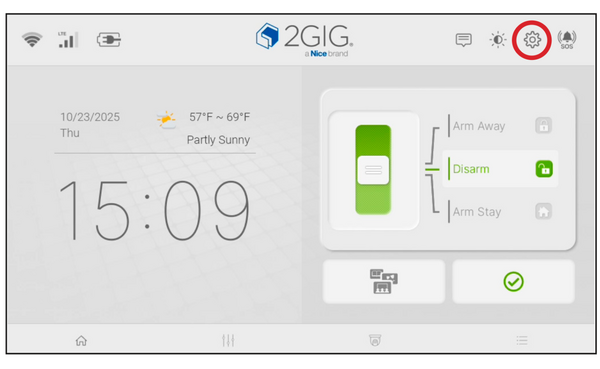
-
Enter the Installer Code. Enter the current Installer Code (1561 by default), then tap Enter (↵). This opens the Installer Settings menu with access to all configuration options.
Installer Settings menu with access to all Panel Settings, Sensor Settings, and Installer Code options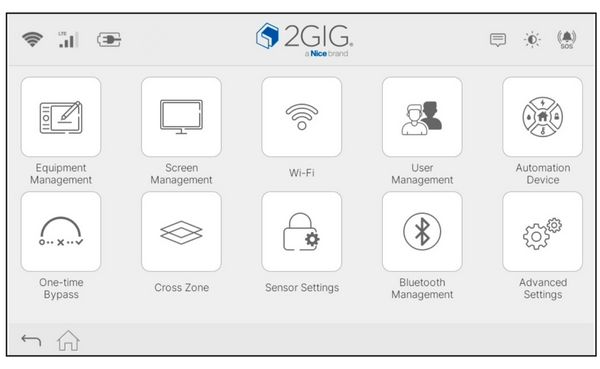
-
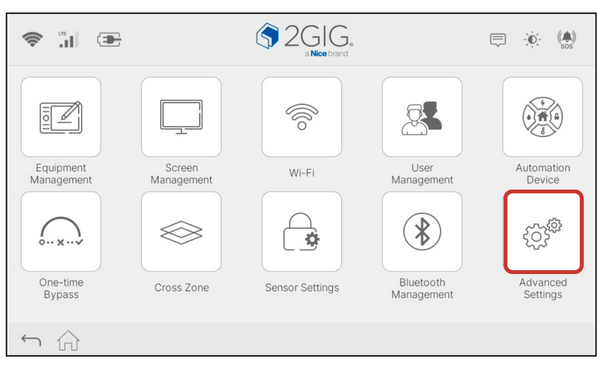
Tap Advanced Settings. This icon appears in the bottom row of the Installer Settings menu and provides access to Panel Settings, System Settings, and Installer Code options.
-
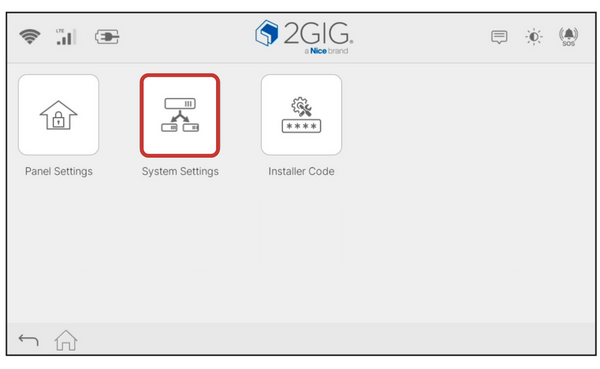
Tap System Settings. This opens the System Settings screen where you can configure various system behaviors including Quick Arming, Quick Exit, Auto Stay, and other operational settings
-
Locate the Quick Arming option. Find Quick Arming in the bottom-right area of the System Settings screen. The current status displays as either Enable or Disable. Quick Arming is enabled by default.
System Settings screen with Quick Arming option visible in the bottom-right corner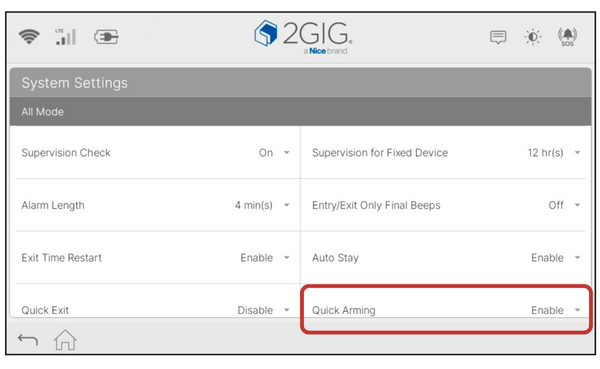
- Toggle the Quick Arming setting. Tap the dropdown next to Quick Arming and select Enable to allow arming without a PIN, or select Disable to require PIN entry for all arming commands. The setting takes effect immediately.
- Exit the menu. Tap the Home icon or back arrow to return to the main screen. Your Quick Arming preference is now saved.
When Quick Arming is enabled, sliding the toggle to Away or Stay will begin the arming process immediately. When disabled, a keypad appears requiring the user to enter their PIN code before the arming sequence begins. This provides flexibility for different household security preferences.
When Quick Arming is enabled, users can arm the system without entering a PIN
When Quick Arming is disabled, users must enter a PIN code , then tap Enter (↵) to arm the system
Another convenient way to arm and disarm the system is by using a key fob. The 2GIG GC Touch supports the 2GIG KEY100-345. This four button key fob can operate in either encrypted or unencrypted mode, which is controlled by a toggle switch inside the fob. The transmitting range for this key fob is approximately 350 feet, or 106 meters, in open air.
The GC Touch also supports the 2GIG KEY2e encrypted key fob. Unencrypted key fobs transmit the same information each time they are used, meaning the arming and disarming signals do not change. Because these signals can be captured and replayed, encrypted operation provides an added layer of protection.
Enabling or disabling Quick Arming on the 2GIG GC Touch takes just a few moments through the Installer Settings menu. This feature gives you control over how users interact with your security system when arming. For help with Quick Arming or other settings on your GC Touch panel, contact the Alarm Grid support team at support@alarmgrid.com or call 888-818-7728. Our support hours are Monday - Friday from 9:00 AM - 8:00 PM Eastern Time. You can also visit our website and interact with a live chat agent Monday - Friday from 9:00 AM - 6:00 PM Eastern Time.
Did you find this answer useful?
We offer alarm monitoring as low as $10 / month
Click Here to Learn MoreRelated Products


Related Videos

Related Categories
- Home Security Systems
- Home Security Systems
- Apartment Security Systems
- Smart Home Controllers
- Small Business Security Systems
- DIY Wireless Security Systems
- Touchscreen Alarm Panels
- Wireless Touchscreen Alarm Panels
- Touchscreen Alarm Panels
- Answered