
How Do I Factory Reset the 2GIG GC Touch Alarm Panel?
To factory reset the 2GIG GC Touch, make sure the panel is disarmed, then tap Settings (⚙) > Installer Code (default is 1561) > Equipment Management > Factory Reset. You must use the Installer Code, the Master Code won't work. The reset can optionally save enrolled sensors and/or user codes.
A full factory reset restores the 2GIG GC Touch to its original default settings. This process erases network settings, device configurations, and learned sensors and user codes unless you choose to keep them. The reset is useful when transferring the panel to a new owner or troubleshooting software issues. Only users with the Installer Code can access the Factory Reset option. The Master Code (1111 by default) does not provide access to the factory reset option.
If you are an Alarm Grid monitored customer, we recommend discussing any system issues with us before performing a factory reset. A default should be used only as a last resort for troubleshooting. If you have full central station monitoring enabled, be sure to put your system on test prior to initiating a factory reset.
Follow these steps to factory reset the 2GIG GC Touch:
- Disarm the system. The panel restricts access to the Settings menu when armed in either Away or Stay mode. If you attempt to access Settings while armed, the screen displays a message stating "The operation is not allowed while the system is armed." Ensure the system shows Disarmed status before proceeding.
-
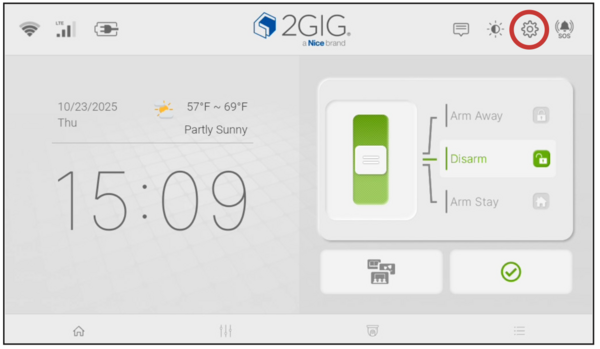
Enter Settings. Tap the gear icon (⚙) in the top-right corner of the Home screen. This opens the Settings menu. The gear icon appears alongside other system status indicators.
-
Enter the Installer Code. When prompted, enter the Installer Code (1561 by default) and tap Enter. The Master Code will not work for accessing Factory Reset. Only the Installer Code provides access to this function.
Installer Settings Menu: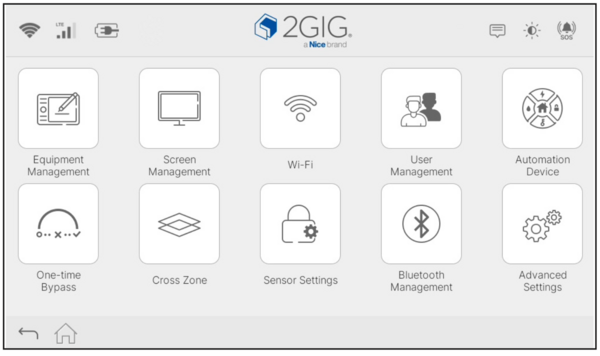
-
Open Equipment Management. Tap Equipment Management from the Settings menu. This section contains system maintenance options including Date and Time, Language, Audio Settings, and Factory Reset.
Equipment Management Menu: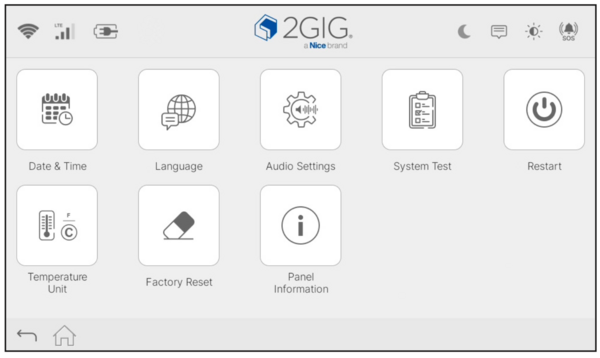
-
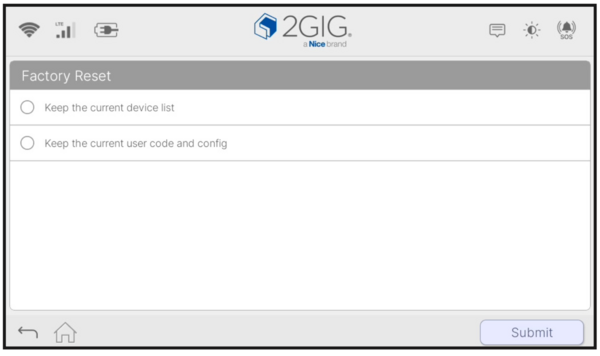
Select Factory Reset. Tap Factory Reset. A screen appears with two checkbox options for preserving data during the reset.
-
Choose data to keep. Select which data, if any, to preserve before proceeding. There are two options: keep the current device list, and keep the current user codes and configuration. For a full factory reset, leave both options unchecked and tap "Submit."
- Keep the current device list - If selected the reset will not delete the installed wireless sensors.
- Keep the current user code and config - If selected the reset will not delete configured users.
-
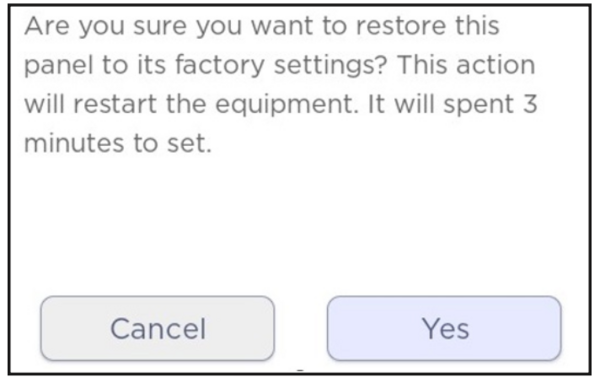
Confirm the reset. Tap Submit, then tap Yes on the confirmation screen. The message warns that the panel will restart and the process takes about 3 minutes. Once you tap Yes, the reset cannot be stopped.
Understanding the Reset Options:
The Factory Reset screen offers two checkboxes that let you preserve certain data. The first option is "Keep the current device list." Selecting this box prevents the reset from deleting any installed wireless sensors. You will not need to re-enroll each sensor after the reset completes.
The second option is "Keep the current user code and config." Selecting this box preserves all configured user profiles and their PIN codes.
If you leave both boxes unchecked, the alarm panel performs a complete factory reset. All sensors, user codes, network settings, and custom configurations will be erased. The Master Code returns to 1111 and the Installer Code returns to 1561. You will need to set up the entire system again from scratch.
After the Reset Completes:
The panel restarts and displays the initial setup screens. You must agree to the Regulatory Statement again before using the panel. If you kept your device list, your sensors remain enrolled. If you kept user codes, those codes remain active. Any settings you did not preserve will need to be configured again.
Before performing a reset, write down any custom settings you want to restore later. Contact your monitoring company if you have active service, as the reset may affect your account connection.
A factory reset restores the 2GIG GC Touch to default settings while optionally preserving sensors and user codes. The process takes about 3 minutes and requires the Installer Code (1561 by default). For help with factory resets or other configuration tasks on your GC Touch panel, contact the Alarm Grid support team at support@alarmgrid.com. Our support hours are 9:00 AM - 8:00 PM EST Monday - Friday.
Did you find this answer useful?
We offer alarm monitoring as low as $10 / month
Click Here to Learn MoreRelated Products


- Answered
- Answered By
- Julia Ross