
How Do I Factory Reset the IQ Panel 5 to Default Settings?
To factory reset the IQ Panel 5, swipe down and touch Settings, then Advanced Settings, and enter your code. Next, touch Installation, then Dealer Settings, and scroll down to the Reset section. Touch Master Reset, and then touch OK on the confirmation popup to restore all factory defaults.
What a Factory Reset Does
The IQ Panel 5 (available in AT&T LTE and Verizon LTE) includes a Master Reset that restores the panel to its out-of-the-box factory state. This erases everything on the system, including all enrolled security sensors, Z-Wave devices, Bluetooth pairings, WIFI credentials, user codes, Photo Frame images, and event history. Once the reset finishes, the panel reboots and launches the Setup Wizard exactly as it did the first time you powered it on.
A factory reset is the right choice when you are transferring the panel to a new homeowner, troubleshooting a persistent issue a reboot has not fixed, or starting a fresh installation on your security system. Because it permanently deletes all programming, document your sensor list, user codes, and home automation device settings first. If your panel is monitored, let your provider know before you reset so they can re-register it afterward.
Before You Begin
Master Reset lives in the Dealer Settings menu and uses the Dealer Code (2222 by default). This is the one action the Master Code (1234) cannot perform, so if you only use your Master code day to day, have your Dealer code ready before you start. Make sure the panel is disarmed and connected to AC power, and keep it plugged in for the entire reset, since losing power partway through can corrupt the panel.
Factory Reset the IQ Panel 5
-
Swipe down and touch Settings. Swipe down from the top of the screen to open the Settings Tray, then touch SETTINGS.
 Swipe down from the top of the screen to open the Settings Tray.
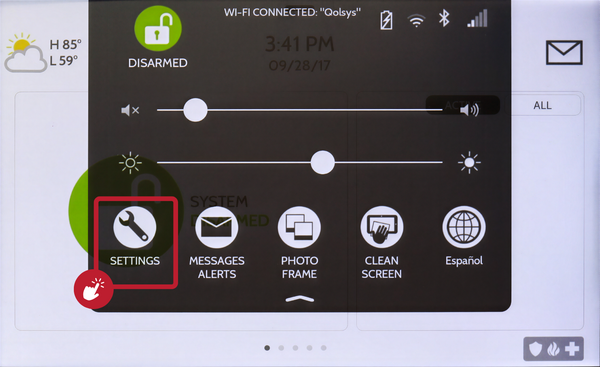 Touch Settings in the Settings Tray.
-
Touch Advanced Settings and enter your code. Touch ADVANCED SETTINGS, then enter your Dealer Code (2222 by default). The panel advances automatically after a valid code.
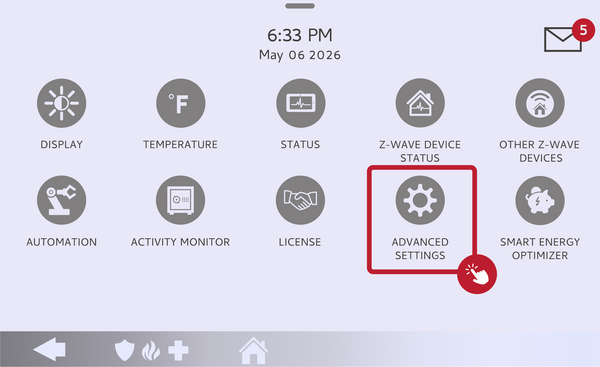 Touch Advanced Settings.
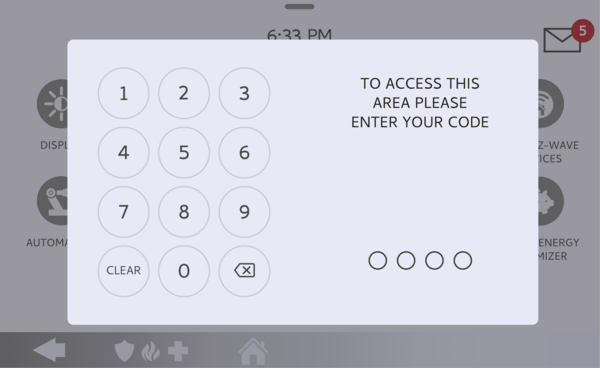 Enter your Dealer Code (2222 by default).
-
Touch Installation. On the menu that appears, touch INSTALLATION, the drill icon in the top-left corner, to open the installation and programming options.
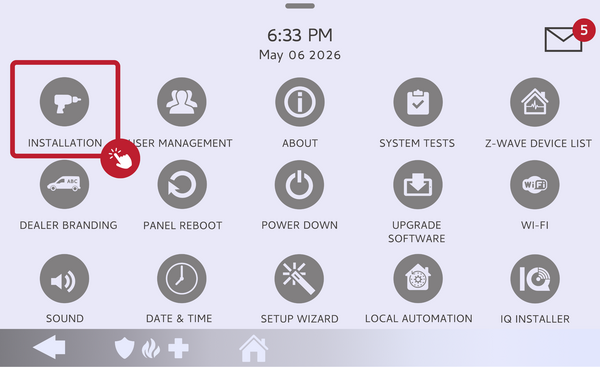 Touch Installation.
-
Open Dealer Settings and scroll to the Reset section. Touch DEALER SETTINGS, then scroll down the page to the Reset section. Touch MASTER RESET, the option that erases all content and settings and restores the panel to factory defaults.
Open Dealer Settings, scroll to Reset, and touch Master Reset. -
Confirm on the popup. A popup appears that reads, "Your system will reboot and reset all installed applications. Do you want to proceed?" with Cancel and OK. Touch OK to begin the reset. The panel erases all data, reboots, and launches the Setup Wizard, which takes about two to three minutes.
Touch OK to confirm and start the reset.
What to Expect After the Reset
Once the reset finishes, the panel reboots into the Setup Wizard, which walks you through reconnecting to WIFI, checking for software updates, and enrolling your sensors and Z-Wave devices from scratch. All codes revert to their defaults: Master Code 1234, Installer Code 1111, and Dealer Code 2222. Any custom codes you created before the reset are deleted and need to be re-added through User Management.
If a full factory reset is more than you need, consider a Data Recycle instead. Data Recycle erases user data such as WIFI credentials, user codes, Photo Frame images, and event history, but keeps your enrolled sensors and automation devices. It is a good middle ground when handing the panel to a new homeowner while keeping the existing sensor programming intact.
Tips
Keep the panel plugged into AC power throughout the entire reset, since disconnecting power during a reset can corrupt the panel. If you plan to replace the backup battery, finish the reset and let the Setup Wizard complete before swapping the battery. Recording your sensor DL ID codes, zone names, and sensor group assignments before you start makes it much faster to reprogram everything once the panel is back up.
A factory reset restores your panel to its original state and erases all stored programming and user data on the IQ Panel 5. For help with a factory reset or other configurations on your IQ Panel 5, contact the Alarm Grid support team. We are here Monday through Friday from 9:00 AM to 8:00 PM Eastern Time. Email us at support@alarmgrid.com, call us at 888-818-7728, or visit our website and chat with a live support agent.
Did you find this answer useful?
We offer alarm monitoring as low as $10 / month
Click Here to Learn MoreRelated Products


Related Categories
- Touchscreen Alarm Panels
- Touchscreen Alarm Panels
- DIY Wireless Security Systems
- Monitored Home Security Systems
- Answered