
How Do I Find the IMEI Number on the IQ Panel 5 System?
To find the IMEI on the IQ Panel 5, swipe down from the top of the screen, touch Settings, then Advanced Settings, and enter the Installer Code (1111 by default). Touch About and read the IMEI listed under the Cellular section. This unique 15-digit number identifies the panel cellular radio.
What Is the IMEI and Why Do You Need It
The IQ Panel 5 (available in AT&T LTE and Verizon LTE) communicates over LTE cellular for alarm signal transmission and remote access. The IMEI (International Mobile Equipment Identity) is a unique 15-digit number that identifies the cellular radio inside your panel. You will need it to register your system for live monitoring service, connect the panel to your Alarm.com account, troubleshoot cellular connectivity, or contact your carrier for support. The IMEI is tied to your specific panel and cannot be changed.
Method 1: Find the IMEI in the Panel Menu
This is the most reliable method because it works whether the panel is mounted or not and does not require the original box. The About page requires the Installer Code (1111 by default) or the Dealer Code (2222 by default).
-
Swipe down from the top of the screen. The Settings Tray opens, showing quick-access controls along with the Settings button.
 Swipe down from the top of the screen to open the Settings Tray.
-
Touch Settings, then Advanced Settings. Touch SETTINGS from the Settings Tray, then touch ADVANCED SETTINGS. A code entry keypad appears on screen.
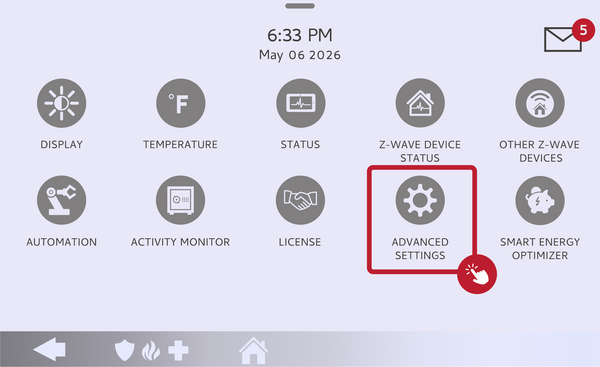 Touch Advanced Settings on the Settings page.
-
Enter the Installer Code (1111 by default). Type the code on the keypad. The panel advances automatically after the final digit, and the Advanced Settings menu opens.
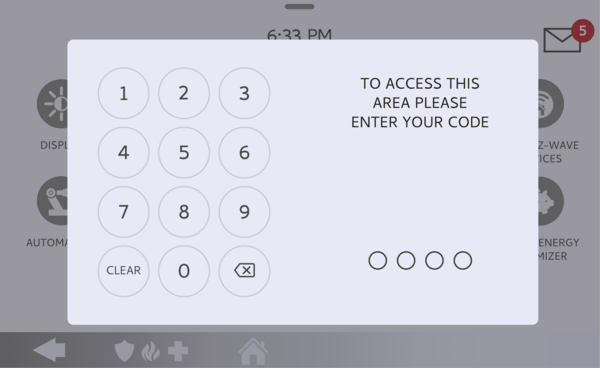 Enter the Installer Code (1111 by default) on the keypad.
-
Touch About. The Advanced Settings menu opens with an About option. Touch ABOUT to open the system information page, which shows the software version, hardware version, and a Cellular section listing the carrier, connection status, and signal strength.
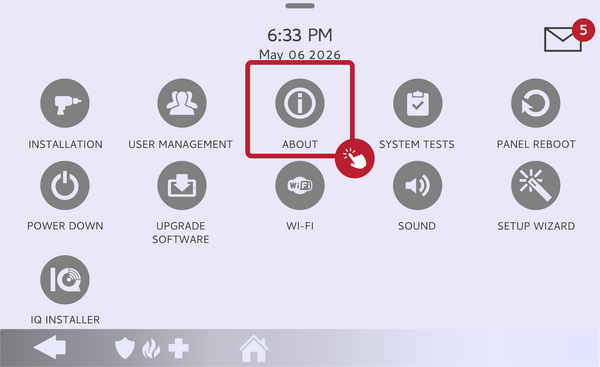 Touch About to open the system information page.
-
Read the IMEI under the Cellular section. The IMEI is listed as a 15-digit number in the Cellular section, alongside the IMSI and ICCID. Write it down or photograph it for your records.
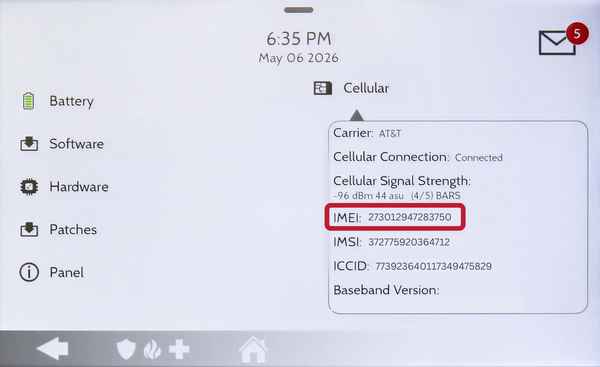 The IMEI is listed in the Cellular section of the About page.
Method 2: Check the Original Packaging
If the panel is already mounted and you would rather not access the menu, check the box it came in. The IMEI is printed on the barcode sticker on the outside of the original packaging, next to the serial number. If you kept the box, this is a quick way to read the IMEI without touching the panel.
Method 3: Check the Product Sticker on the Panel
The IQ Panel 5 has a product sticker that prints the IMEI along with the model and serial number. The sticker is located on the back of the panel or along the bottom-right edge. If it is on the bottom-right edge, you may be able to read it while the panel is still mounted. If it is on the back housing, remove the panel from its SmartMount backplate first: using a small Phillips screwdriver, undo the locking screw at the bottom of the panel, then lift the panel off the backplate. Take a photo of the sticker before remounting so you do not have to remove the panel again.
Method 4: Find the IMEI Through Alarm.com
If your panel is already activated and registered with Alarm.com, the IMEI is stored with the account device information. This is useful when the panel is mounted and you no longer have the box. Alarm Grid can pull the IMEI from the account on file, and adding cellular monitoring keeps that signal path active. Once cellular service is active, you can expand your security system with home automation devices.
There are several ways to find the IMEI on your IQ Panel 5, whether the panel is mounted or still in the box. For help with finding the IMEI or other configurations on your IQ Panel 5, contact the Alarm Grid support team. We are here Monday through Friday from 9:00 AM to 8:00 PM Eastern Time. Email us at support@alarmgrid.com, call us at 888-818-7728, or visit our website and chat with a live support agent.
Did you find this answer useful?
We offer alarm monitoring as low as $10 / month
Click Here to Learn MoreRelated Products


Related Videos

Related Categories
- Home Security Systems
- Home Security Systems
- Monitored Home Security Systems
- DIY Wireless Security Systems
- Touchscreen Alarm Panels
- Touchscreen Alarm Panels
- Answered