
How Do I Program a 2GIG Motion Sensor with a 2GIG GC Touch?
To install a 2GIG motion sensor with the 2GIG GC Touch, make sure the panel is disarmed, then tap Settings (gear icon) and enter the Installer Code (1561 by default). Navigate to Sensor Settings, select an empty zone, and use the Quick Add feature to automatically learn the motion sensor.
Before You Begin
The 2GIG GC Touch, available in AT&T LTE and Verizon LTE versions, supports a wide range of wireless sensors that operate at the 345 MHz frequency. This includes sensors manufactured by 2GIG, Resideo/Honeywell, and other compatible brands. The GC Touch does not support 2GIG E+ extended range sensors that operate on the 900 MHz band.
Before enrolling a motion detector, make sure fresh batteries are installed and the device is ready to activate. The GC Touch supports both encrypted eSeries motion sensors and standard 345 MHz PIR motion detectors. If you plan to install the motion sensor in its intended location ahead of time, avoid walking within the coverage area for at least three minutes prior to programming since the device must be triggered during the enrollment process. Wireless motion sensors usually have a three minute transmission inhibit feature to conserve battery life.
Steps to Program a Motion Sensor
- Disarm the system. The panel restricts access to Settings while armed in either Away or Stay mode. Ensure the panel displays Disarmed status before proceeding.
-
Tap the Settings icon. The gear icon is located in the top-right corner of the home screen. When you tap it, a keypad will appear for code entry.
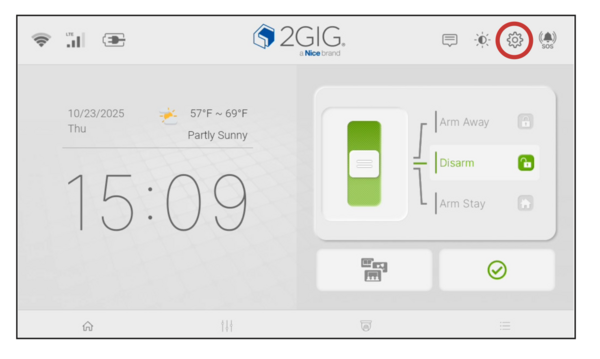
- Enter the Installer Code. Enter the Installer Code (1561 by default), then tap Enter (↵) to access the installer menu. The screen will display a grid of programming options.
-
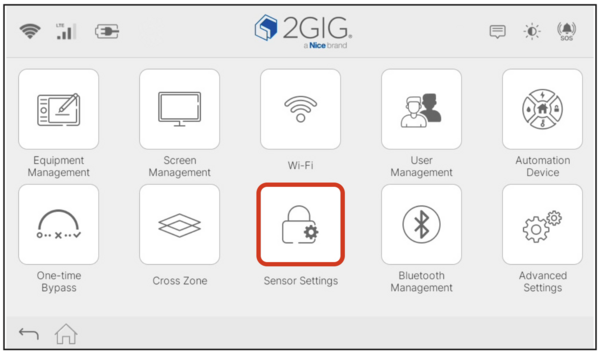
Tap Sensor Settings. This option opens the sensor programming menu where you can view all 128 available zones and manage enrolled devices.
-
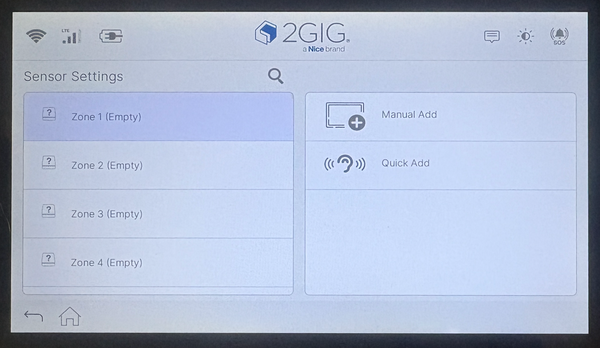
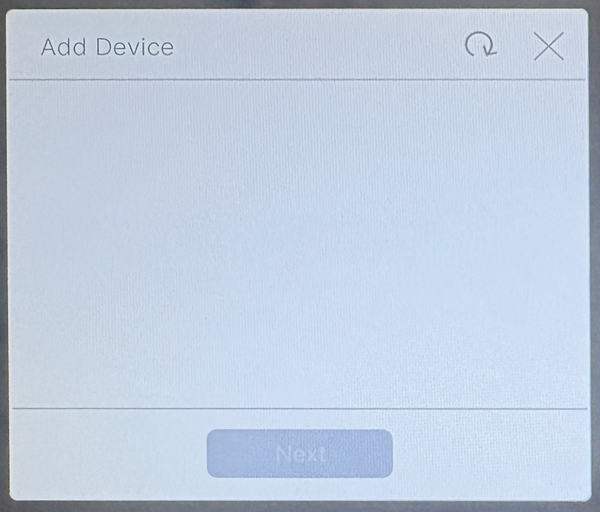
Tap Quick Add. The panel will display a popup that says Add Device. It is now listening for new devices. The Quick Add feature listens for sensor signals and automatically captures the transmitter ID. It's particularly useful when you want to physically install the sensors, then transmit using each sensor, and finally configure each zone. Just be sure you know which serial number goes with each sensor's physical location.
-
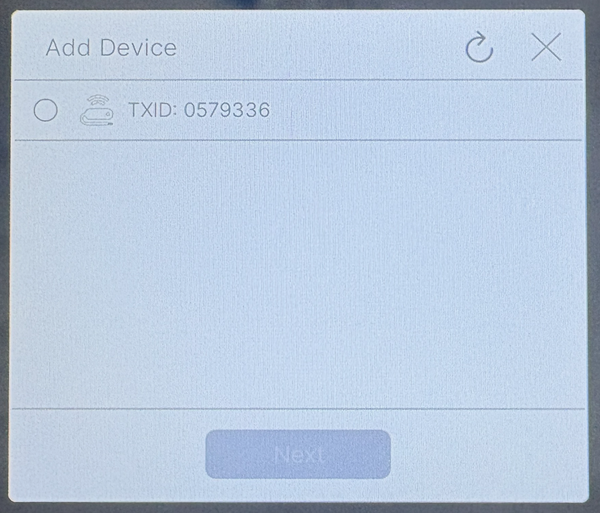
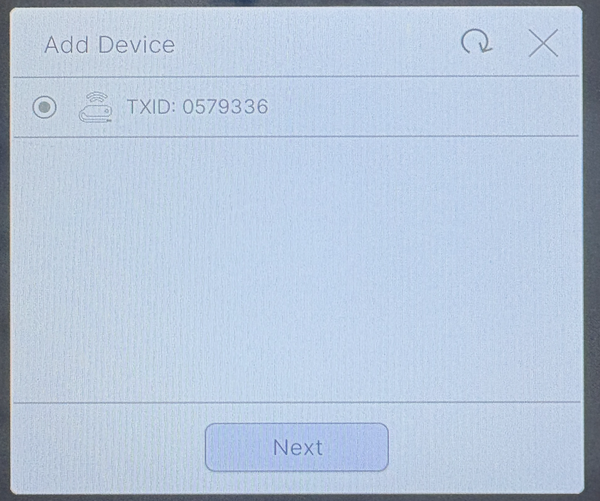
Trigger the motion sensor. Walk in front of the sensor to activate it. Once detected, the sensor's TXID will appear in the device list. Tap the radio button next to the TXID to select it and then tap Next to configure it.
-
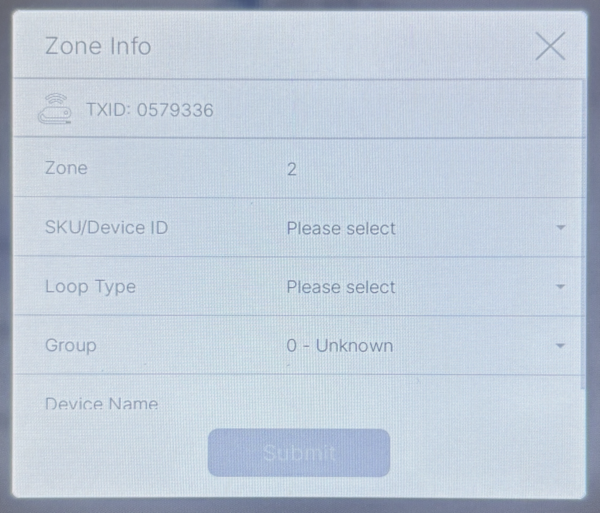
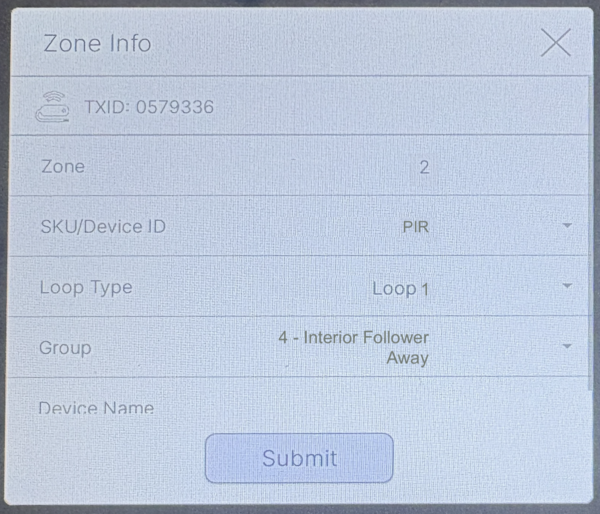
Configure the zone settings. The GC Touch will automatically select the next available zone number. Choose the appropriate SKU/Device ID from the dropdown list that matches your motion sensor model. The panel will automatically populate the Loop Type and Group settings based on your selection.
- Name the zone. Tap the Device Name field and enter a descriptive name such as "Living Room Motion" or "Hallway PIR" to identify the sensor location. This is how activity for the sensor will be logged in the panel's event history.
- Tap Submit. Once you tap submit, the sensor is enrolled and will begin reporting motion activity to the panel. Test the sensor by arming the security system and walking through the detection area.
Important Tips for Motion Sensors
When selecting the Group type during configuration, most motion sensors should use "Interior Follower" which is standard for interior motion detectors. This setting means the sensor is active when armed in Away mode but automatically bypassed in Stay mode, allowing you to move freely inside your home while perimeter protection remains active. If your motion sensor guards an entry point like a garage or back hallway, consider using "Interior with Delay" to allow time for disarming after entering.
For optimal performance, mount motion sensors in corners approximately 7 feet high, angled to cover the protected area. Avoid pointing sensors toward windows with direct sunlight or heat sources like fireplaces and HVAC vents, which can cause false alarms. If you have pets, consider pet-immune motion sensors designed to ignore animals under a certain weight.
The panel communicates wirelessly with sensors, so maintain line-of-sight between the panel and motion sensor when possible. Avoid placing sensors behind large metal objects, appliances, or in areas with reinforced concrete walls that may obstruct RF signals. After installation, perform a walk test to verify the sensor detects motion reliably throughout its coverage area.
Motion sensors work seamlessly with monitoring services to detect intrusion when the system is armed. For help with motion sensors on your GC Touch panel, contact the Alarm Grid support team at support@alarmgrid.com, Monday - Friday from 9:00 AM - 8:00 PM Eastern Time.
Did you find this answer useful?
We offer alarm monitoring as low as $10 / month
Click Here to Learn MoreRelated Products


Related Categories
- Home Security Systems
- Home Security Systems
- Apartment Security Systems
- Small Business Security Systems
- Smart Home Controllers
- DIY Wireless Security Systems
- Touchscreen Alarm Panels
- Touchscreen Alarm Panels
- Answered