
How Do I Reboot or Restart the IQ Panel 5 Security Panel?
To reboot the IQ Panel 5, swipe down from the top of the screen and touch Settings. Touch Advanced Settings and enter the Installer code, 1111 by default. Touch Power Down, then select Reboot and press OK to confirm the restart. Every setting, user, and sensor stays exactly as it was before.
Before You Begin
The IQ Panel 5 (available in AT&T LTE and Verizon LTE) is a full-featured security system that occasionally benefits from a restart. A reboot is a safe soft restart. It powers the panel off and back on without touching your programming, so every user code, enrolled sensor, and Z-Wave device stays exactly as you left it.
Why Reboot the Panel
Rebooting clears temporary software glitches, refreshes the WIFI and cellular connections, and resolves minor issues like an unresponsive screen or a sensor that stopped reporting. It is different from a factory reset, which erases all programming and returns the panel to defaults. A reboot keeps everything in place and gives the system a fresh start. Reach for a reboot first whenever the panel feels sluggish or a home automation device stops responding correctly.
Reboot From the Settings Menu
-
Swipe down from the top of the screen and touch Settings. The Settings Tray slides down from the top of the display. Touch the Settings icon to open the main Settings page, where the panel configuration options live.
 Swipe down from the top of the screen to open the Settings Tray.
-
Touch Advanced Settings. The panel prompts you for a code before granting access to the deeper system controls. Only authorized users with the Installer or Master code can reach this area.
 Touch Advanced Settings on the main Settings page.
-
Enter the Installer code, which is 1111 by default. The panel auto-advances as soon as the last digit is entered and opens the Installer Menu. There is no need to press Enter after the code.
 Enter the Installer code, 1111.
-
Press Panel Reboot. The Installer Menu lists the panel's system options. Select Panel Reboot to begin the restart.
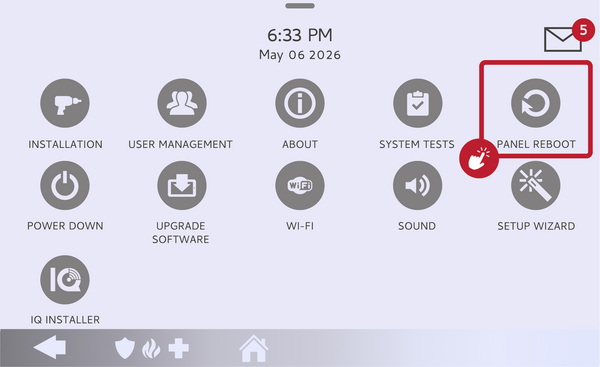 Touch the Panel Reboot icon on the Installer Menu page.
- Press OK to continue. A popup appears asking, "Do you want to reboot the panel?" Press OK to confirm. The screen goes dark and the IQ Panel 5 powers back on within about a minute, with every setting, user code, and sensor exactly as it was before.
Reboot Using the Power Button
If the touchscreen is frozen and will not respond to the menu steps above, force a hardware reboot instead. Press and hold the power button on the right side of the panel until it powers off, then press and hold it again for about 3 seconds to power it back on. Your users, sensors, and settings are stored in the panel memory, so a hardware power cycle preserves everything exactly as the menu reboot does.
What to Expect
After the reboot completes, the panel reconnects to your WIFI network and cellular signal automatically, and any armed state or scheduled automation resumes. Nothing is erased during a reboot, so this is always a safe first troubleshooting step. Keeping the panel connected to WIFI and up to date on the latest software from the Manage My System page helps prevent the glitches that make a reboot necessary in the first place.
If you want to power the panel off completely rather than restart it, that is the separate Power Down option on the same screen. See our guide on how to shut down the IQ Panel 5 for the full shutdown steps.
Tips
Reboot the panel as your first troubleshooting step whenever it feels sluggish, a sensor stops reporting, or the WIFI connection drops. A restart resolves most temporary issues in under a minute. Avoid a factory reset unless a technician instructs you to perform one, since a factory reset erases all users, sensors, and programming, while a reboot keeps everything in place.
You can reboot from the Advanced Settings menu or with the physical power button, and either method clears minor issues while keeping all of your programming in place on the IQ Panel 5. For help with rebooting or restarting your panel or other configurations on your IQ Panel 5, contact the Alarm Grid support team. We are here Monday through Friday from 9:00 AM to 8:00 PM Eastern Time. Email us at support@alarmgrid.com, call us at 888-818-7728, or visit our website and chat with a live support agent.
Did you find this answer useful?
We offer alarm monitoring as low as $10 / month
Click Here to Learn MoreRelated Products


Related Categories
- Answered