
How Do I Run a Sensor Test on the IQ Panel 5 Alarm System?
To run a sensor test on the IQ Panel 5, swipe down and touch Settings, then Advanced Settings, and enter your code. Touch System Tests, and then Sensor Test. Trip each sensor to check its signal strength and packet count against the noise floor, then use the graph icon to see a live view.
What the Sensor Test Does
The IQ Panel 5 (available in AT&T LTE and Verizon LTE) includes a Sensor Test that shows the actual dBm signal strength of each sensor and graphs sensor events against the ambient noise floor of your environment. It also shows the traditional packet count. Together these tell you how strongly and reliably each sensor is communicating with the panel.
The Advanced Sensor Test opens a summary page of every sensor paired to the panel, listing the average dBm level, the last event's dBm level, and how many packets were received. Selecting the graph icon to the right of a sensor shows that sensor's signal strength graphed in real time. Running this test is the best way to catch a weak or unreliable sensor on your security system before it causes a missed signal or a false trouble.
Before You Begin
The Sensor Test lives under System Tests in Advanced Settings, which you can reach with any of your codes: the Installer Code (1111 by default), Master Code (1234 by default), or Dealer Code (2222 by default). The steps below use the Installer Code as the example. It helps to know which sensor is which ahead of time, since you will be walking around to open doors and windows or trigger motions to test them.
Run the Sensor Test
-
Swipe down and touch Settings. Swipe down from the top of the screen to open the Settings Tray, then touch SETTINGS.
 Swipe down from the top of the screen to open the Settings Tray.
 Touch Settings in the Settings Tray.
-
Touch Advanced Settings and enter your code. Touch ADVANCED SETTINGS, then enter your Installer Code (1111 by default). The Master Code (1234) or Dealer Code (2222) work here too. The panel advances automatically after a valid code.
 Touch Advanced Settings.
 Enter your Installer Code (1111 by default).
-
Touch System Tests. On the Advanced Settings page, touch SYSTEM TESTS to open the list of diagnostic tests.
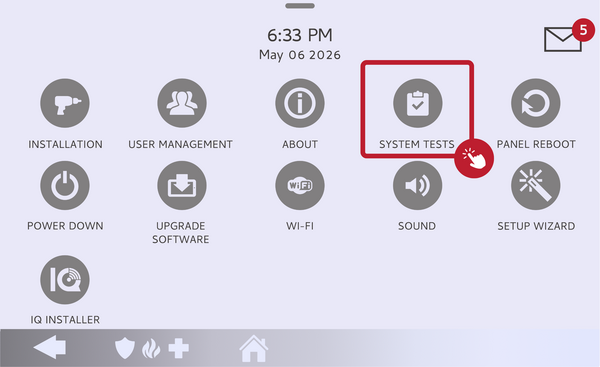 Touch System Tests.
-
Touch Sensor Test. Touch SENSOR TEST to open the Advanced Sensor Test summary page, which lists every paired sensor with its average dBm, last event dBm, and packet count.
Touch Sensor Test to open the summary page. -
Trip each sensor and review the readings. Walk to each sensor and activate it, such as opening a door or window or triggering a motion. Watch its dBm level and packet count update on the panel. Touch the graph icon next to a sensor to see its signal strength graphed in real time against the noise floor.
Trip each sensor and watch its dBm and packet count.
Tips
For a healthy sensor, the manufacturer recommends a signal-to-noise ratio of at least 7 dB, so you want the sensor's signal comfortably above the noise floor. You can view the Real Time Noise Floor by touching the Settings cog on the Sensor Test page; lower noise floor dBm means less interference on that frequency. If a sensor reads weak or drops packets, try moving it closer to the panel, repositioning it away from metal or thick walls, or adding a wireless repeater to strengthen the connection.
Running a sensor test on the IQ Panel 5 confirms every sensor is communicating strongly and reliably. For help reading your sensor test results or improving a weak signal on your IQ Panel 5, contact the Alarm Grid support team. We are here Monday through Friday from 9:00 AM to 8:00 PM Eastern Time. Email us at support@alarmgrid.com, call us at 888-818-7728, or visit our website and chat with a live support agent.
Did you find this answer useful?
We offer alarm monitoring as low as $10 / month
Click Here to Learn MoreRelated Products


- Answered