
How Do I Set Up the Screen Saver on the 2GIG GC Touch?
To set up the Screen Saver and Photo Frame on a 2GIG GC Touch, first load photos. Then tap Settings (⚙). Enter the Installer or Master Code, default 1561 / 1111. Tap Screen Management. Photo Frame is used to add photos, while Screen Saver enables the Photo Frame feature and sets the delay.
The 2GIG GC Touch (available in AT&T LTE and Verizon LTE) supports the photo frame screen saver feature starting with firmware version 1.1. The panel can store up to 100MB of photos. Once this limit is reached, you will need to delete existing photos before adding new ones. Photos are transferred wirelessly from your mobile phone by scanning QR codes, so no cables are required. The screen saver will activate after the panel has been idle for the duration set in the Screen Saver > Sleep Mode Timer.
Adding Photos to the Panel
Before you can display a photo frame screen saver, you need to upload photos from your mobile phone or tablet. The panel generates a QR code, allowing you to connect your device to the panel's built in access point for the transfer.
- Enter Settings. Tap the Settings gear icon (⚙). The icon is located in the top-right corner of the home screen. The panel will prompt you to enter a code.
- Access Screen Management. Enter the Installer Code (1561 by default) or Master Code (1111 by default). The Settings menu will open with icons for the available configuration options. Below, we show the Installer Settings Menu. The Master Settings Menu will offer fewer options, with Screen Management available.
- Enter Photo Frame Settings. Tap Screen Management. The Screen Management menu opens and displays five options: Brightness, Night Mode, Screen Saver, Photo Frame Settings, and Clean Screen. Tap Photo Frame Settings. This is the menu that allows you to add photos to the GC Touch.
- Prepare to add photos. The Photo Frame Settings screen will display any photos already stored on the panel, along with Add and Delete icons. If this is the first time you're uploading photos, only the Add (+) icon will be displayed. Tap the Add (+) icon.
- Connect to the panel's Access Point. The panel will display a QR code on screen. Use your mobile device's camera to scan the QR Code and tap the link displayed on your device. Doing so joins the device holding the photos you want to transfer, to the GC Touch's built in Access Point. Once you tap the link displayed by scanning the QR code you'll be prompted by your device to Join the new network. Tap Join. If for some reason you can't scan the QR code, you can go into the WIFI settings of your device and use the SSID and Password displayed on your panel screen to manually connect to the panel. Once connected, hit Next on the panel screen.
- Scan the second QR code. Tapping the link in the second QR code opens your phone's default browser and connects to the panel's internal photo upload portal.
- Select photos. Choose the images from your device's library that you want the panel to display.
- Tap Submit. A copy of the photos selected will upload to the panel. The number of photos selected will be shown. The panel can hold up to 100MB of photos total. When that limit is reached, no more photos can be added until some are deleted. You'll receive a message when the transfer is complete. Tap "OK" on that message. On the panel, tap "Done" in the lower right to "turn off" the access point. Your phone or tablet will revert to its original WIFI network automatically. Enjoy the screen saver / photo frame!
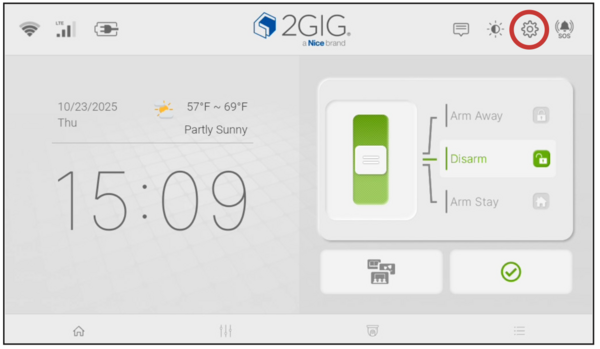
Tap the Settings gear icon in the top-right corner of the home screen
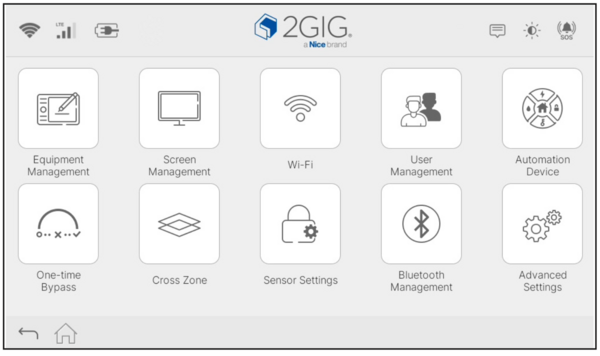
The Installer Settings menu showing Screen Management and other options

The Screen Management menu with options, including Photo Frame Settings.

Enter Photo Frame Settings, then tap the Add (+) icon.

GC Touch showing the first QR code as well as its SSID and Password

Allow your device to Join the panel access point.

An iOS device shown connected to the GC Touch panel's access point.

Scan the second QR code (shown above) to connect via browser to the panel's photo upload page, shown below, then tap "Choose File".


Choose Photo Library (iOS device shown) to upload photos from your phone or tablet to the GC Touch.

Select photos, then approve the transfer. For iOS devices on version 26+, tap the check mark in the upper right.

Once files have been selected, tap "Submit" to transfer to the panel.

When all photos have been copied to the panel, you'll see the message above. Press "OK".
How to Configure the Photo Frame Screen Saver
Once photos are loaded on the panel, you need to set Photo Frame as the active screen saver content so the panel will cycle through your photos when idle.
- Tap the Settings gear icon (⚙) and enter your Installer or Master Code. Follow the same steps as above to access the Installer Settings menu.
- Tap Screen Management. The Screen Management menu will open.
- Tap Screen Saver. The Screen Saver settings screen will open with options for screen saver content and timing.
- Under Screen Saver Content, select Photo Frame. This sets the panel to display your uploaded photos as the screen saver when the panel is idle. The screen saver activates after the Sleep Mode Timer duration expires.
- Tap the Settings gear icon (⚙) and enter your Installer or Master code. Access the Settings menu as described above.
- Tap Screen Management.
- Tap Photo Frame. The Photo Frame screen will show all photos currently stored on the panel.
- Tap the Delete icon (
 ) in the upper right. Select the photos you want to remove, then confirm the deletion. Removing photos frees up storage space so new ones can be added.

For Screen Saver Content, select Photo Frame.

The Sleep Mode Timer defines the period of inactivity before the Screen Saver is triggered.

Duration controls how long each image is displayed before moving to the next image.

Future firmware releases may offer additional transition effects, such as dissolve or fade. Photo Sequence allows you to shuffle the order of images, or display them alphabetically or numerically, by name.
How to Delete Photos from the Panel
If you want to remove photos, such as when the panel's storage is full, you can delete them directly from the Photo Frame menu.
 ) in the upper right. Select the photos you want to remove, then confirm the deletion. Removing photos frees up storage space so new ones can be added.
Screen Saver / Photo Frame Tips
The photo frame screen saver is a great way to personalize your security system panel. Keep in mind that the panel holds up to 100MB, which typically fits several hundred standard smartphone photos. If you want the screen saver to activate sooner, adjust the Sleep Mode Timer to a shorter duration within the Screen Saver settings. The photo frame feature works independently from monitoring and will not interfere with alarm functions. To learn more about other features available on your GC Touch panel, browse the full FAQ library.
For help with the photo frame screen saver or other configurations on your GC Touch panel, contact the Alarm Grid support team. We’re here Monday - Friday from 9:00 AM - 8:00 PM Eastern Time. Email us at support@alarmgrid.com, call us at 888-818-7728, or visit our website and chat with a live support agent from 9:00 AM - 6:00 PM Eastern.
Did you find this answer useful?
We offer alarm monitoring as low as $10 / month
Click Here to Learn MoreRelated Products


- Answered