
How Do I Use the Clean Screen Feature on the IQ Panel 5?
To use the Clean Screen feature on the IQ Panel 5, swipe down from the top of the screen to open the Settings Tray, then touch Clean Screen. A popup timer counts down from 30 seconds and disables touch input so that you can wipe the display safely without triggering any buttons or settings.
What the Clean Screen Feature Does
The IQ Panel 5 (available in AT&T LTE and Verizon LTE) has a 7-inch touchscreen that collects fingerprints and dust with everyday use. The Clean Screen feature temporarily disables touch input so you can wipe the display without accidentally arming, disarming, or changing settings. A 30-second popup timer counts down on screen, and the panel ignores all screen contact during that window so you can clean the glass safely.
Clean Screen is a convenience feature and does not affect your security system or its armed state. The panel continues to monitor your sensors normally while the screen is locked for cleaning. No code is required to use it, so any household member can keep the display clean without needing installer or master access.
How to Use the Clean Screen Feature
-
Swipe down from the top of the screen. The Settings Tray opens, showing quick-access controls along with the Clean Screen button.
 Swipe down from the top of the screen to open the Settings Tray.
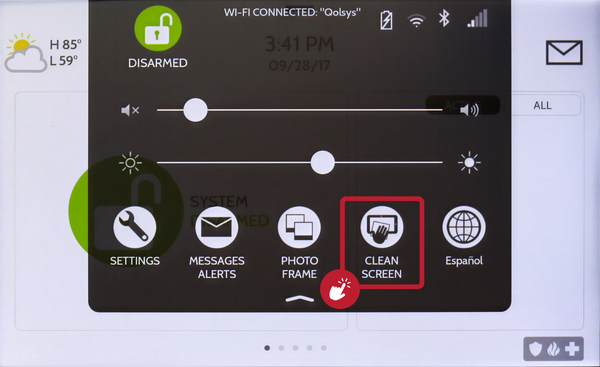 Locate the Clean Screen button in the Settings Tray.
-
Touch Clean Screen. Touch the CLEAN SCREEN button in the Settings Tray. A popup timer appears and begins counting down from 30 seconds, and the touchscreen stops responding to contact.
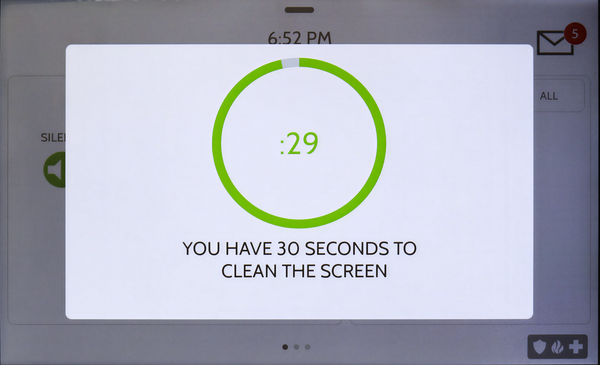 Touch Clean Screen to start the 30-second countdown.
- Wipe the screen while the timer runs. During the 30-second countdown, clean the display with a soft microfiber cloth. The panel ignores all touches, so you can wipe freely without changing any settings or arming state. Avoid harsh cleaners and do not spray liquid directly onto the panel.
- Let the timer finish, or press the side button to cancel. When the countdown reaches zero, the touchscreen reactivates automatically. To exit early, press the wake/sleep button on the side of the panel, which cancels the cleaning mode and returns you to the home screen.
Tips
Use a microfiber cloth rather than paper towels, which can leave scratches or lint on the screen. If 30 seconds is not enough, simply touch Clean Screen again after the timer ends to start a fresh countdown. Keeping the display clean makes day-to-day control of your home automation devices and arming functions easier to read and use.
The Clean Screen feature on the IQ Panel 5 keeps your touchscreen clear without interrupting protection. For help with the Clean Screen feature or other panel settings on your IQ Panel 5, contact the Alarm Grid support team. We are here Monday through Friday from 9:00 AM to 8:00 PM Eastern Time. Email us at support@alarmgrid.com, call us at 888-818-7728, or visit our website and chat with a live support agent.
Did you find this answer useful?
We offer alarm monitoring as low as $10 / month
Click Here to Learn MoreRelated Products


Related Categories
- Answered