
What Is the Default Master Code for the 2GIG GC Touch?
The default master code for the 2GIG GC Touch is 1111. This code belongs to the system administrator, designated as the Master User. It provides the homeowner access to essential system settings and daily operational functions but does not provide access to advanced programming capabilities.

Understanding the Master Code
The master code on the 2GIG GC Touch (available in AT&T LTE and a Verizon LTE versions) represents the highest level of user access available to homeowners. This code belongs to the first user account created in the system, automatically designated as the Master User during initial setup. The panel displays this account with the label "user (Master)" in the Standard Users list, with the default PIN showing as 1111.
When entering the master code to access settings, the panel displays a configuration screen containing seven main categories: Equipment Management for system information and testing, Screen Management for display preferences, WIFI for network connectivity, User Management for adding and removing secondary codes, Automation Device for Z-Wave control, One-time Bypass for temporarily disabling sensors, and Bluetooth Management for wireless disarming features.
Master Code Compared to Other Access Levels
The 2GIG GC Touch implements a hierarchical access structure with three distinct levels. Standard user codes allow basic security system operation, including arming in Stay or Away modes, disarming, and viewing sensor status. These codes work well for family members or housekeepers who need system access without configuration capabilities.
The master code (default 1111) elevates access to include settings menu entry, user code management, screen customization, WIFI configuration, equipment testing, and home automation device control. This level suits homeowners who manage their own systems and need regular access to configuration options.
The installer code (default 1561) provides complete system access, including sensor programming, advanced delay timing parameters, cross zone configuration, and factory reset operations. The master code cannot access these installer-level functions, preventing accidental system misconfiguration while still providing meaningful control.
Accessing Settings with the Master Code
Accessing master code settings requires the system to be disarmed. With the system disarmed, follow these steps to access the Master User Settings menu:
- Locate the gear icon. On the home screen, find the gear icon (⚙) in the upper right corner of the 7" touchscreen display.
- Tap the Settings icon. Tapping this icon prompts for either the installer code or the master code.
- Enter the master code. Enter the current Master Code (defalt is 1111) using the on-screen numeric keypad. The panel validates the code and displays the Master User Settings menu.
GC Touch Master Settings:
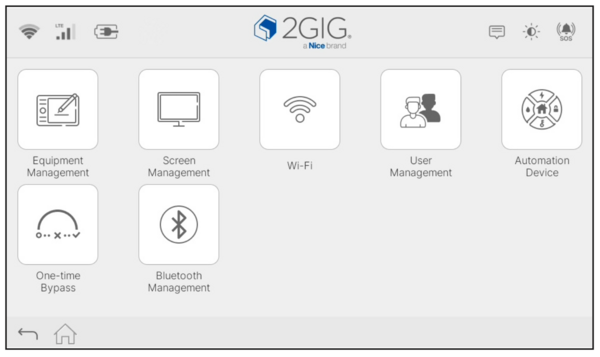
If someone attempts to access settings while the system is armed in either Stay or Away mode, the panel displays an error message stating that the operation is not allowed while armed. After 30 minutes of inactivity, the panel will automatically exit the Settings Menu to help protect against unauthorized access.
Changing the Default Master Code
Security best practices strongly recommend changing the default master code during initial setup. The 1111 code is publicly documented and represents the first code an intruder would attempt if they gained physical access to the panel.
Follow these steps to modify the master code:
- Access the Settings menu. With the system disarmed, tap the gear icon and enter the current Master Code (1111 by default).
- Open User Management. Tap User Management from the Master User Settings menu. The panel displays the Standard Users list showing all configured user codes.
- Edit the Master User. Tap the edit icon next to the Master User entry to open the user modification screen.
- Enter the new PIN. Type a new four-digit PIN* in the User PIN field, ensuring it does not duplicate any existing user code, installer code, or duress code.
- Save the changes. Tap Submit to confirm the new Master Code.
*The master code length depends on the PIN Code Length setting configured in User Management. Systems support either four-digit or six-digit PINs throughout. Changing PIN length automatically adjusts existing codes by either truncating to four digits or appending "00" to existing codes for six-digit mode. By default, PINs are set to use four digits.
Common Master Code Uses
The Master Code enables several routine operations. Adding new family members or removing departed users requires Master Code access to the User Management section. This allows homeowners to maintain current user lists without requiring installer assistance.
Customizing panel appearance involves accessing Screen Management in Master Settings, where users can adjust display brightness, configure night mode for automatic dimming, select screen saver content, and activate clean screen mode. WIFI network changes also require Master Code authentication when households change internet providers or modify router settings.
Managing Z-Wave smart home devices connected to the panel requires Master Code access to the Automation Device section. This category allows users to add devices like smart locks, lights, thermostats, or garage door controllers. Configuring Bluetooth disarming features also requires the Master Code, enabling hands-free disarming when arriving home.
Security Considerations
The Master Code requires appropriate security measures to maintain system integrity. Restrict the Master Code to primary household members who require Settings access. Create standard user codes for family members or other users who need only basic arming and disarming capabilities.
Avoid obvious code combinations like sequential numbers (1234), repeated digits (2222), or personally significant dates that someone might easily guess. Consider periodic master code changes after household transitions like roommate changes or employment changes for household employees.
The Master Code differs from a Duress Code in critical ways. A Duress Code appears to disarm the system normally but sends a silent alarm to the monitoring station, signaling that the user is under duress. The Master Code provides legitimate system access without triggering hidden alerts.
The 2GIG GC Touch provides reliable separation between standard user operation and more advanced access through its Master Code authority. Changing the default 1111 code to a unique PIN ensures better protection against unauthorized access. If you need help with your 2GIG GC Touch, you can contact Alarm Grid technical support at support@alarmgrid.com. We're here Monday - Friday from 9:00 AM - 8:00 PM Eastern Time.
Did you find this answer useful?
We offer alarm monitoring as low as $10 / month
Click Here to Learn MoreRelated Products


Related Categories
- Answered