
How Do I Add a Temporary Guest User Code on the IQ5 Hub?
To add a guest code on the IQ5 Hub, swipe down and touch Settings, then Advanced Settings, and enter your Master Code. Touch User Management, and then add a new user. Set the User Type to Guest, enter a name and a code, and then save. Delete the code after the visit to keep it temporary.
About Guest Codes
The IQ5 Hub (available in AT&T LTE and Verizon LTE) supports several user types, and a Guest code is the right choice for someone who needs short-term access. A Guest code can arm and disarm the assigned partition but cannot get into programming or user settings, so it is perfect for a house sitter, dog walker, cleaner, or visiting family member. Giving out a Guest code instead of your Master Code keeps your security system under your control.
The panel can hold up to 242 user codes, so there is plenty of room to add a guest whenever you need one. A Guest code works just like any other code at the keypad; the difference is purely in its permissions. To make it truly temporary, you can either delete the code once the guest no longer needs access, or set an automatic schedule for it through the Alarm.com app, covered in the tips below.
Before You Begin
Creating a user code requires the Master Code (1234 by default); the Installer Code (1111) and Dealer Code (2222) can also create codes. This walkthrough uses the Master Code, since managing everyday users is a Master Code task. Decide on a 4-digit code for your guest ahead of time, and avoid obvious combinations like 1234 or 0000. If your panel is set to 6-digit codes, enter six digits instead.
Add a Guest Code
-
Swipe down and touch Settings. Swipe down from the top of the screen to open the Settings Tray, then touch SETTINGS.
 Swipe down from the top of the screen to open the Settings Tray.
 Touch Settings in the Settings Tray.
-
Touch Advanced Settings and enter your Master Code. Touch ADVANCED SETTINGS, then enter your Master Code (1234 by default). The Installer Code (1111) or Dealer Code (2222) work here too. The panel advances automatically after a valid code.
 Touch Advanced Settings.
 Enter your Master Code (1234 by default).
-
Touch User Management. In Advanced Settings, touch USER MANAGEMENT to open the list of user codes on the panel.
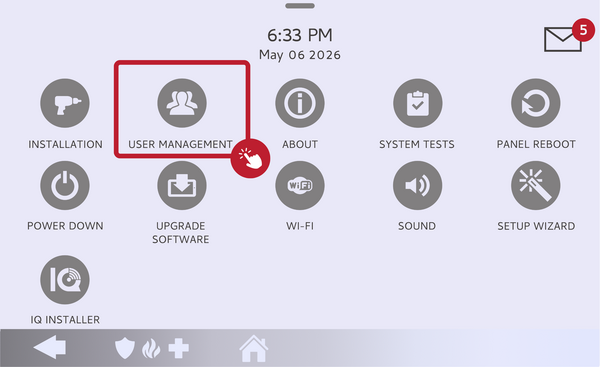 Touch User Management.
-
Add a new user and set the type to Guest. Touch ADD to create a new user. Enter a name for your guest, then set the User Type to GUEST so the code can only arm and disarm.
Add a new user and set the User Type to Guest. -
Enter a code and save. Enter the 4-digit code you want the guest to use, then save. The Guest code is active right away and can arm and disarm the system.
Enter the guest's code and save.
Tips
The simplest way to keep a Guest code temporary is to delete it from User Management once the visit is over. For a hands-off option, the Alarm.com app lets you create access codes on a schedule, so a code can turn on and off automatically for set days or times, which is ideal for recurring help like a weekly cleaner. Give each guest their own code rather than sharing one, so you can see who armed or disarmed the system in your history and remove one person's access without affecting others.
Setting up a temporary guest code on the IQ5 Hub gives visitors the access they need while keeping the rest of your system private. For help with guest codes or user management on your IQ5 Hub, contact the Alarm Grid support team. We are here Monday through Friday from 9:00 AM to 8:00 PM Eastern Time. Email us at support@alarmgrid.com, call us at 888-818-7728, or visit our website and chat with a live support agent.
Did you find this answer useful?
We offer alarm monitoring as low as $10 / month
Click Here to Learn MoreRelated Products


Related Categories
- Answered