
How Do I Adjust Screen Brightness on A 2GIG GC Touch?
The 2GIG GC Touch provides two convenient methods for adjusting the screen's brightness. Users can access the brightness slider from the Home screen by tapping the sun icon, or edit the brightness through the Settings menu under Screen Management. All brightness changes are applied instantly.

The 2GIG GC Touch (AT&T LTE or Verizon LTE) offers two ways to adjust screen brightness. The quickest method uses the Brightness button directly from the Home screen. The second method goes through the Settings menu and Screen Management. Both methods provide a slider bar for setting the exact brightness level. The security system also supports a Dark Theme toggle for switching between light and dark display modes.
Follow these steps to adjust brightness from the Home screen:
- Locate the Brightness button. On the Home screen, find the sun icon (☀) in the top-right area near the Settings gear. This button provides quick access to brightness controls without entering any menus.
-
Tap the Brightness button. A popup appears showing a slider bar and a Dark Theme toggle switch. The slider ranges from dim on the left to bright on the right.
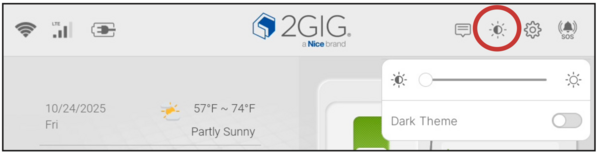
- Drag the slider to adjust brightness. Move the slider left to decrease brightness or right to increase it. The change applies immediately so you can see the effect in real time.
- Close the popup. Tap anywhere outside the popup window to close it and return to the Home screen. Your brightness setting is saved automatically.
Using Dark Theme:
The Brightness popup also includes a Dark Theme toggle switch. Sliding this switch to the right changes the display from light mode to dark mode. Dark mode uses a darker background with lighter text, which can reduce eye strain in low-light conditions. The Dark Theme toggle is not available when the alarm panel is armed in Away or Stay mode.
Alternative Method Accessed Through Settings:
For users who prefer accessing brightness through the Settings menu, the option is available under Screen Management. Tap Settings (⚙), enter the Master Code (1111 by default) or Installer Code (1561 by default), then tap Screen Management and select Brightness. This method provides the same slider bar as the Home screen shortcut.
Screen Management also contains Night Mode settings. Night Mode automatically dims the screen and silences trouble beeps during a scheduled 12-hour period each day. This is separate from the manual brightness adjustment and runs on its own schedule once enabled as part of yourhome automation setup.
Best Practices:
For best visibility, adjust brightness based on the lighting in your room. A brighter setting works well in sunlit areas, while a dimmer setting reduces glare at night. The Dark Theme option combined with lower brightness provides the most comfortable viewing in dark rooms. Your monitoring service is not affected by display brightness changes.
Adjusting brightness on the 2GIG GC Touch takes just a few taps using the sun icon on the Home screen. The slider bar and Dark Theme toggle give you full control over display comfort. For help with screen settings or other features on your GC Touch panel, contact the Alarm Grid support team.
Did you find this answer useful?
We offer alarm monitoring as low as $10 / month
Click Here to Learn MoreRelated Products


Related Categories
- Answered
- Answered By
- Julia Ross