
How Do I Change the Encryption Mode on a 2GIG-DW100-345?
You can change the encryption mode on a 2GIG-DW100-345 door/window contact sensor using the internal DIP switch. The sensor supports encrypted and non-encrypted signal transmission. By default, the sensor operates in standard non-encrypted mode, but you can enable encryption for security.
The 2GIG-DW100-345 is compatible with 2GIG security panels that support encryption, including the GC Touch, (available in AT&T LTE and Verizon LTE versions). Encrypted mode provides additional protection against signal interception and replay attacks, making it ideal for higher-security installations.
Steps to Change Encryption Mode
- Open the sensor housing. Press the tab on the end of the case to disengage the clip holding the cover to the base. Gently apply pressure in the direction away from the base to remove the cover.
- Remove the battery. You must power the sensor down before moving the dip switch. Note that the battery will only slide out in one direction. One side of the battery clip has a stopping edge, so use your thumb to gently apply pressure in the correct direction to slide the battery out.
-
Locate the DIP switch. The encryption mode switch is inside the sensor housing near the battery compartment. It is a small slider toggle switch with the position labeled for ON.
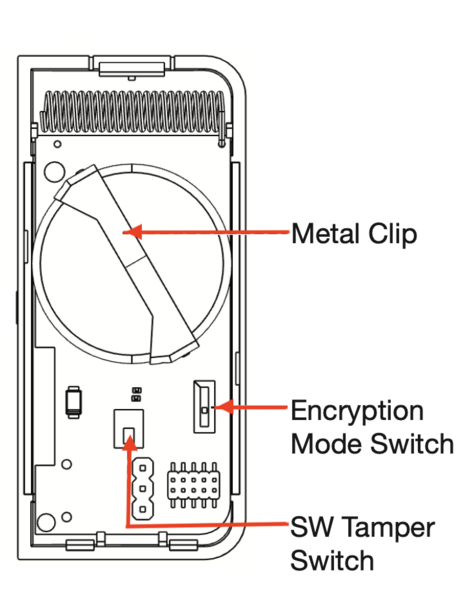
- Adjust the switch setting. Move the DIP switch to the ON position to enable encrypted mode, also called eSeries. Move the switch away from ON to the OFF position (indicated with a 1) to use standard non encrypted mode. The ON position enables encryption, while OFF disables it.
- Tap the tamper switch 5 times. This step is required to register the new encryption mode setting. The tamper switch is the small button located inside the housing.
- Reinstall the battery. Insert the replacement battery with the + sign facing up. Slide it into the clip until it seats fully.
- Close the housing. Snap the cover back onto the base, ensuring the clip engages securely.
- Fault and restore. If you're enabling encryption, fault and restore the DW100-345. If you're using it with the magnet and reed switch, move the magnet away from the sensor then return it to the "closed" position. If you're using an external contact, open and close the contact. With the sensor/contact closed, wait for the LED located inside the sensor to flash, indicating the sensor is now in encrypted mode. You're now ready to program the sensor. For more information on how to add this sensor to a 2GIG GC Touch click here.
Re-enrolling After Mode Change
If the sensor was previously enrolled in the panel in a different mode, you must update the sensor zone programming. Access Sensor Settings on your GC Touch panel, select the zone for this sensor, and update the Sensor Class field to match the new mode. Select "eSeries Sensor (encrypted)" for encrypted mode or "Unencrypted Sensor" for standard mode. You may also need to update the equipment code. If switching to encrypted mode, you should also relearn the TXID after encryption is enabled and perform a sensor test on the panel to align the encryption between the sensor and panel.
Changing the encryption mode on your 2GIG-DW100-345 allows you to choose between standard and encrypted signal transmission. Encrypted mode offers enhanced security for any installation where signal integrity is a priority. For help with encryption settings or other configurations on your GC Touch panel, reach out to the Alarm Grid support team. You can reach us by phone at 888-818-7728 or via email at support@alarmgrid.com. Our support hours are Monday - Friday from 9:00 AM - 8:00 PM Eastern Time. You can also visit our website and chat with a live agent Monday - Friday between 9:00 AM and 6:00 PM Eastern Time.
Did you find this answer useful?
We offer alarm monitoring as low as $10 / month
Click Here to Learn MoreRelated Products


- Answered