
How Do I Change the Panel Volume and Sound on the IQ5 Hub?
To quickly adjust the volume on the IQ5 Hub, swipe down from the top of the screen to open the Settings Tray and drag the volume slider left to decrease or right to increase. For individual control over voice, chimes, media, and doorbell volume, navigate to Advanced Settings and choose Sound.
Two Ways to Adjust Volume
The IQ5 Hub (available in AT&T LTE and Verizon LTE) gives you two ways to adjust volume. The Settings Tray volume slider is the fastest option and controls the overall voice volume without requiring the entry of a code. For more granular control, the Sound menu in Advanced Settings has separate sliders for each audio category: Voices, Beeps and Chimes, Media, and Doorbell Camera Chime. The Sound menu also includes options for editing chimes, voice prompts, sensor sounds, panel sounds, activity monitoring, automation device voice prompts, all chimes, sensor chimes, activity sensor, and trouble beeps.
Quick Volume Adjustment from the Settings Tray
- Access Settings. Swipe down from the top of the screen. The Settings Tray slides open showing quick-access controls including the volume slider, brightness slider, and shortcut icons.
- Adjust volume. Drag the volume slider left to lower the volume or right to increase it. The panel plays a brief tone at the new level so you can hear the change immediately. Sliding all the way to the left mutes voice announcements entirely. Sliding fully to the right sets maximum volume. This slider controls the general voice volume for announcements like "disarmed" and "armed stay."
- Close the Settings Tray. Swipe up or touch the home screen to close the Settings Tray. The volume change takes effect immediately and persists through reboots.

IQ5 Hub Settings Tray opened by tapping or swiping down from the top of the screen.
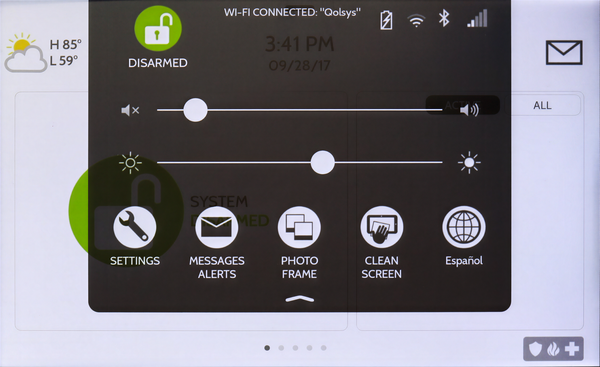
IQ5 Hub Settings Tray showing the volume slider and other options.
Adjusting Individual Volume Categories
- Access Advanced Settings. Swipe down from the top of the screen and touch Settings. On the Settings page, tap Advanced Settings and enter the Installer Code (default: 1111) or the Master Code (default: 1234).
- Tap Sound. The Sound menu opens with the following options: Volume, Edit Chimes, Voices, Sensors, Panel, Activity Monitoring, Automation Device Voice Prompts, All Chimes, Sensor Chimes, Activity Sensor, and Trouble Beeps.
-
Edit sound options. Touch the arrow to the right of Volume to expand the individual volume sliders. Four sliders appear: Voices, Beeps and Chimes, Media, and Doorbell Camera Chime. Adjust each slider independently:
- Voices: Controls spoken announcements like sensor names and system status.
- Beeps and Chimes: Controls entry and exit tones and sensor chimes.
- Media: Controls the volume for help videos.
- Doorbell Camera Chime: Adjusts the doorbell chime volume level.
Additional Tips
The Settings Tray slider is the fastest way to make a quick volume change, while the Sound menu in Advanced Settings gives you full control over each audio category. If you use your IQ5 Hub as part of a home automation setup with Z-Wave devices, the panel announces automation device status changes at the Voices volume level. You can also enable or disable individual voice prompts for sensors within the Sound menu. Siren volume during alarm events is controlled separately under Sirens and Alarms in Advanced Settings and is not affected by these volume sliders.
Adjusting the volume on your IQ5 Hub ensures you hear important alerts and announcements at a comfortable level. For help with volume settings or other configurations on your system, contact the Alarm Grid support team. We're here Monday through Friday from 9:00 AM to 8:00 PM Eastern Time. Email us at support@alarmgrid.com, call us at 888-818-7728, or visit our website and chat with a live support agent.
Did you find this answer useful?
We offer alarm monitoring as low as $10 / month
Click Here to Learn MoreRelated Products


Related Categories
- Home Security Systems
- Home Security Systems
- DIY Wireless Security Systems
- Touchscreen Alarm Panels
- Touchscreen Alarm Panels
- Answered