
How Do I Change the SIA Limits Setting on the IQ5 Hub Panel?
To change the SIA Limits setting on the IQ5 Hub, swipe down and touch Settings, then Advanced Settings, and then enter your own Installer Code. Next, touch Installation, then Installer Settings, and then toggle SIA Limits, which is enabled by default to hold the delays to compliant ranges.
What SIA Limits Does
SIA Limits on the IQ5 Hub (available in AT&T LTE and Verizon LTE) applies the Security Industry Association's false-alarm-reduction standards to your timing settings. When it is enabled, which is the default, the panel holds your entry, exit, and dialer delays within SIA-approved ranges, which keeps the delays long enough to cut down on accidental alarms before you can disarm. Keeping it on is the recommended, compliant choice for most systems, since it is designed to reduce false dispatches on your security system.
Turning SIA Limits off unlocks much shorter minimum delays for custom or specialized setups. Here is how the ranges change:
So the main effect of turning SIA Limits off is that you can set much shorter minimums, like a 5-second entry delay or a 0-second dialer delay, which the SIA-compliant ranges would not allow.
Before You Begin
SIA Limits is in the Installer Settings, which require the Installer Code (1111 by default) or Dealer Code (2222 by default). The steps below use the Installer Code. For most installations you should leave SIA Limits enabled, since it is the standard false-alarm-reduction setup. Only disable it if you have a specific reason to use delays shorter than the compliant minimums, and be aware that doing so moves you outside SIA guidelines.
Change the SIA Limits Setting
-
Swipe down and touch Settings. Swipe down from the top of the screen to open the Settings Tray, then touch SETTINGS.
 Swipe down from the top of the screen to open the Settings Tray.
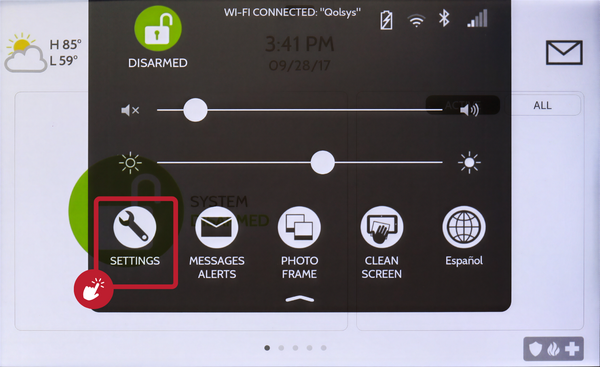 Touch Settings in the Settings Tray.
-
Touch Advanced Settings and enter your Installer Code. Touch ADVANCED SETTINGS, then enter your Installer Code (1111 by default). The Dealer Code (2222) works here too. The panel advances automatically after a valid code.
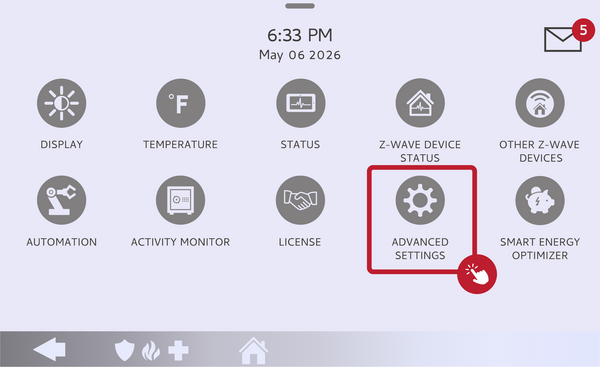 Touch Advanced Settings.
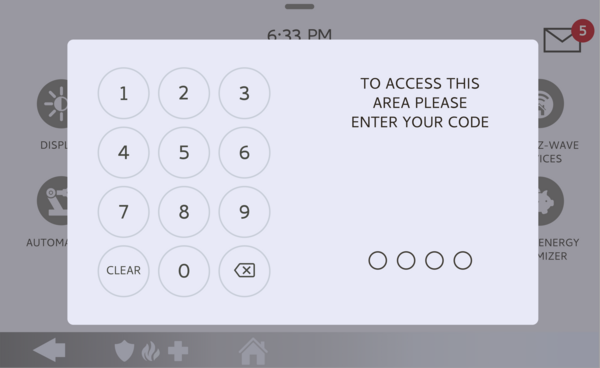 Enter your Installer Code (1111 by default).
-
Touch Installation, then Installer Settings. Touch INSTALLATION, then open INSTALLER SETTINGS and find the SIA Limits setting.
Open Installer Settings and find SIA Limits. -
Toggle SIA Limits. Leave SIA Limits enabled to keep the compliant delay ranges, or disable it to unlock the shorter minimums shown above. Your entry, exit, and dialer delay options update to match the choice.
Leave SIA Limits on, or turn it off.
Tips
SIA Limits exists to reduce false alarms, so unless you have a specific need, leaving it enabled is the safe choice and keeps you within industry guidelines. If you turn it off to set a very short delay, keep in mind a shorter entry delay gives you less time to disarm before the alarm sounds, and a shorter dialer delay gives you less time to cancel a signal before it reaches the central station. Certain certifications, such as UL, ULC, and EN Grade 2, also require specific delay values, so check those requirements if your system must be listed.
Changing the SIA Limits setting on the IQ5 Hub controls whether your delays stay within the compliant false-alarm-reduction ranges. For help with SIA Limits or your delay settings on your IQ5 Hub, contact the Alarm Grid support team. We are here Monday through Friday from 9:00 AM to 8:00 PM Eastern Time. Email us at support@alarmgrid.com, call us at 888-818-7728, or visit our website and chat with a live support agent.
Did you find this answer useful?
We offer alarm monitoring as low as $10 / month
Click Here to Learn MoreRelated Products


- Answered