
How Do I Check the Sensor Status on the IQ5 Hub System?
To check sensor status on the IQ5 Hub, swipe down and touch Settings, then touch Status. The Current Status list shows every sensor with its Zone number, Name, Status, and battery level, along with its history. No access code is needed to open this list and review all of the sensors here.
What the Status Page Shows
The IQ5 Hub (available in AT&T LTE and Verizon LTE) keeps a live Current Status list for every sensor on the system. Each sensor is shown with its Zone number, Name, current Status, battery level, and individual history. It is a complete, at-a-glance health check for all of your sensors in one place, without touching any programming.
The Status field is the key detail. It can read Open, Closed, Active, Idle, Tamper, or Failure, so you can see not just whether a door is open but also whether a sensor is tampered or has stopped reporting. From the same area you can also view Alarms and History for your security system, which is helpful when you want to review recent sensor activity or confirm a sensor is working as expected.
Before You Begin
Checking sensor status requires no Master, Installer, or Dealer code, since the Status page sits in the code-free Settings menu. Viewing the list makes no changes to your system, so you can open it as often as you like. It simply reports the real-time state of each sensor, which makes it a safe first stop for any sensor question or troubleshooting.
Check Your Sensor Status
-
Swipe down and touch Settings. Swipe down from the top of the screen to open the Settings Tray, then touch SETTINGS.
 Swipe down from the top of the screen to open the Settings Tray.
 Touch Settings in the Settings Tray.
-
Touch Status. On the Settings page, touch STATUS to open the Current Status view for your security sensors. No code is required.
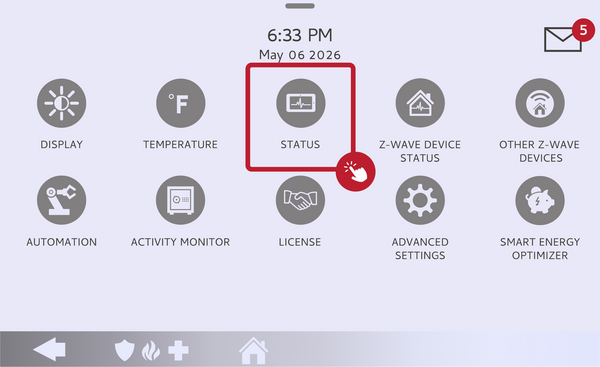 Touch Status on the Settings page.
-
Review each sensor's status. The Current Status list shows every sensor with its Zone number, Name, Status, and battery level. Scroll through to check each one, and touch a sensor to see its individual history. Use the Alarms and History views for a broader look at recent activity.
Review each sensor's Zone, Name, Status, and battery.
Understanding the Status Labels
Each label tells you something specific about the sensor:
- Open: the sensor is faulted, such as an open door or window
- Closed: the sensor is secure and ready
- Active / Idle: a motion or activity sensor is currently detecting, or is at rest
- Tamper: the sensor housing or cover has been opened
- Failure: the sensor is not reporting to the panel and needs attention
If you are specifically trying to find out why the panel will not arm, an Open sensor is the usual cause. Our guide on how to check which zones are open on the IQ5 Hub walks through that exact situation.
Tips
A low battery reading is worth acting on early, since a dying sensor battery can cause trouble beeps or missed signals down the line. A Failure status usually means a sensor is out of range, has a dead battery, or has lost its connection, so it is a good idea to check that sensor in person. Reviewing the Status page every so often is an easy way to catch small sensor issues before they become bigger ones.
Checking sensor status on the IQ5 Hub gives you a quick, code-free health check of every sensor on the system. For help reading sensor status or troubleshooting a sensor on your IQ5 Hub, contact the Alarm Grid support team. We are here Monday through Friday from 9:00 AM to 8:00 PM Eastern Time. Email us at support@alarmgrid.com, call us at 888-818-7728, or visit our website and chat with a live support agent.
Did you find this answer useful?
We offer alarm monitoring as low as $10 / month
Click Here to Learn MoreRelated Products


Related Categories
- Monitored Home Security Systems
- DIY Wireless Security Systems
- Touchscreen Alarm Panels
- Touchscreen Alarm Panels
- Answered