
How do I connect A VISTAH3 to WIFI?
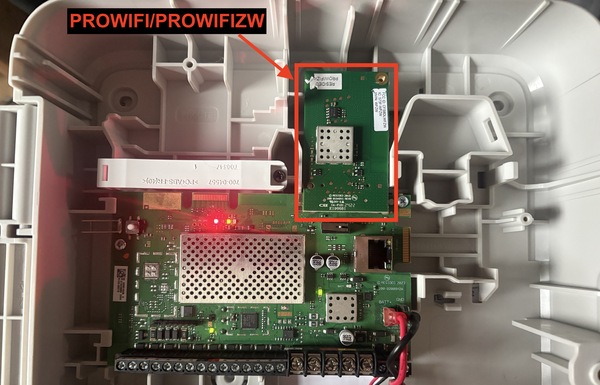
The VISTAH3 supports WIFI via optional add-on modules. By adding either the PROWIFI (WIFI) or PROWIFIZW (WIFI & Z-Wave) you can connect to WIFI. Ethernet is also built-in, but WIFI provides IP reporting with more flexible panel placement when a hardwire connection is difficult or unavailable.
-
Power down and install the WIFI module. Unplug the panel’s DC adaptor and disconnect the battery's red lead. Seat the PROWIFI or PROWIFIZW on the edge connector at the upper right edge of the VISTAH3 board. Reconnect the battery then restore AC power.
-
Join WIFI using Total Connect 2.0.
If the panel hasn’t yet been joined to a WIFI network, you won’t have a touchscreen keypad available for programming.
Make sure your Total Connect 2.0 (TC2) account has been created by your alarm dealer and is fully commissioned.
After you receive the welcome email, set your password, download the Total Connect 2.0 app, and log in from your mobile device:
- Tap the More (...) icon.
- Select Settings.
- Choose Change Device WIFI Settings.
- Follow the onscreen prompts.
- If the panel cover is already removed from installing the WIFI card, and it's been more than 30 minutes, press and release the panel’s tamper switch to enable Bluetooth. Once activated, Bluetooth remains active for 30 minutes.
- Tap Next in the TC2 app. The message Searching for devices will appear.
- When the app detects the panel via Bluetooth, it will connect then automatically scan for available WIFI networks. The screen will display Fetching WIFI list.
- Once the list appears, select your SSID, then tap Next.
- If your SSID doesn’t appear, tap Refresh Networks at the bottom of the screen, then select it when it becomes visible.
- Enter your WIFI password carefully. It is case sensitive.
- Wait for the connection process to complete. If successful, a green checkmark and the message Success will appear.
- You can now exit the TC2 app if you’ve finished your setup tasks.
- Harden the connection for long-term reliability. In your router's settings, reserve the panel’s IP. Keep the access point on stable power, and avoid guest networks. If Wi-Fi signal is marginal, relocate the router/AP, add a mesh node, or consider using the panel's built-in Ethernet jack for a wired connection. Once connected and registered, the VISTAH3 communicates over IP for reporting, syncs the panel time automatically, downloads future panel firmware updates, and supports remote services.
Did you find this answer useful?
We offer alarm monitoring as low as $10 / month
Click Here to Learn MoreRelated Products

- Answered
- Answered By
- Julia Ross