
How Do I Connect the IQ5 Hub Panel to My Home WIFI Network?
To connect the IQ5 Hub to WIFI, swipe down from the top of the screen and touch Settings, then Advanced Settings. Enter your Installer Code (1111 by default), then select WIFI. The panel scans for nearby networks. Choose your home network from the list and enter your password to connect.
Why Connect to WIFI?
The IQ5 Hub (available in AT&T LTE and Verizon LTE) supports dual-path communication over both LTE cellular and WIFI. Connecting to your home WIFI network gives your security system a second reliable path to reach Alarm.com and your monitoring provider if cellular signals are interrupted. WIFI also enables automatic software updates and faster Alarm.com event reporting.
The IQ5 Hub supports 2.4 GHz and 5 GHz WIFI networks with standard WPA2 security. Have your WIFI network name and password ready before starting. If your router uses a hidden SSID or advanced security settings, additional options are available under Advanced WIFI Settings on the same page.
How to Connect to WIFI
-
Swipe down from the top of the screen. The Settings Tray opens, showing quick-access controls for brightness, volume, and WIFI status along with the Settings button.
 Swipe down from the top of the screen to open the Settings Tray.
-
Touch Settings, then Advanced Settings. Touch SETTINGS from the Settings Tray, then touch ADVANCED SETTINGS. Enter your Installer Code (1111 by default) when the keypad appears; the panel advances automatically. You can also reach basic WIFI settings with your Master Code (1234 by default), but the menu differs and the advanced options shown here are only available under the Installer Code.
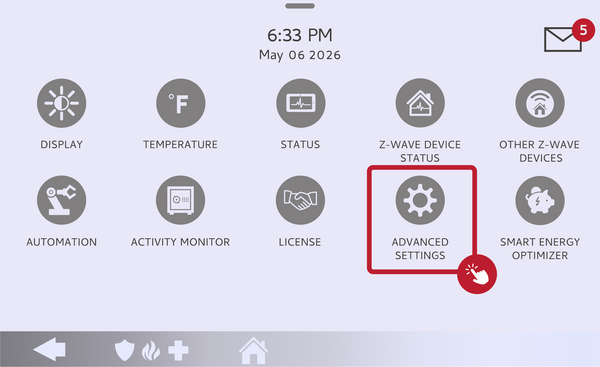 Touch Advanced Settings on the IQ5 Hub Settings page.
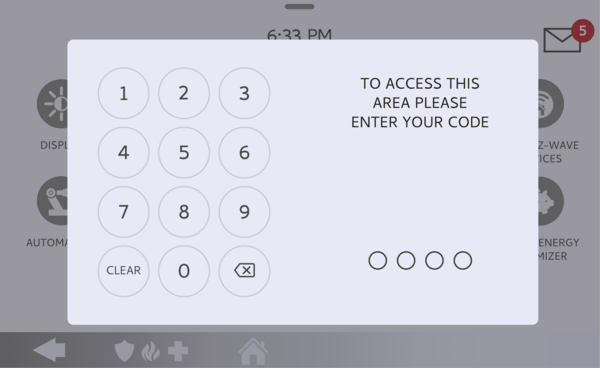 Enter your Installer Code (1111 by default) on the keypad.
- Select WIFI. From the Advanced Settings menu, touch WIFI. The panel automatically scans for nearby networks and lists every network within range. There is no toggle to switch on first; the scan begins on its own.
-
Select your network. All WIFI networks within range appear in a scrollable list. Touch the name of your home network to select it. If your network is not visible, scroll down or wait a few seconds for the scan to refresh.
The panel scans and lists the WIFI networks within range. - Enter your WIFI password and touch Connect. Use the on-screen keyboard to type your network password, then touch Connect. The IQ5 Hub displays a "Connected Successfully" confirmation showing your network name when the connection is established.
Advanced WIFI Settings
At the bottom of the network list, the IQ5 Hub offers a few additional connection options for situations where selecting a network from the list is not enough. Scanning a WIFI QR code lets the panel join a network without typing anything. Manually adding a network lets you type in a network name (SSID) directly, which is how you connect to a hidden network that does not broadcast its name. The Access Point settings are separate: they control the panel's own built-in hotspot, including its SSID, password, WPS, and DHCP range, and are primarily used for pairing IQ Remotes and secondary devices rather than connecting to your home internet.
After Connecting
After connecting, the WIFI signal icon in the Settings Tray reflects the current signal strength. The IQ5 Hub now uses both WIFI and LTE for dual-path communication. To switch networks later, such as after a router replacement, return to the WIFI page, select the new network, and enter the updated password. The IQ5 Hub saves the most recent network credentials and reconnects automatically after a power cycle.
Connecting the IQ5 Hub to your home WIFI network enables dual-path communication and ensures your panel stays updated and connected to Alarm.com on the IQ5 Hub. For help with WIFI connection and network settings or other configurations on your IQ5 Hub, contact the Alarm Grid support team. We are here Monday through Friday from 9:00 AM to 8:00 PM Eastern Time. Email us at support@alarmgrid.com, call us at 888-818-7728, or visit our website and chat with a live support agent.
Did you find this answer useful?
We offer alarm monitoring as low as $10 / month
Click Here to Learn MoreRelated Products

Related Categories
- Home Security Systems
- Home Security Systems
- DIY Wireless Security Systems
- Monitored Home Security Systems
- Touchscreen Alarm Panels
- Touchscreen Alarm Panels
- Smart Home Controllers
- Answered