
How Do I Delete a Sensor on the IQ Panel 5 Security System?
To delete a sensor from the IQ Panel 5, start with the system disarmed and swipe down from the top of the home screen. Select Settings, then Advanced Settings, and enter the Installer Code (default 1111). Navigate to Installation, then Devices, Security Sensors, and Delete/Replace Sensor.
Before You Begin
The IQ Panel 5 (available in AT&T LTE and Verizon LTE) allows you to delete individual sensors or remove multiple sensors at once from your security system. Deleting a sensor removes it permanently from the panel zone list. This is useful when replacing a faulty sensor, removing a device that is no longer in use, or reconfiguring your system layout. Make sure the panel is disarmed and you have the Installer Code (default 1111) ready before beginning.
Keep in mind that once a sensor is deleted, you will need to re-enroll it through Auto Learn or Manual Add if you want to use it again. If you only need to change a sensor setting like the name, chime type, or sensor group, use Edit Sensor instead of deleting and re-adding the device. The Delete/Replace Sensor menu also gives you the option to replace a sensor DL ID, which is helpful when swapping out a broken sensor for a new one without losing the zone programming.
Deleting a Sensor
-
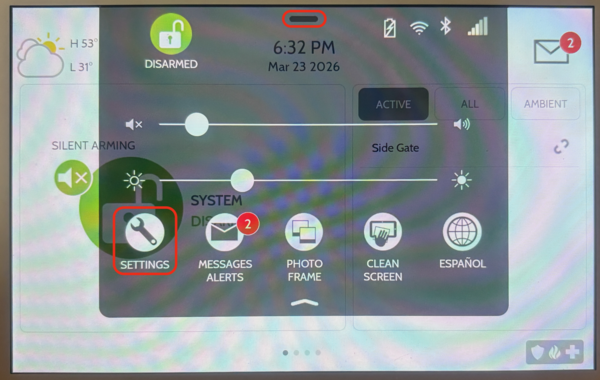
Tap Settings. Swipe down from the top of the home screen to open the Settings Tray. The Settings Tray slides down from the top of the display, revealing quick-access icons and the Settings button.
-
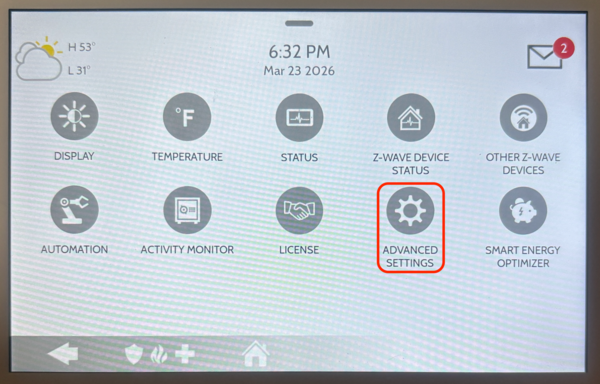
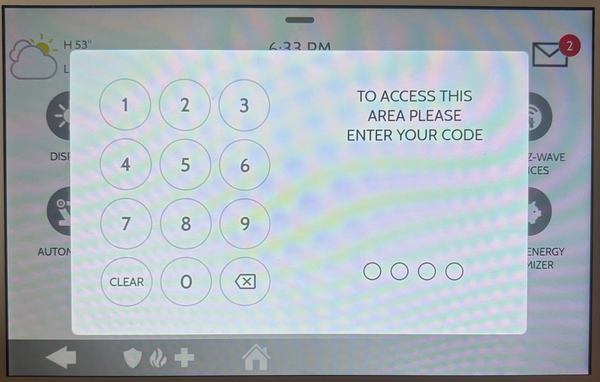
Enter advanced settings. Select Settings, then Advanced Settings, and enter the Installer Code (default 1111). A numeric keypad appears on screen. After entering the four-digit code, the panel automatically advances to the Advanced Settings menu.
-
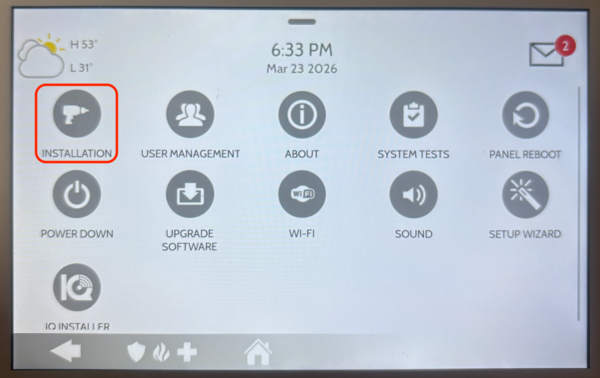
Navigate to Security Sensors.Select Installation, then Devices, then Security Sensors. The Security Sensors menu opens with options for Auto Learn Sensor, Add Sensor, Edit Sensor, Delete/Replace Sensor, Sensor Status, and Sensor Group.
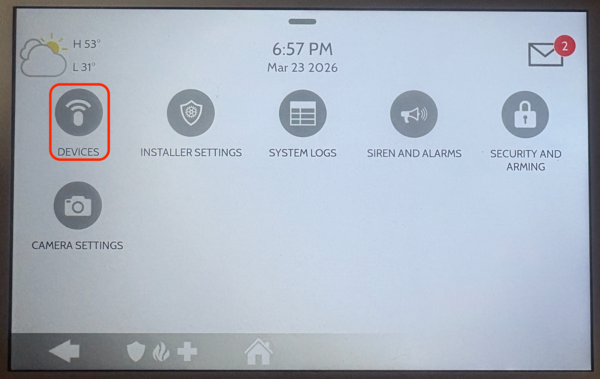
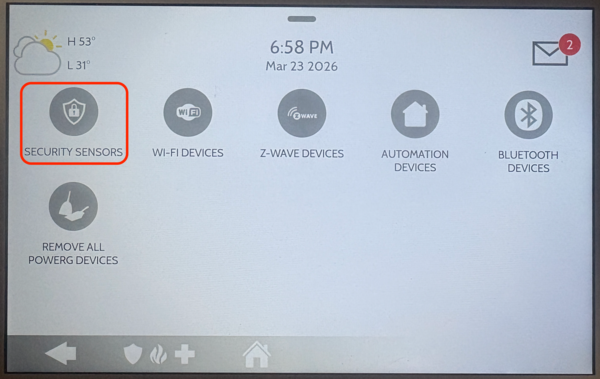
-
Open sensor delete screen. Select Delete/Replace Sensor to open the sensor deletion screen. A list of all enrolled sensors appears. Each sensor displays its zone number, name, and type.
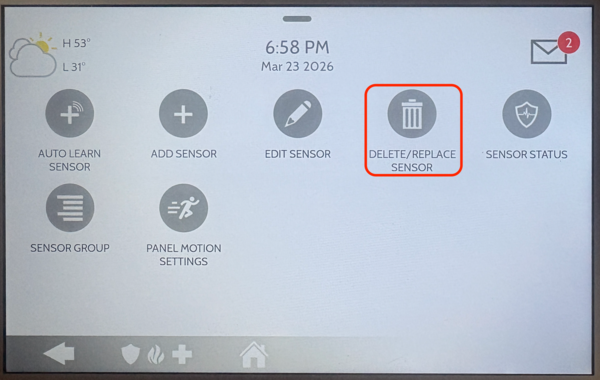
-
Select zones for deletion. Select the checkbox next to each sensor you want to delete, then tap DELETE. You can select one sensor or multiple sensors at the same time. After pressing DELETE, a confirmation popup appears asking you to verify the action.
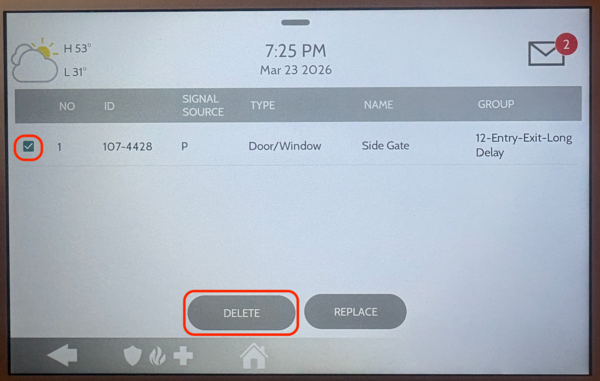
- Confirm deletion. Select OK to confirm the deletion. The panel removes the selected sensors from the zone list. The sensors are no longer enrolled and will not trigger alarms or chimes. The zone numbers previously assigned to those sensors become available for new devices.
Tips
If you are replacing a faulty sensor with a new one of the same type, you can use the Replace option in the Delete/Replace Sensor menu instead of deleting and re-adding. This swaps the DL ID while keeping all other zone programming intact, saving you time during the replacement process.
After deleting sensors, verify your system is working correctly by checking the Sensor Status page under Security Sensors. This page shows all enrolled sensors with their zone numbers, signal strength, and current status. You can also run a sensor test from the System Tests menu to confirm that your remaining PowerG sensors and other devices are communicating properly with the panel. If you need to add new sensors to replace the ones you deleted, compatible options include the PGP9303 Door/Window Contact and the PGP9914 motion sensor.
Removing unused or faulty sensors from your system keeps your zone list clean and your security monitoring accurate on the IQ Panel 5. For help with sensor deletion or other configurations on your IQ Panel 5, contact the Alarm Grid support team. We are here Monday Friday from 9:00 AM to 8:00 PM Eastern Time. Email us at support@alarmgrid.com, call us at 888-818-7728, or visit our website and chat with a live support agent.
Did you find this answer useful?
We offer alarm monitoring as low as $10 / month
Click Here to Learn MoreRelated Products


Related Categories
- Apartment Security Systems
- Wireless Touchscreen Alarm Panels
- Monitored Home Security Systems
- DIY Wireless Security Systems
- Small Business Security Systems
- Smart Home Controllers
- Answered