
How Do I Disarm the IQ5 Hub Home Security Alarm System?
To disarm the IQ5 Hub, touch the status badge on the panel's home screen and enter a valid user code such as the Master Code (1234 by default). You can also disarm remotely through the Alarm.com app or set up Bluetooth touchless disarming for automatic hands-free access when you arrive home.
Before You Begin
The IQ5 Hub, available in AT&T LTE and Verizon LTE versions, supports three methods for disarming: manually at the touchscreen, remotely through the Alarm.com app, and automatically using Bluetooth. Make sure everyone in your household has a valid user code. The default Master Code is 1234, but it should be changed during setup for security purposes. Each user code is tied to a username, allowing the panel to log who disarms and when. The IQ5 Hub works with PowerG sensors, Z-Wave devices, and Bluetooth accessories as part of a complete security platform.
Disarming Manually at the Touchscreen
Manual disarming is the most common method. When your IQ5 Hub is armed in Stay or Away mode, follow these steps:
-
Touch the status icon. Tap the icon showing that the system is Armed - Stay Mode or Armed - Away Mode.
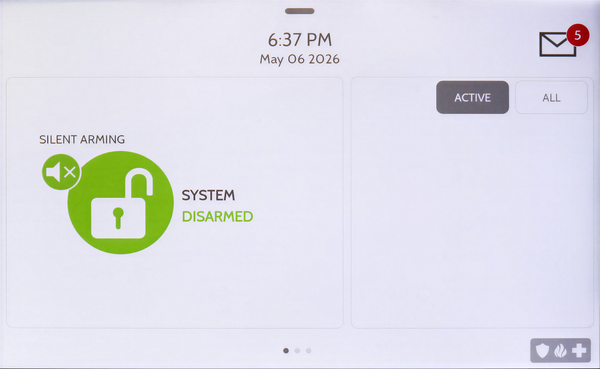
- Enter a valid user code. When you tap the system status icon, you'll be prompted to enter a valid code. Enter the Master Code (default: 1234) or any valid code except the Installer or Dealer Code. These codes are not valid for disarming.
When someone manually disarms the IQ5 Hub, the built-in camera automatically takes a photo and saves it to the Camera page with the date, time, and the username associated with the code that was entered. This creates a visual log of everyone who disarms your system.
Disarming Remotely with the Alarm.com App
Remote disarming lets you control your IQ5 Hub from anywhere using your smartphone. This is useful if a family member arrives home without a code or if you need to let in a service provider. Open the Alarm.com app and touch the disarm icon. Your panel must be connected to a monitoring service plan with remote access for this feature to work. Remote disarming has not been evaluated by UL/cUL.
Setting Up Bluetooth Touchless Disarming
Bluetooth Touchless Disarming automatically disarms your IQ5 Hub when your paired smartphone comes within range. This works only when the panel is in Armed Away mode and the Bluetooth Disarm Timeout has passed (default 10 minutes). You can connect up to five smartphones.
The Bluetooth Disarm Timeout tells the panel to ignore your paired device for a set period of time. This allows you to arm then exit and prevents your phone from disarming the system before you have a chance to leave. To set up Bluetooth Touchless Disarming do the following:
-
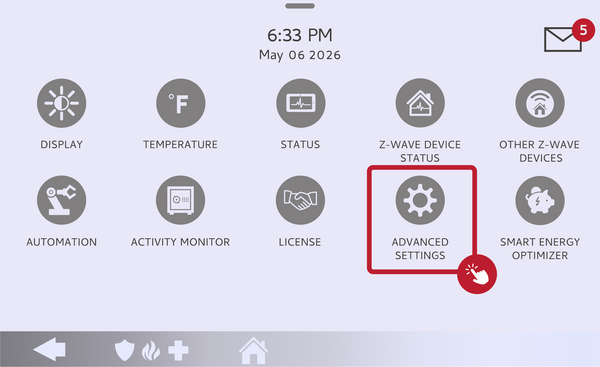
Enter Advanced Settings. Swipe down from the top of the screen to open the settings tray. The tray slides down showing volume, brightness controls, and the Settings icon. Tap SETTINGS, then tap ADVANCED SETTINGS.
-
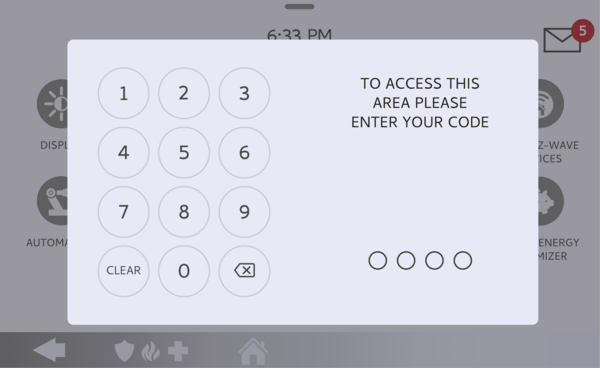
Enter a valid code. A keypad appears prompting you for an access code. Enter your Master Code (default: 1234) the Installer Code will NOT work for this. The panel auto-advances and opens the Advanced Settings menu.
-
Navigate to Bluetooth Devices. On the Advanced Settings screen, tap INSTALLATION > DEVICES > BLUETOOTH DEVICES.
- Put your smartphone in Bluetooth pairing mode. On most phones, open Settings, then Bluetooth, and make sure your device is discoverable.
- Touch ADD PHONE on the panel. The IQ5 Hub begins scanning for nearby Bluetooth devices. This search can take up to 60 seconds.
- Select your smartphone from the list of discovered devices.
- Touch Pair on the panel. A confirmation prompt appears on both the IQ5 Hub and your phone, each displaying a numeric code.
- Verify the codes match on both devices, then touch Pair on each. Your phone appears in the Paired Devices list. Your phone may show the panel as "Not Connected," which is normal.
After pairing, you can choose whether this phone is allowed to disarm the panel and assign it to a partition if partitions are enabled. The default Bluetooth disarm timeout is 10 minutes, adjustable to 1, 5, 20, or 30 minutes in the Bluetooth Settings menu.
Disarming During an Active Alarm
If an alarm is triggered, your IQ5 Hub displays a red alarm screen and sounds the siren. Touch anywhere on the screen and enter a valid user code to cancel the alarm. If your system uses a monitoring service, the panel contacts your monitoring center through its dual-path LTE and WIFI connection. Be ready to provide a valid verbal password if a monitoring agent calls.
Tips for Preventing False Alarms
False alarms waste public safety resources and can result in fines in some areas. Make sure everyone who has access to your home knows their user code and is comfortable with the system. Set entry doors to use an appropriate entry delay, giving you time to reach the panel after opening the door.
The default Normal Entry Delay is 30 seconds, and doors needing more time can use the Long Entry Delay of 100 seconds. The Normal Entry Delay and Long Entry Delay options are set via the Sensor Group setting for each zone. Compatible key fobs provide convenient one-button disarming, and integrating your panel with home automation features like smart locks can streamline your routine.
Disarming your IQ5 Hub is fast and flexible with multiple options for manual, remote, and automatic access. For help with disarming or other configurations on your IQ5 Hub, contact the Alarm Grid support team. We're here Monday - Friday from 9:00 AM - 8:00 PM Eastern Time. Email us at support@alarmgrid.com.
Did you find this answer useful?
We offer alarm monitoring as low as $10 / month
Click Here to Learn MoreRelated Products


- Answered