
How Do I Enable Scenes Support on the IQ5 Hub Alarm System?
To enable Scenes Support on the IQ5 Hub, swipe down and touch Settings, then Advanced Settings, and then enter your own Installer Code. Next, touch Installation, then Installer Settings, and then enable Scenes Support to add a Scenes icon to the panel footer for all your Alarm.com scenes.
About Scenes Support
Scenes Support on the IQ5 Hub (available in AT&T LTE and Verizon LTE) puts a Scenes icon in the panel's left-hand footer so you can run the scenes you have built in Alarm.com directly from the panel. A scene is a group of actions bundled under one tap, such as a Good Night scene that locks the doors, turns off the lights, and arms the system all at once. Enabling this brings that one-touch home automation convenience to the panel itself, rather than only from the app, which is a nice touch for any connected security system.
Scenes Support is enabled by default, so for most people the Scenes icon is already there once scenes exist on the account. There is one condition to know: it cannot be enabled if Partitions are turned on, since the two features cannot coexist. If Scenes Support is unavailable, Partitions being enabled is the most likely reason, and you would need to choose between the two. The scenes themselves are created in Alarm.com, and this setting simply surfaces them on the panel.
Before You Begin
Scenes Support is in the Installer Settings, which require the Installer Code (1111 by default) or Dealer Code (2222 by default). The steps below use the Installer Code. You will also need scenes already created in your Alarm.com account for the icon to have anything to run, and Partitions must be disabled, since Scenes Support and Partitions cannot be used together.
Enable Scenes Support
-
Swipe down and touch Settings. Swipe down from the top of the screen to open the Settings Tray, then touch SETTINGS.
 Swipe down from the top of the screen to open the Settings Tray.
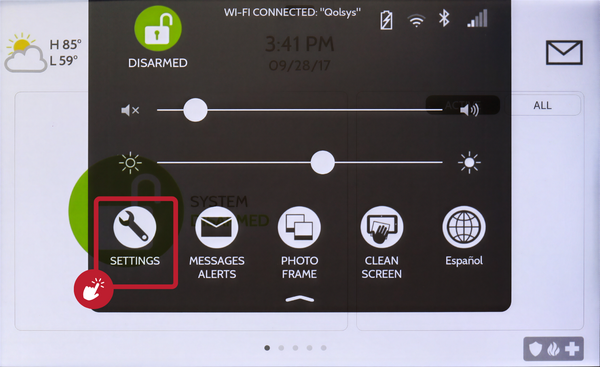 Touch Settings in the Settings Tray.
-
Touch Advanced Settings and enter your Installer Code. Touch ADVANCED SETTINGS, then enter your Installer Code (1111 by default). The Dealer Code (2222) works here too. The panel advances automatically after a valid code.
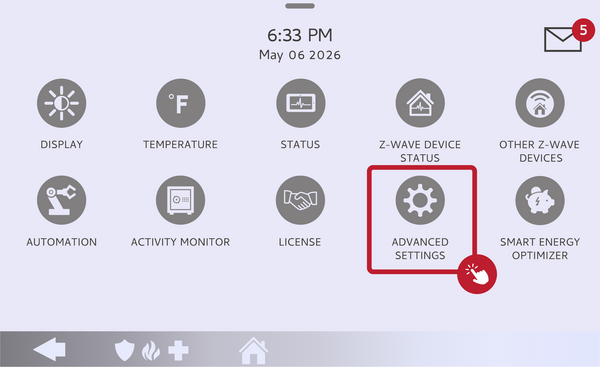 Touch Advanced Settings.
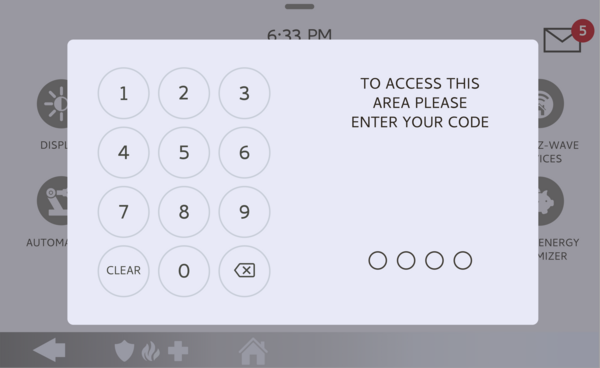 Enter your Installer Code (1111 by default).
-
Touch Installation, then Installer Settings. Touch INSTALLATION, then open INSTALLER SETTINGS and find the Scenes Support setting.
Open Installer Settings and find Scenes Support. -
Enable Scenes Support. Make sure Scenes Support is checked. A Scenes icon appears in the panel's left-hand footer, ready to run your Alarm.com scenes. If it will not enable, turn off Partitions first, then try again.
Check Scenes Support to show the Scenes icon.
Tips
Scenes Support only surfaces scenes that already exist on your Alarm.com account, so if the panel shows no scenes, build them in Alarm.com first and they will appear. Since it is enabled by default, the main reason you would open this setting is to confirm it is on, or because the Scenes icon is missing due to Partitions being enabled. Running scenes from the panel is a convenient alternative to opening the app every time, especially for routines you use daily.
Enabling Scenes Support on the IQ5 Hub lets you run your Alarm.com scenes right from the panel. For help with Scenes Support or building scenes on your IQ5 Hub, contact the Alarm Grid support team. We are here Monday through Friday from 9:00 AM to 8:00 PM Eastern Time. Email us at support@alarmgrid.com, call us at 888-818-7728, or visit our website and chat with a live support agent.
Did you find this answer useful?
We offer alarm monitoring as low as $10 / month
Click Here to Learn MoreRelated Products


- Answered