
How Do I Enable the Home Control Page on the IQ5 Hub System?
To enable the Home Control Page on the IQ5 Hub, swipe down and touch Settings, then Advanced Settings, and then enter your own Installer Code. Next, touch Installation, then Installer Settings, and then enable the Home Control Page once two types of automation devices have all been added.
About the Home Control Page
The Home Control Page on the IQ5 Hub (available in AT&T LTE and Verizon LTE) adds a dedicated smart home page to the panel's main interface. It gives you a single screen for controlling your connected devices, such as Z-Wave lights, locks, and thermostats, right from the panel instead of digging through menus. For a home with several automation devices, it makes the panel a convenient central control point alongside your security system.
The page is disabled by default, and there is a specific requirement that explains why it is often greyed out: you must have at least two different types of automation device added to the panel, chosen from Lights, Locks, and Thermostats. If you only have one type, such as lights alone, the option stays locked until you add a second type. It also cannot be enabled if Partitions are turned on, so you would need to choose between Partitions and the Home Control Page.
Before You Begin
The Home Control Page is in the Installer Settings, which require the Installer Code (1111 by default) or Dealer Code (2222 by default). The steps below use the Installer Code. Make sure you have added at least two different device types from Lights, Locks, and Thermostats first, and that Partitions is disabled, since both conditions must be met for the option to be selectable.
Enable the Home Control Page
-
Swipe down and touch Settings. Swipe down from the top of the screen to open the Settings Tray, then touch SETTINGS.
 Swipe down from the top of the screen to open the Settings Tray.
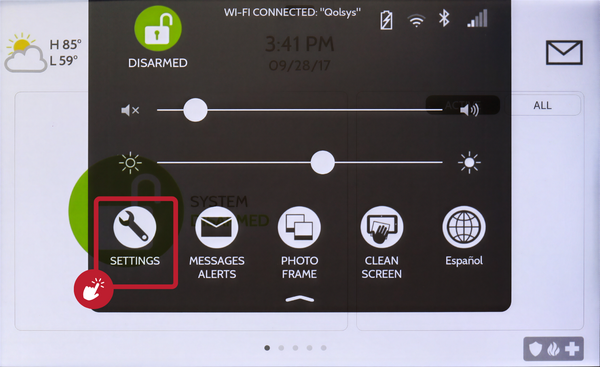 Touch Settings in the Settings Tray.
-
Touch Advanced Settings and enter your Installer Code. Touch ADVANCED SETTINGS, then enter your Installer Code (1111 by default). The Dealer Code (2222) works here too. The panel advances automatically after a valid code.
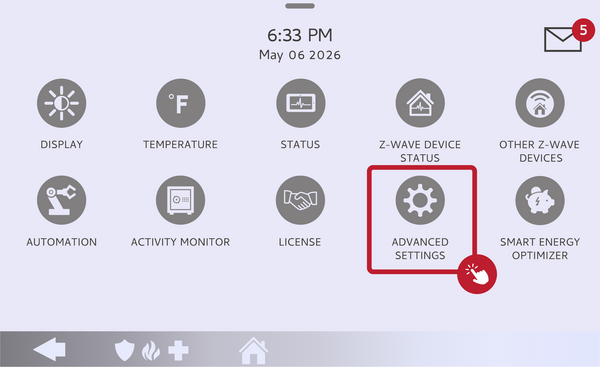 Touch Advanced Settings.
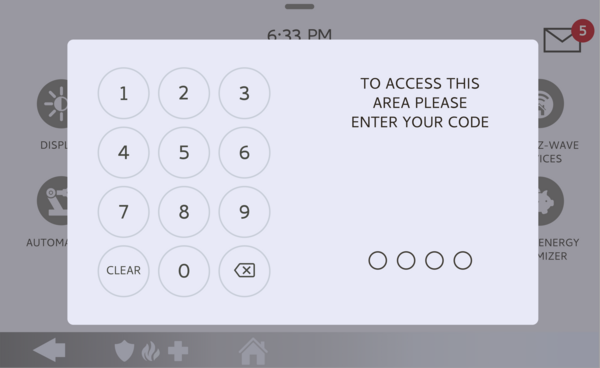 Enter your Installer Code (1111 by default).
-
Touch Installation, then Installer Settings. Touch INSTALLATION, then open INSTALLER SETTINGS and find the Home Control Page setting.
Open Installer Settings and find Home Control Page. -
Enable the Home Control Page. Check the Home Control Page box to turn it on. A Home Control Page now appears in the panel's interface for your automation devices. If the box is greyed out, add a second type of automation device and disable Partitions first.
Check the Home Control Page box.
Tips
If the Home Control Page is greyed out, the fix is almost always to add a second type of automation device, since the panel needs at least two of Lights, Locks, and Thermostats before the page becomes available. Also confirm Partitions is turned off, because the two features cannot be used together. Once the page is on, it becomes a handy central spot to control all your connected devices directly from the panel.
Enabling the Home Control Page on the IQ5 Hub gives you a dedicated automation screen right on the panel. For help with the Home Control Page or adding smart devices on your IQ5 Hub, contact the Alarm Grid support team. We are here Monday through Friday from 9:00 AM to 8:00 PM Eastern Time. Email us at support@alarmgrid.com, call us at 888-818-7728, or visit our website and chat with a live support agent.
Did you find this answer useful?
We offer alarm monitoring as low as $10 / month
Click Here to Learn MoreRelated Products


- Answered