
How Do I Install the 2GIG GC Touch Panel on the Wall?
To install the 2GIG GC Touch panel on a wall, first mount the back plate. Next, route the power cable and secure the panel to the surface. Finally, restore power for normal system operation. The process is simple and these steps help ensure the panel is stable and easy to access every day.
Before you begin, choose a location for the GC Touch (AT&T LTE or Verizon LTE) that is near a power source and within range of your wireless sensors. The ideal spot is on an interior wall at about chest height so the display is easy to see and reach for all users. Avoid large metal objects, heavy appliances, and areas with reinforced concrete, since these can interfere with wireless signals and make communication with sensors less reliable.
Once you have chosen a location, power down the system through panel programming and disconnect the power adapter and backup battery if they are already connected. The panel is designed for wall installation using the included mounting hardware, so have a drill, appropriate anchors if you are not mounting directly to a stud, a level, and a screwdriver ready. It is a good idea to hold the back plate against the wall first, so you can verify that there is enough clearance for the power cable and that the screen will not be blocked by doors, cabinets, or trim.
-
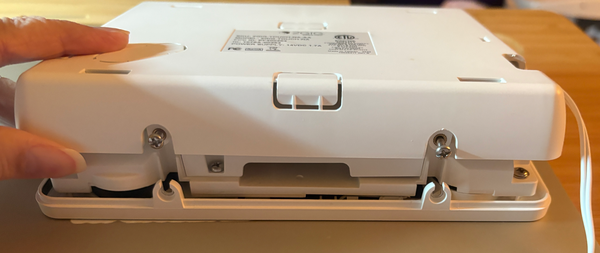
Separate the front and back. Loosen the two set screws on the bottom of the panel, then lift the front portion of the panel away from the back plate. Set the front section aside in a safe place where the screen will not be scratched.
-
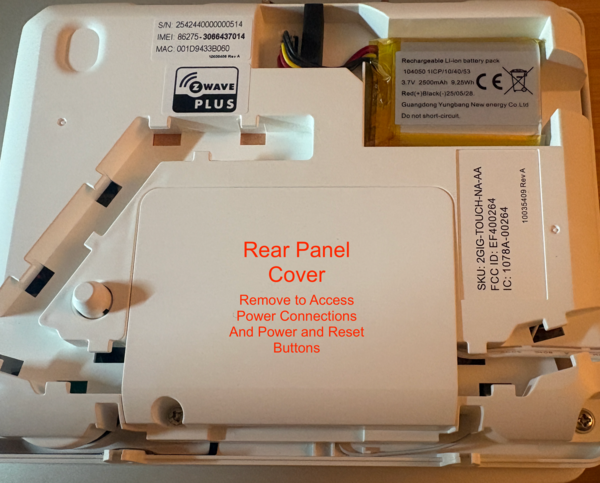
Access the internals. Remove the rear panel cover so you can see the battery, wiring area, and cable pathways. Plan the route for the power cable and any other wiring that needs to enter the panel.
-
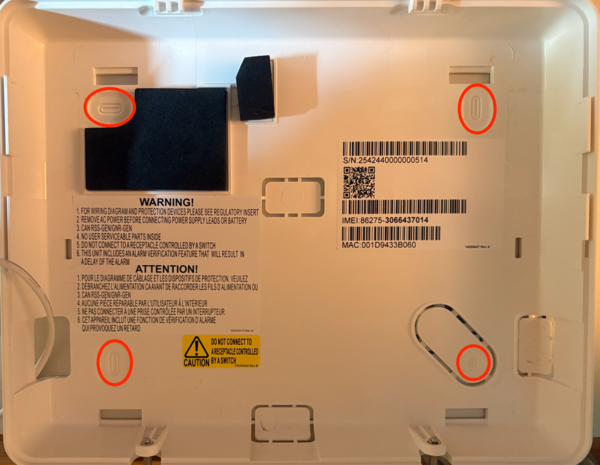
Mount the back plate. Hold the back plate against the wall and make sure it's level. Drill pilot holes at the four mounting screw locations. Install anchors if needed, then secure the back plate with the included screws. The lower right screw must be fastened firmly to a solid point such as a stud, for the rear tamper switch to work correctly. The power cable will need to be run through one of the knockouts in the rear cover. If you plan to fish the power wire through the wall, to enter through the back of the mounting plate, be sure to remove the rear-center knockout before you mount the back plate to the wall and route the power cable from the wall through that entry point.
-
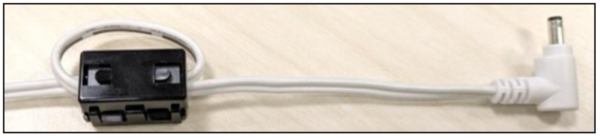
Run power wiring. If the power cable is not being fished through the wall, route it through one of the cable channels in the rear of the panel. The back plate includes three plastic knockouts for surface wiring, in addition to the center opening used for in wall runs. Choose the lower left, lower right, or bottom center entry point, remove the appropriate knockout, and route the cable through it. Make sure the cable is seated neatly so it is not pinched when the panel is reattached. Install the Ferrite Core Noise Suppressor as shown on page 10 of the Install Guide.
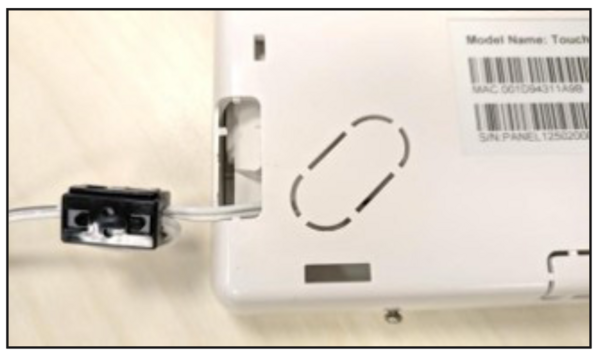
-
Connect the battery. Reconnect the battery connector if it was unplugged, making sure the wires follow the channel that is molded into the plastic so they do not interfere with the case. Check that the tamper switch can move freely and is not blocked by wiring.
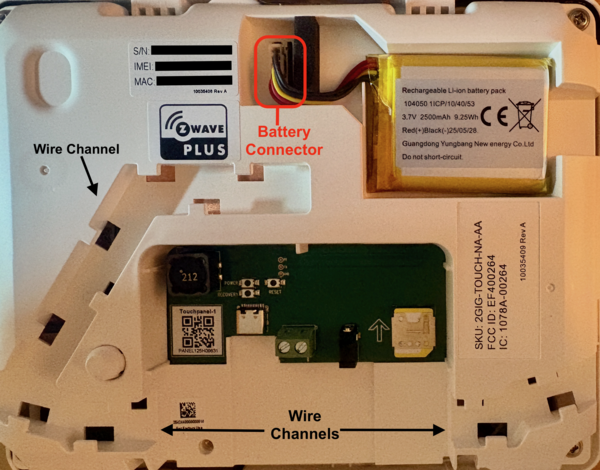
- Mount the panel. Engage the top latching points of the panel front with the matching hooks on the back plate, then swing the bottom into place and tighten the bottom two set screws that you loosened in Step 1. Confirm that the panel is level and firmly attached to the wall.
- Power up. Restore power by plugging the power adapter into the wall outlet. Allow the panel to boot up. The system should power up automatically, show the home screen, and begin communicating with connected sensors and the monitoring service, if applicable.
After the panel is mounted and powered and sensors are programmed, walk around the property and activate a few sensors to confirm that the system responds as expected. Verify that the screen is easy to read and that everyone in the home can reach it. If you decide that wall mounting is not for you, a compatible desk stand accessory can be used to place the panel on a counter or table for greater flexibility.
For help installing your 2GIG GC Touch, or any other panel configuration issues, contact Alarm Grid Tech Support. We're here Monday - Friday from 9:00 AM - 8:00 PM Eastern Time. Email us at support@alarmgrid.com, call us at 888-818-7728, or visit our website and chat with a live agent Monday - Friday from 9:00 AM - 6:00 PM Eastern.
Did you find this answer useful?
We offer alarm monitoring as low as $10 / month
Click Here to Learn MoreRelated Products


Related Categories
- Answered
- Answered By
- Julia Ross