
How Do I Program a Wireless Key Fob Into a 2GIG GC Touch?
The 2GIG GC Touch panel supports wireless key fobs for convenient arming, disarming, and emergency activation. Key fobs are enrolled through the Sensor Settings menu using Quick Add or Manual Add options. The Installer Code (1561 by default) is required for full access to programming menus.
Key fobs provide a portable way to control your security system without walking to the panel. Compatible 345 MHz key fobs can arm and disarm the system, trigger panic alarms, and activate auxiliary functions. The 2GIG GC Touch (available in AT&T LTE and Verizon LTE versions) supports both encrypted eSeries sensors and standard unencrypted wireless devices. When programming a key fob, you will select Key fob as the device type, which configures the correct response groups for the four key fob buttons.
Steps to Program a Key Fob
- Disarm the system. The panel must be disarmed before accessing programming menus.
-
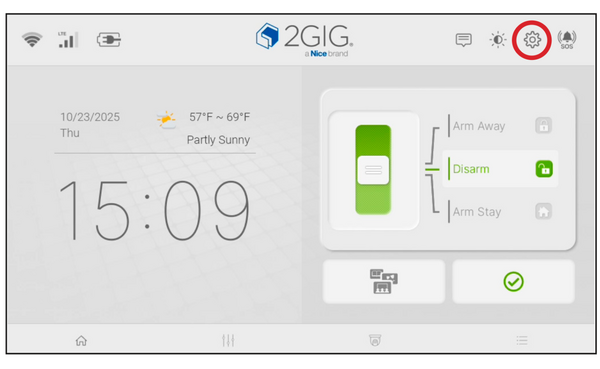
Access Installer Settings. Tap the Settings icon (⚙) on the home screen, then enter the Installer Code (1561 by default) + ↵.
-
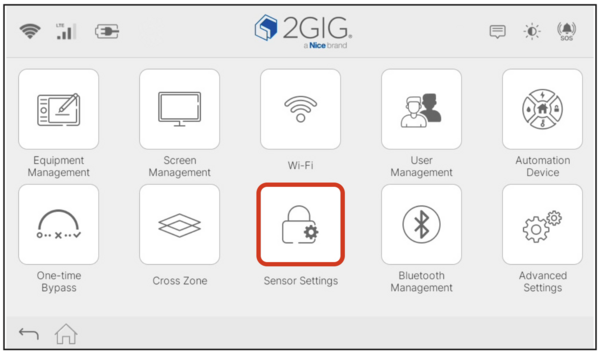
Tap Sensor Settings. This option appears in the Installer Settings menu and displays all 128 available zones.
-
Select an empty zone. Scroll through the zone list on the left side and tap any zone labeled (Empty). The right panel will display Manual Add and Quick Add options.
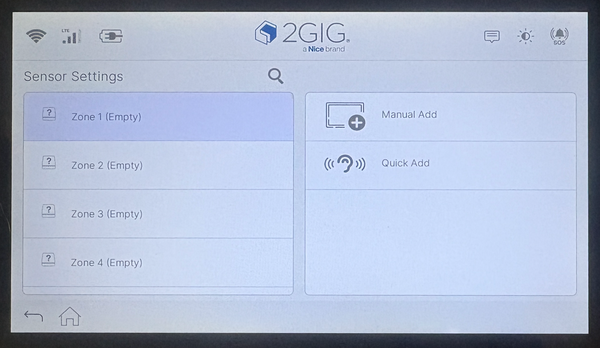
- Choose an enrollment method. Tap Quick Add to have the panel automatically detect the key fob, or tap Manual Add to enter the TXID and settings manually.
- Tap Save or Submit. The key fob is now programmed and ready to use. Test each button to verify proper operation.
Programming a key fob on the 2GIG GC Touch provides convenient home security arm/disarm control from anywhere in your home. The process takes just a few minutes using Quick Add or Manual Add in Sensor Settings. Key fobs work with professional monitoring services and support panic button functionality. If you're an Alarm Grid customer and you need help with key fob programming on your GC Touch panel, contact the Alarm Grid support team at support@alarmgrid.com. We're here Monday - Friday from 9:00 AM - 8:00 PM Eastern Time.
Below are screenshots showing the progression for Quick Add:
After tapping Quick Add you'll see this screen. Press any Arm/Disarm button on the key fob. With Quick Add, you can learn in as many key fobs as you like at this screen. The TXID for each fob the panel hears will populate on the screen. You can then go through and program the details for each fob one at a time.

Once the panel detects the key fob transmission, the screen will populate with the TXID. If you're learning in multiple fobs, the panel will form a list with each TXID displayed.

Tap the radio button to the left of the TXID to program, then tap Next.

This will bring you to the default programming for the key fob:

The Group setting controls how the asterisk or panic button behaves (see image of 2GIG-Key100-345 below). The other three buttons have preset actions, also shown below. By default, the asterisk button does nothing, but it can be programmed with one of several panic options instead. Use the remaining dropdown menus to choose whether the key fob can disarm the system and whether arming with the fob removes the entry delay. The "Arm with No Entry Delay" option works best if you always disarm the system before opening any doors, such as by using a key fob or the Alarm.com app.


Below are screenshots showing the progression for Manual Add:
Highlight an empty zone and tap Manual Add. Whatever zone is highlighted when you tap Manual Add, that's the zone number you'll be programming.

The zone list is shown on the left with the zone number highlighted, and the programming options for that zone are shown to the right.

When you tap the dropdown for Device Type, you'll see the options for General Device, Keyfob, or Keypad. However, the easiest thing to do here is tap LEARN. When you do, you'll see a message that shows the panel is scanning for RF transmissions.

Once the TXID for the key fob is picked up, the panel will return to this screen. The Device Type of Keyfob and the Sensor Class will be selected automatically. The panel knows based on the transmission that this is an eSeries key fob. Press and hold the word Group and drag up toward the top of the screen to see the rest of the programming options.

The Group setting determines how the asterisk/panic key behaves on the fob. By default, it's set to No Response, meaning pressing and holding this button does nothing. You have several 24-Hour panic options available if you want to use this button as a panic.

Programming a Device Name for the key fob is important as this is how arm and disarm events performed by the key fob are logged in the panel's log. Without a name, there is no way to tell which key fob armed or disarmed the system if multiple key fobs are in use. Tap the space next to Name and type in a unique identifier.


Did you find this answer useful?
We offer alarm monitoring as low as $10 / month
Click Here to Learn MoreRelated Products


Related Categories
- Home Security Systems
- Home Security Systems
- Apartment Security Systems
- Security Fobs
- Security Fobs
- Small Business Security Systems
- DIY Wireless Security Systems
- Wireless Touchscreen Alarm Panels
- Touchscreen Alarm Panels
- Touchscreen Alarm Panels
- Answered