
How Do I Run a Panel Test on the IQ Panel 5 System?
To run a Panel Test on the IQ Panel 5, swipe down and touch Settings, then Advanced Settings, and enter your code. Any of the three codes will work: the Master (1234), Installer (1111), or the Dealer (2222). Touch System Tests, then Panel Test, then Run All or Run. Run All sounds the siren.
What the Panel Test Does
The IQ Panel 5 (available in AT&T LTE and Verizon LTE) includes a Panel Test that runs through the panel's core processes and reports a pass or fail for each one. It checks items such as arm and disarm, the camera, photos, help videos, the battery, the LEDs, the panel tamper, AC power, internet connection, WIFI, and the siren. It is one of the built-in System Tests, and it gives you a quick, all-in-one health check of the panel itself.
Running the Panel Test is a good way to confirm everything is working after installation, after a firmware update, or when troubleshooting a problem on your security system. You can run every process at once with Run All, or run a single item with Run when you only need to recheck one thing, such as the siren or the battery.
Before You Begin
The Panel Test lives in Advanced Settings, which you can reach with any of your codes: the Master Code (1234 by default), the Installer Code (1111 by default), or the Dealer Code (2222 by default). The steps below use the Installer Code as the exampley, but you can enter whichever one you like. Keep in mind that Run All sounds the siren as part of the test, so you may want to let others in the home know before you start.
Run the Panel Test
-
Swipe down and touch Settings. Swipe down from the top of the screen to open the Settings Tray, then touch SETTINGS.
 Swipe down and touch Settings.
-
Touch Advanced Settings and enter your Master Code. Touch ADVANCED SETTINGS, then enter your Master Code (1234 by default). Your Installer Code (1111) or Dealer Code (2222) also work here. The panel advances automatically after a valid code. We are using the Installer Code.
 Touch Advanced Settings.
 Enter your Master Code (1234 by default).
-
Touch System Tests. On the Advanced Settings page, touch SYSTEM TESTS to open the list of diagnostic tests.
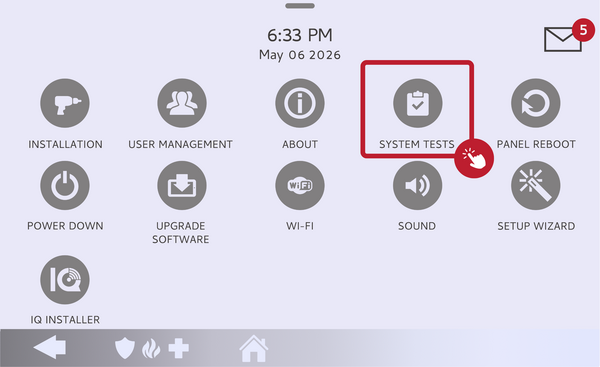 Touch System Tests.
-
Touch Panel Test. Touch PANEL TEST to open the list of panel processes, each shown with its own Run button.
Touch Panel Test in the System Tests list. -
Touch Run All or Run. Touch RUN ALL to test every panel process in sequence, which will sound the siren as part of the test. To check a single item instead, scroll to it and touch RUN next to that process. Each item shows a pass or fail result as it completes.
Touch Run All, or Run next to a single process.
Tips
If a process fails, the fix is usually specific to that item. A failed Battery test often means the battery needs to be reconnected or replaced, a failed Photos test means no images are loaded in the Photo Frame, and a failed WIFI or Internet test points to a network issue. For most other failures, rebooting the panel and running the test again is a good first step. If a process keeps failing after that, reach out so we can help you sort it out.
Running a Panel Test on the IQ Panel 5 gives you a fast, complete health check of the panel. For help running the test or resolving a failed result on your IQ Panel 5, contact the Alarm Grid support team. We are here Monday through Friday from 9:00 AM to 8:00 PM Eastern Time. Email us at support@alarmgrid.com, call us at 888-818-7728, or visit our website and chat with a live support agent.
Did you find this answer useful?
We offer alarm monitoring as low as $10 / month
Click Here to Learn MoreRelated Products


Related Categories
- Home Security Systems
- Home Security Systems
- Apartment Security Systems
- Small Business Security Systems
- Monitored Home Security Systems
- Smart Home Controllers
- DIY Wireless Security Systems
- Wireless Touchscreen Alarm Panels
- Answered