
How Do I Run an LED Test on the IQ5 Hub Security System?
To run an LED test on the IQ5 Hub, swipe down and touch Settings, then Advanced Settings, and enter your Installer Code. Next, touch System Tests, then Panel Test, and select Run right next to the LED Green/Red test to confirm that the panel status LED is lighting up correctly on its own.
About the LED Test
The IQ5 Hub (available in AT&T LTE and Verizon LTE) does not have a separate LED test on its own. Instead, the LED check lives inside the Panel Test as an item called LED Green/Red, which confirms the panel's status LED lights up the way it should. This is useful when the indicator light seems stuck off or is not changing color as expected, and it helps you tell a real LED fault apart from a setting that simply has the light turned down.
The Panel Test runs through all of the panel's built-in checks, either one at a time or all at once. You can select Run beside a single item like LED Green/Red to test just the LED, which is the quickest option here. Running every test with Run All is more thorough but will sound the siren, so for an LED-only check on your security system, use the individual Run.
Before You Begin
The Panel Test is in System Tests, which requires the Installer Code (1111 by default) or Dealer Code (2222 by default). The steps below use the Installer Code. Keep in mind that choosing Run All rather than the individual LED test will sound the siren as part of the full test, so stick to the single LED Green/Red test if you only want to check the light.
Run the LED Test
-
Swipe down and touch Settings. Swipe down from the top of the screen to open the Settings Tray, then touch SETTINGS.
 Swipe down from the top of the screen to open the Settings Tray.
 Touch Settings in the Settings Tray.
-
Touch Advanced Settings and enter your Installer Code. Touch ADVANCED SETTINGS, then enter your Installer Code (1111 by default). The Dealer Code (2222) works here too. The panel advances automatically after a valid code.
 Touch Advanced Settings.
 Enter your Installer Code (1111 by default).
-
Touch System Tests, then Panel Test. Touch SYSTEM TESTS, then open PANEL TEST to see the list of individual panel checks.
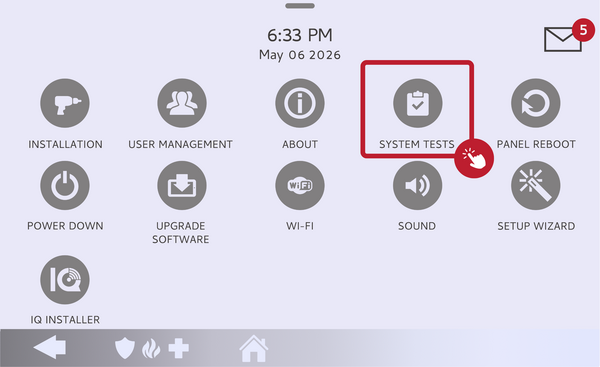 Touch System Tests, then open Panel Test.
-
Run the LED Green/Red test. Find the LED Green/Red item in the Panel Test list and select Run next to it. Choosing this single item tests only the LED, without sounding the siren.
Select Run next to the LED Green/Red test. -
Watch the LED and read the result. Watch the panel's status LED as the test runs to confirm it lights correctly, and check the pass or fail result on screen. A pass means the LED is working; a fail points to an LED issue to troubleshoot.
Did you find this answer useful?
We offer alarm monitoring as low as $10 / month
Click Here to Learn MoreRelated Products


- Answered