
How Do I Run the Input Voltage Test on the IQ Panel 5?
To run the Input Voltage Test on the IQ Panel 5, swipe down and touch Settings, then Advanced Settings, and enter the Installer or Dealer code. Touch System Tests, then Input Voltage Test. The panel then measures and displays the real-time DC voltage it is receiving from its power supply.
What the Input Voltage Test Is
The IQ Panel 5 (available in AT&T LTE and Verizon LTE) runs on a DC power supply that plugs into the wall, with a backup battery inside the panel. The Input Voltage Test measures, in real time, the DC voltage the panel is actually receiving at its power input. It is one of the System Tests built into the panel, alongside the WIFI, cellular, and daughter card tests, and it gives a direct reading rather than just a charging icon.
This reading is useful for confirming the panel is getting steady, correct power. A normal reading means the power supply and wiring are delivering proper voltage, while a low or unstable reading points to a problem with the transformer, the wiring run, or the power connection on your security system. It is the first thing to check when the panel reports a power or low-battery trouble that will not clear.
When to Use This Test
Because it lives in Advanced Settings, the Input Voltage Test requires the Installer Code (1111 by default) or Dealer Code (2222 by default) rather than the everyday Master Code (1234 by default). As a DIY installer, you already have your Installer Code, so this test is available to you whenever you want to confirm your panel's power or track down a power or low-battery trouble yourself. For a quick day-to-day check, the battery status icon in the Settings Tray is enough; reach for the Input Voltage Test when you want the actual voltage reading behind that icon.
Run the Input Voltage Test
-
Swipe down and touch Settings. Swipe down from the top of the screen to open the Settings Tray, then touch SETTINGS.
 Swipe down and touch Settings.
-
Touch Advanced Settings and enter your code. Touch ADVANCED SETTINGS, then enter the Installer Code (1111 by default) or Dealer Code (2222 by default). The panel advances automatically after a valid code.
 Touch Advanced Settings.
 Enter the Installer Code (1111) or Dealer Code (2222).
-
Touch System Tests. On the Advanced Settings page, touch SYSTEM TESTS to open the list of diagnostic tests.
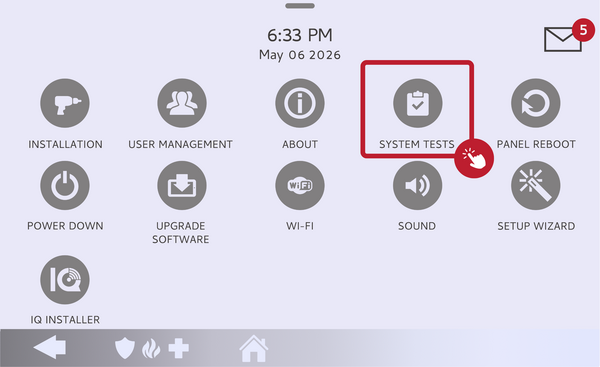 Touch System Tests.
-
Touch Input Voltage Test. Touch INPUT VOLTAGE TEST. The panel measures and displays the DC voltage it is receiving in real time. A reading in the expected range confirms the power supply is delivering proper voltage.
The Input Voltage Test shows the real-time DC voltage reading.
Tips
After a power outage, give the panel time on wall power before judging the reading, since the battery draws current as it recharges. If the voltage reads low or unstable while plugged in, check that the power supply is fully seated and that the wiring run is not too long or too thin for the panel. Never disconnect the battery without following the proper power-down steps, since doing so can corrupt data or damage the panel.
Running the Input Voltage Test on the IQ Panel 5 confirms your panel is receiving steady, correct power. For help running the test or reading the result on your IQ Panel 5, contact the Alarm Grid support team. We are here Monday through Friday from 9:00 AM to 8:00 PM Eastern Time. Email us at support@alarmgrid.com, call us at 888-818-7728, or visit our website and chat with a live support agent.
Did you find this answer useful?
We offer alarm monitoring as low as $10 / month
Click Here to Learn MoreRelated Products


Related Categories
- Home Security Systems
- Home Security Systems
- Apartment Security Systems
- Small Business Security Systems
- Monitored Home Security Systems
- Smart Home Controllers
- DIY Wireless Security Systems
- Wireless Touchscreen Alarm Panels
- Answered