
How Do I Set Up the Solar Install Tracker on the IQ5 Hub?
To set up the Solar Install Tracker on the IQ5 Hub, swipe down and touch Settings, then Advanced Settings, and then enter your own Installer Code. Next, touch Installation, then Installer Settings, and then enter your Integrator ID, email, and project code with the Solar Page enabled first.
About the Installation Tracker
The Installation Tracker on the IQ5 Hub (available in AT&T LTE and Verizon LTE) is a solar integrator tool. It is where a solar installer enters their Integrator ID, email, and project code to set up the Solar Install Tracker and the Solar Page, which is what links the panel to the solar project so solar system information can be pushed to it. If you are a typical homeowner without a solar system, this setting will not apply to you, since it exists to connect a solar integrator's project to your security system.
The Installation Tracker is greyed out and cannot be used until the Solar Page is enabled, which is why it may appear locked on your panel. Enabling the Solar Page turns on the feature, and entering the integrator details through the Installation Tracker is what actually makes the Solar Page appear and start showing data. In other words, the Solar Page setting opens the door, and the Installation Tracker completes the setup. See our guide on how to turn on the Solar Page on the IQ5 Hub to enable it first.
Before You Begin
The Installation Tracker is in the Installer Settings, which require the Installer Code (1111 by default) or Dealer Code (2222 by default). The steps below use the Installer Code. You need the Solar Page enabled for the Installation Tracker to be selectable, and you will need the Integrator ID, email, and project code from the solar installation, so have those details ready before you start.
Set Up the Solar Install Tracker
-
Swipe down and touch Settings. Swipe down from the top of the screen to open the Settings Tray, then touch SETTINGS.
 Swipe down from the top of the screen to open the Settings Tray.
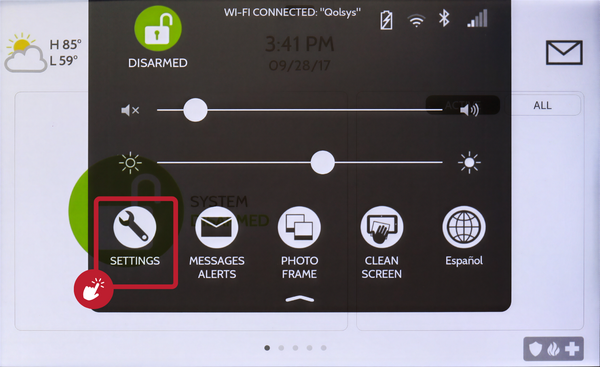 Touch Settings in the Settings Tray.
-
Touch Advanced Settings and enter your Installer Code. Touch ADVANCED SETTINGS, then enter your Installer Code (1111 by default). The Dealer Code (2222) works here too. The panel advances automatically after a valid code.
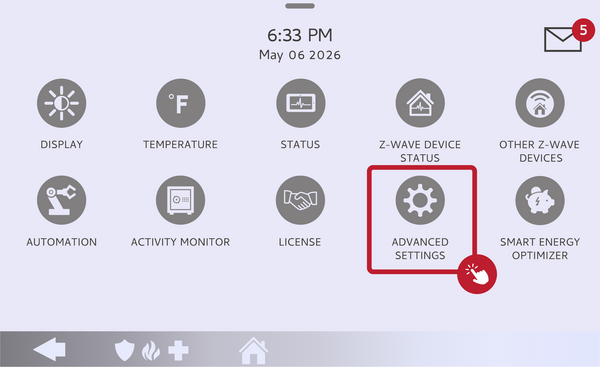 Touch Advanced Settings.
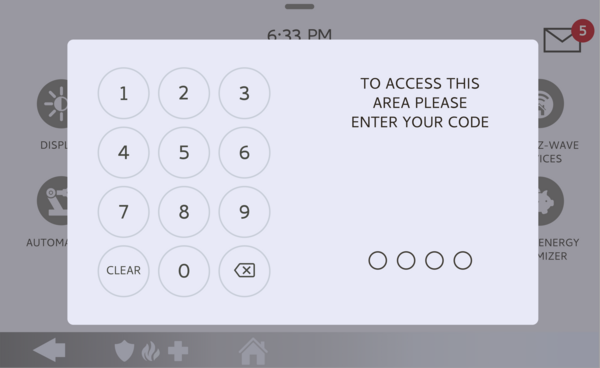 Enter your Installer Code (1111 by default).
-
Touch Installation, then Installer Settings. Touch INSTALLATION, then open INSTALLER SETTINGS and find the Installation Tracker, within the Solar Page settings.
Open Installer Settings and find the Installation Tracker. -
Enter the integrator details. With the Solar Page enabled, open the Installation Tracker and enter the Integrator ID, email, and project code from the solar installation. Save the entries to link the panel to the solar project and build the Solar Page.
Enter the Integrator ID, email, and project code.
Tips
This setting is meant for the solar integrator, so the Integrator ID and project code come from them, not from the homeowner. If the Installation Tracker is greyed out, the fix is to enable the Solar Page first, since the tracker stays locked until that feature is on. Once the details are entered correctly, the Solar Page appears on the panel and can display the solar webpage and inverter data, which is the whole point of setting the tracker up.
Setting up the Solar Install Tracker on the IQ5 Hub connects a solar project to the panel so solar data can appear. For help with the Installation Tracker or the Solar Page on your IQ5 Hub, contact the Alarm Grid support team. We are here Monday through Friday from 9:00 AM to 8:00 PM Eastern Time. Email us at support@alarmgrid.com, call us at 888-818-7728, or visit our website and chat with a live support agent.
Did you find this answer useful?
We offer alarm monitoring as low as $10 / month
Click Here to Learn MoreRelated Products


- Answered