
How Do I Update the Firmware On My 2GIG GC Touch Panel?
The 2GIG GC Touch supports local firmware updates using a USB flash drive. Connect a drive containing the firmware file in .zip format to the panel's rear Type C port. When the panel detects the update, enter your Master Code or Installer Code to authorize and begin installation.
You can also update the GC Touch firmware over the air (OTA) through Alarm.com. Your alarm dealer can push the update remotely. If the panel is connected to WIFI, there is no charge. If WIFI is not available, you can either update locally using a USB drive at no cost or pay a nominal fee to perform the OTA update using the panel's cellular connection.
Keeping your system firmware up to date ensures optimal performance and access to the latest features. The 2GIG GC Touch, available in AT&T LTE and Verizon LTE versions, makes this process straightforward by supporting local updates through a USB flash drive connected to the rear Type C port.
Update Requirements
Before starting the firmware update process, verify the following conditions are met:
- Disarm the system. The panel must be in a disarmed state.
- Confirm AC power connection. The panel must remain connected to AC power throughout the update process.
- Check battery level. The internal battery must be above 20 percent capacity.
- Prepare the flash drive. The firmware file must be in .zip format and located in the root directory of the USB drive. The drive should contain no other files in the root directory and must have only one partition.
Download the Firmware Files
- Locate the file. Alarm Grid hosts the update files on this page.
- Download the file. After opening the link, you may see the contents of the .zip file displayed. Do not extract the files. Click the download icon (⤓), usually located in the top right corner, to download the file in its original .zip format. Do not change the file name.
- Transfer to USB. If you did not download the file directly to the USB drive, move it after downloading. The file must remain in .zip format, the name must not be changed, and the drive should contain only this file in the root directory with a single partition.
Performing the Update
Follow these steps to update your 2GIG GC Touch firmware:
- Dismount the panel. If the panel is mounted, remove it to access the USB C port. Using a Phillips screwdriver, loosen the two retaining screws on the bottom edge. Pull the bottom edge forward, then lift the panel upward to release it. Remove the set screw from the back cover to access the port.
- Insert the USB flash drive. Plug the USB drive into the Type C port. Depending on the drive, you may need a USB A to USB C adapter or an extender dongle for easier access. Common options are USB A female to USB C male, or USB C female to USB C male.
- Wait for the update prompt. When the panel detects new firmware, it will display a popup showing the current version and the new version, along with a 60 second countdown timer.
- Enter your authentication code. Enter your Master Code (default: 1111), or your Installer Code (default: 1561) then tap Enter (↵). Software version 1.1 removes the need to press Enter after code entry.
- Allow the update to complete. If the code is accepted, the update will begin automatically. Do not remove power or the USB drive during this process. If an incorrect code is entered, the panel will display a "Wrong Master Code" message.

GC Touch with rear mounting plate removed, showing panel's back cover with set screw.

GC Touch with rear panel removed, showing the USB C port.

Update message with code entry prompt. This message appears as soon as the panel recognizes a firmware update is available via the USB C port. You have 60 seconds to enter a valid code.
Understanding Update Notifications
If the 60 second timer expires, the keypad will disappear and a firmware update icon will appear in the top status bar. This indicates that an update is pending. To restart the process, remove and reinsert the USB drive. If the drive is removed completely, the icon will disappear until it is reconnected. Once reconnected, the 60 second timer will begin again as the panel waits for the entry of a valid code.

Requesting Firmware Through the Panel
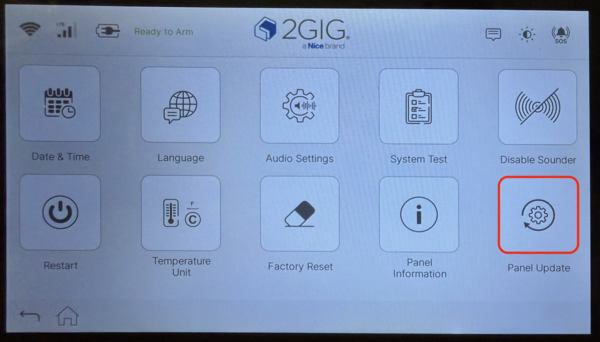
In the first firmware update (1.1), 2GIG added the ability to request Over the Air (OTA) updates through the panel. In order to receive an OTA update, the panel must be registered with Alarm.com and have a connection to WIFI in addition to all the other requirements mentioned above. To request the firmware update Tap Settings (⚙) > Enter Installer Code (default: 1561) or Master Code (default: 1111) > Equipment Management > Panel Update.
Updating firmware on the 2GIG GC Touch helps maintain security system reliability and functionality. Always ensure the panel is on AC power, the battery is above 20 percent, and the system is disarmed before beginning. For assistance with firmware updates or panel maintenance, contact the Alarm Grid support team at support@alarmgrid.com, Monday through Friday from 9:00 AM to 8:00 PM Eastern Time. You can also visit our website to chat with a live agent between 9:00 AM and 6:00 PM Eastern Time.
Did you find this answer useful?
We offer alarm monitoring as low as $10 / month
Click Here to Learn MoreRelated Products


- Answered
- Answered By
- Julia Ross