
How Do I Add a New User Code on the IQ5 Hub Alarm Panel?
To add a user code to the IQ5 Hub, swipe down from the top of the screen and tap Settings. Next, tap Advanced Settings and enter your Master Code (default: 1234) when prompted. Tap User Management, then Add User at the bottom of the screen. Fill in the requested information and tap Add User.
Adding a new user code to your IQ5 Hub panel gives household members, guests, or employees their own unique access to the security system. The panel supports three user types: Master, User, and Guest. The IQ5 Hub supports up to 242 user codes.
Before You Begin
Before you begin, make sure your IQ5 Hub, available in AT&T LTE and Verizon LTE versions, is powered on and displaying the home screen. You will need a Master code (default: 1234) or Installer code (default: 1111) to access Advanced Settings. Only Master, Installer, and Dealer level codes can create or edit user codes on the system.
Adding a New User Code
- Access Advanced Settings. Touch the screen just above the time and date and swipe downward to open the Settings Tray. Tap Settings then Advanced Settings. When prompted, enter the Master Code (default: 1234) or Installer Code (default: 1111) to enter the advanced settings screen.
- Access User Management. Tap User Management. This screen lists all existing user codes on the system. From here, you can add, edit, or delete user codes and assign partition access when partitions are enabled. Tap ADD USER to create a new user for the IQ5 Hub. To edit an existing user, tap the pencil icon to the right of that user. To delete a user, tap the trash can icon for the user. Some users, like the Master Code (Admin) can't be deleted.
-
Enter the new user's information:
- Enter a name: The name is how activity for this user is logged by the panel. We recommend you be as accurate and complete as possible here.
- Enter the new code. Every user code must be unique within the system. Choose a new 4-digit code that the user can remember, but that isn't easily guessed. Confirm the code by entering it again.
- Choose a User Type. Each user code must be assigned a type. Think of this as an authority level. The types are Master, User, and Guest. Choose the type from a drop down list. A Master user can access Master level Advanced Settings, including to add/edit/delete other users and itself. A secondary Master user cannot edit the System Admin code. There is no discernible difference between the capabilities of a Guest and a User.
- Set an expiration date. If applicable, you can set a user code to expire on a specific date. When you set an expiration date, the code will stop working on the first minute of the date selected. So, if you set 05/31/26 as the expiration date, at 12:01 AM on that date, the code stops working.
- Enable/Disable Bypass. By default, the ability to bypass zones is enabled. You can disable it, which will require the user to secure all burglary zones before arming.
- Set partition. On an IQ5 Hub with partitions enabled (this means partitions enabled and at least one zone assigned to each partition to be used), you'll see an option to assign the new user to one or more partitions. Tap the space for Partition Access, then check the box for each partition this code can control.
- Touch ADD USER to save. The new user code is now active on the system. The user can immediately use their code to arm, disarm, and interact with the panel based on their assigned access level.
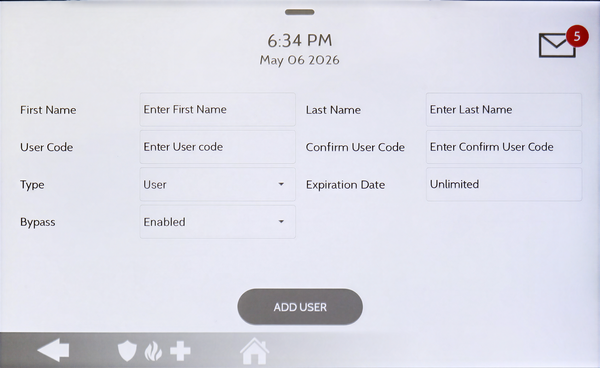
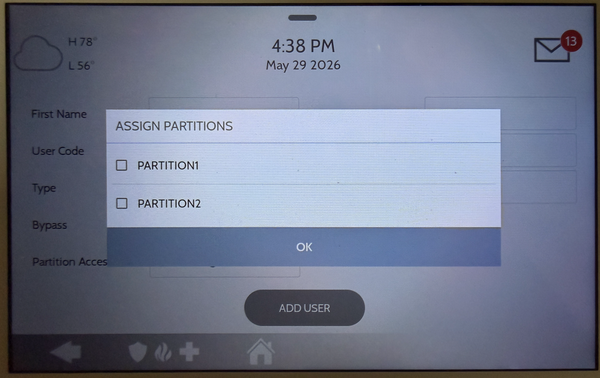

After tapping User Management, you'll see the above screen, with existing users displayed. Tap ADD USER to create a new IQ5 Hub user
Tips
For security purposes, change the default Master code (1234) after installation. Each user should have a unique code so the system can track who armed or disarmed and send detailed notifications when using Alarm.com remote services. If 6-digit user codes are enabled on your system after some 4-digit codes have been added, the panel automatically appends "00" to existing 4-digit codes. For example, code 1234 becomes 123400.
Adding user codes on the IQ5 Hub gives each person in your household or business their own secure access to the security system. For help with user codes or other configurations listed on the IQ5 Hub FAQ page and other settings on your IQ5 Hub, contact the Alarm Grid support team. We're here Monday - Friday from 9:00 AM - 8:00 PM Eastern Time. Email us at support@alarmgrid.com.
Did you find this answer useful?
We offer alarm monitoring as low as $10 / month
Click Here to Learn MoreRelated Products


- Answered