
How Do I Connect a VISTAH3 to the Internet?
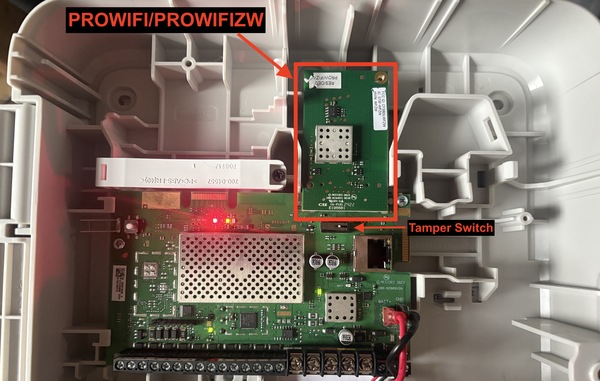
To connect a First Alert VISTAH3 to the internet, use the built-in Ethernet jack for a wired link, or install a PROWIFI or PROWIFIZW (WIFI & Z-Wave) module to join a 2.4 GHz network. In addition to providing an alternate communication path, IP communication allows for VISTAH3 firmware updates.
The VISTAH3 offers two internet paths. A built-in Ethernet connection is available via the onboard RJ45 port, while wireless access requires the addition of a PROWIFI or PROWIFIZW module, which supports 2.4 GHz 802.11 b/g/n. These WIFI modules only support 2.4 GHz because it is better able to penetrate walls and other solid objects. Either path, Ethernet or WIFI, allows the panel to communicate with AlarmNet and Total Connect 2.0 for remote services, diagnostics, and firmware updates.
Because the wireless touchscreen communicates through the panel’s WIFI, the initial WIFI setup must be performed using the Total Connect 2.0 (TC2) mobile app after your dealer has created and commissioned your account. If you prefer a wired connection, simply plug an Ethernet cable from your router or switch into the panel’s RJ-45 port and verify link status. For IP communication you can use WIFI or Ethernet, not both. For WIFI setup through TC2, follow the steps below.
- Confirm your TC2 account is active and commissioned. Your alarm dealer must create and fully commission your Total Connect 2.0 account. When you receive the welcome email, set your password, install the TC2 app on your mobile device, and log in.
- Open WIFI tools in the TC2 app. In the app, tap the More (…) icon, select Settings, then choose Change Device WIFI Settings to begin the guided connection process.
-
Enable Bluetooth pairing on the panel. If you just installed the WIFI module and the cover is still off the panel, but more than 30 minutes have passed, press and release the panel’s tamper switch to re-enable Bluetooth. It remains active for 30 minutes once the tamper switch is released. The tamper switch is located on the main panel board, just under the PROWIFI or PROWIFIZW module.
- Let TC2 discover and connect to the panel. Tap Next in the TC2 app. You’ll see “Searching for devices.” When the app detects the VISTAH3 via Bluetooth, it will automatically connect and then display “Fetching WIFI list.”
- Select your 2.4 GHz WIFI network. When available networks appear within TC2, tap your SSID, then tap Next. If your SSID isn’t listed, tap Refresh Networks and select it once it appears.
- Enter the WIFI password. Once you've selected your SSID from the list, type your network password carefully, it is case-sensitive. Confirm to proceed, and allow the panel to complete the connection to your WIFI network.
- Verify success and finish setup. When the connection completes, TC2 shows a green checkmark and the message “Success.” You can exit the app if you’ve finished app-related tasks; your panel is now online for monitoring and remote control. More importantly, you can now add a touchscreen keypad to the panel.
If you prefer to use Ethernet instead of WIFI, connect a Cat5e or Cat6 cable from your router or switch to the panel’s Ethernet jack, then verify link and IP details in system information. The VISTAH3 requires a DHCP connection. There is currently no way to set up a static IP within panel settings. If you prefer that your system have the same IP every time you can set up a reserved IP for the system within your router's settings. This will help you stay connected for faster updates and complete system control through Total Connect 2.0.
In addition to an IP path, the VISTAH3 also supports LTE cellular communication when equipped with a PROLTE-A2 (AT&T) or PROLTE-V2 (Verizon) radio module. When both IP and cellular communication are active, this is called dual-path reporting. The system always uses the IP path if available, switching automatically to the cellular path if IP becomes unavailable, ensuring reliable alarm reporting.
Did you find this answer useful?
We offer alarm monitoring as low as $10 / month
Click Here to Learn MoreRelated Products


- Answered
- Answered By
- Julia Ross