
How do I disarm the 2GIG GC Touch security system?
Properly disarming your security system prevents false alarms and ensures the panel responds to sensor activity correctly. The 2GIG GC Touch provides several disarming methods, including manual PIN entry and automatic Bluetooth disarm. Understanding each method helps users disarm effectively.
Standard Touchscreen Disarming
Follow these steps to disarm the system using the touchscreen interface:
-
Locate the mode slider control. The slider appears on the right side of the home screen. It shows three positions: Armed Away at the top, Disarm in the middle, and Armed Stay at the bottom.
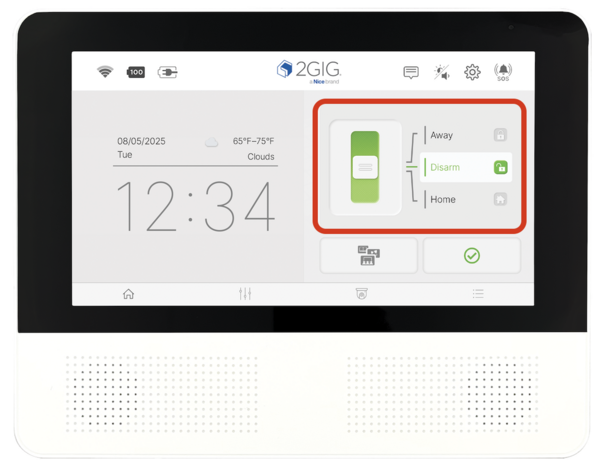
- Slide the control to the middle position. Tap and drag the slider until it reaches the center Disarm position. The slider displays green text labeled "Disarm" when positioned correctly.
- Enter a valid user PIN code. The system prompts for PIN entry after sliding to Disarm. Type a valid 4-digit or 6-digit user code using the on-screen keypad, then tap Enter to complete the disarm process.
- Verify the system status. The panel confirms disarming through a voice prompt announcing the status change. The slider remains in the middle position showing Disarm status with green text.
If an incorrect PIN code is entered, the panel displays an error message and prevents disarming. Each user programmed into the system possesses a unique PIN code that works for arming and disarming operations. The default Master Code is 1111, and can be changed through User Management settings.
Keyfob Disarming
Wireless keyfobs provide one-button disarming without accessing the touchscreen. Press the disarm button on an enrolled 345MHz keyfob to instantly disarm the system from anywhere within wireless range. This method works well when entering through a garage or side door away from the panel.
Keyfobs must be enrolled in the panel before use. The enrollment process uses Sensor Settings with either Quick Add or Manual Add, selecting "Keyfob" as the Device Type. For step-by-step instructions, see our guide on How Do I Program a Key Fob Into a 2GIG GC Touch Panel? The panel can emit a unique sound alert when disarmed via keyfob during an active alarm if the Alert on Disarm with Keyfob setting is enabled.
Wireless Keypad Disarming
At the time of panel release, the only secondary keypad available for the GC Touch is the 2GIG-PAD1-345. This is a very simple keypad that can be used for arming, disarming, and panic activation. Once the system has been armed, entering a valid code into the PAD1-345 is all that's required to disarm. However, there is one important note to keep in mind.
When information is sent to the panel wirelessly by the PAD1-345, it is sent completely unencrypted. That means, it is possible for a burglar to sit nearby with a 345 MHz wireless receiver and read the information being transmitted, including the 4-digit code used. For this reason, we recommend using this keypad for quick arming, but not for disarming. Use one of the other methods listed here for disarming instead.
Alarm.com App Disarming
The Alarm.com mobile app allows remote disarming from anywhere with internet access. Open the app on your smartphone, select your security system, and tap the Disarm button. The command travels through cellular or WIFI to the panel, which disarms within seconds. This method requires an active monitoring plan (Self or Full) with Alarm.com connectivity.
Remote disarming through the app proves useful when granting access to visitors, service technicians, or family members who arrive before you. The app also provides real-time notifications confirming when the system arms or disarms, letting you monitor activity from anywhere.
Bluetooth Auto-Disarm
The GC Touch allows for automatic Bluetooth disarming using paired mobile devices. To use this feature, the panel must be connected to AC power with Bluetooth enabled. Once a paired device is within range, the system will automatically disarm after the Bluetooth Disarm Timeout period expires.
The timeout setting ensures your phone doesn't immediately disarm the system as you walk away after arming in Away Mode. You can choose a timeout period of 1, 5, 10, or 30 minutes. To change this, access the Settings menu using the Installer Code (1561) or Master Code (1111), then select Bluetooth Management. The system can support a total of 64 Bluetooth devices, matching the maximum number of user codes allowed.
Duress Code Protection
The Special Users section in User Management contains the Duress code setting. A Duress code appears to disarm the system normally but sends a silent panic alarm to the monitoring station, alerting authorities that the user is under threat. This feature provides protection when a user is forced to disarm under dangerous circumstances.
The 2GIG GC Touch delivers flexible disarming options through touchscreen PIN entry, wireless keyfob, Bluetooth auto-disarm, and remote Alarm.com access. Multiple methods ensure you can always disarm conveniently regardless of how you enter your home. For help with disarming procedures or keyfob setup on your GC Touch panel, email the Alarm Grid support team at support@alarmgrid.com. Our support hours are Monday - Friday from 9:00 AM - 8:00 PM Eastern Time.
Did you find this answer useful?
We offer alarm monitoring as low as $10 / month
Click Here to Learn MoreRelated Products


Related Categories
- Answered